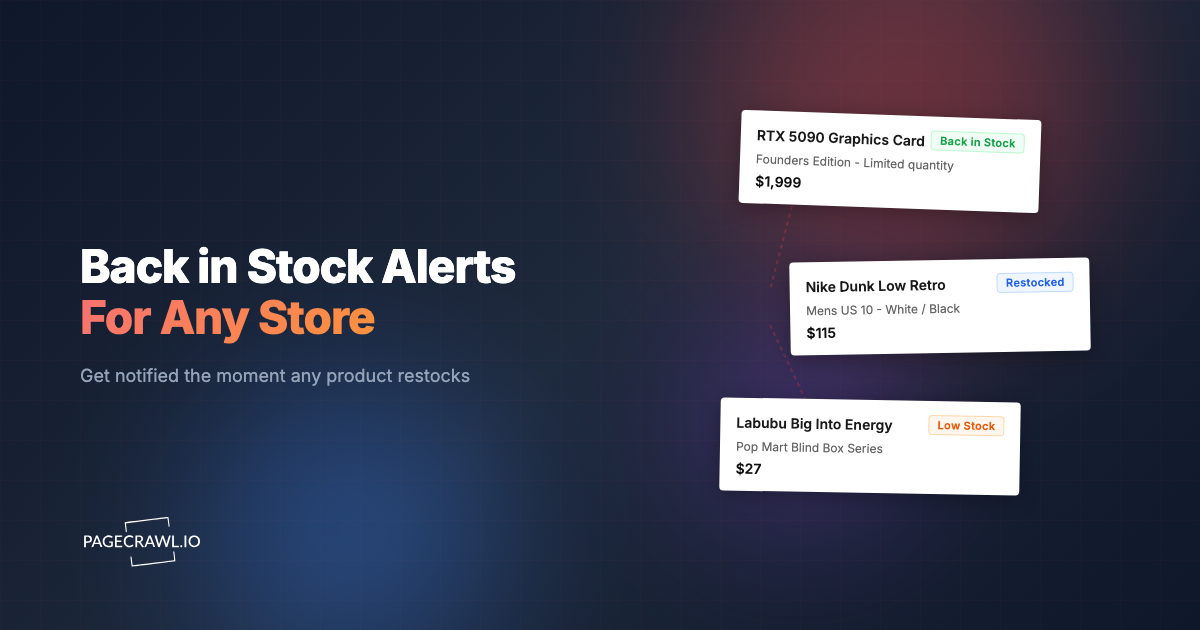
The item is sold out. Where Add to Cart used to be, there is a small field asking for your email and a button that says "Notify me when back in stock". You type your address, you get a confirmation, and then one of three things happens. Nothing, for weeks. Or an email lands and the item is gone again before you finish reading it. Or an email lands for a size you never asked about, while the size you did want quietly came and went.
None of that is a bug. That button is a real, documented feature of the software the store runs on, and how it behaves is a merchant setting rather than a promise to you. WooCommerce ships back in stock notifications as an add-on, Adobe Commerce calls the same thing a product alert that a merchant switches on or leaves off, and email platforms supply the back in stock flow that actually sends the message, with rules about who gets it and in what order. Once you know which of those sits behind the button, most of what goes wrong with it stops being mysterious.
This guide is about the button itself rather than restock alerts in general. What a signup creates on the store's side, why the email runs late or never comes, whether your size is even covered, what the different button labels mean, how to tell whether a store offers one at all, and how to run your own watch on the exact page so the send schedule is yours. If you want the broader background on how restock alerts work as a category, the full guide to back in stock alerts covers it and this post will not repeat it.
What does the "Notify me when back in stock" button actually do?
It adds your email address to a list attached to that product inside the retailer's system. It reserves nothing, holds no place in a queue, and buys you no priority at checkout. When stock is recorded against the item again, the store queues a message to the people on that list and sends it on its own schedule, in its own batches.
What a signup does create
Four things, and they are all on the store's side of the fence. A row linking your address to a product identifier. A trigger condition, usually "inventory for this item is greater than zero". A send, handled by whichever email platform the store uses for marketing. And, on several platforms, a one-time consumption: once the message goes out, that row is finished, whether or not you saw it in time.
What a signup does not create
It is not a reservation, so nothing is held while you sleep. It is not a queue position, so signing up first does not put you at the front. It is not a purchase right, so you still race everyone else at checkout. And it is not a guarantee the product returns at all, because a discontinued item can keep its page, and its signup form, indefinitely.
Why a signup can be spent without you noticing
That one-time consumption is the part shoppers rarely expect. Magento stamps the alert row as sent and never picks a spent row up again, and PrestaShop's module deletes the row inside the same loop that sends the mail, so on both platforms a signup is good for exactly one send. A restock of two units can be enough to fire the trigger, spend your subscription, and sell out again before the batch finishes going out. From your side it looks like the email never came. From the store's side the alert was delivered exactly as configured, and where the platform works this way you have to sign up again to hear about the next one.
That leaves three variables you do not control: when the send fires, which address it reaches, and which version of the product it covers. The next three sections take those one at a time.
Why do back in stock emails arrive late, or never at all?
Three causes account for most of it. Stores send waitlist mail in batches rather than one message per signup, the mail usually travels through the same marketing sender you may have filtered or unsubscribed from, and the inventory feed that triggers the send can lag behind what the product page is already showing shoppers.
Batching, and who gets the first batch
A restock notification is a campaign, not a transactional receipt. Email platforms let a merchant split the recipients, stagger the sends, or hold back part of the list, which is sensible when a hundred people are waiting on twelve units. It also means "everyone on the list was emailed" and "everyone on the list was emailed at once" are very different statements, and only the store knows which one applied to you.
Deliverability, and the marketing sender problem
Waitlist mail generally goes out on the marketing sending domain rather than the order-confirmation one. If you have ever unsubscribed from that store's newsletter, marked one of its emails as spam, or set up a filter that files promotional mail away unread, you can suppress your own restock alert without realising it. The alert also goes to whatever address the signup captured, which is often not the address on your account if you were signed out at the time.
Feed lag
The product page and the notification trigger do not always read the same source. A page can show the buy button back before the job that sends alerts has noticed, which is why people sometimes see an item restock on the site hours before the email about it lands. Watching the page directly sidesteps this entirely, because the page is the thing you are actually going to buy from.
The checklist when nothing arrived
Check promotions and spam folders first. Then check whether you are unsubscribed from that store's marketing mail, which can silently suppress waitlist sends. Then check which address the signup used, especially if you were signed out. Then look at whether the confirmation email ever arrived, because if the confirmation did not reach you, the restock alert was never going to either. And finally, consider that the item may have restocked, sent, and sold out inside a window you never saw.
Does a waitlist signup cover your exact size, color, or configuration?
It depends on the platform, and the big open-source ones do it in opposite ways. Magento's built-in notify-me table stores a customer and a single product id, with no column for a size at all, so one size returning marks the whole product available. WooCommerce's back-in-stock extension records the variation you actually selected.
Parent-product lists versus variant lists
A variant-level list stores your subscription against the specific size, color, or storage tier. A product-level list stores it against the product as a whole. You can read the difference straight out of the source code. Magento's product_alert_stock table has nine columns, and the only thing identifying the item is product_id, so the row physically cannot record which size you wanted. Its configurable products, the ones with a size or color selector, count as back in stock as soon as any one child variant is, which means a single size returning mails everyone who signed up on that page.
Other platforms are the reverse. PrestaShop's mail alerts module keys its table on the specific combination you picked, and Klaviyo's back-in-stock API will not accept a subscription without a variant. So both designs are out there, sometimes as a merchant checkbox in the same plugin, and almost no store tells you which one you just joined. On a product-level list your email is a lottery ticket on whichever variant returns first.
How to tell which one you got
Pick your size on the product page and watch the address bar. If the URL changes, gaining something like a variant identifier or a size parameter, each size has its own address, which is what you need in order to watch one size on its own. If the selector never touches the URL, the sizes share a single page and any watch has to cover all of them. The same test works for colorways, storage tiers, and bundle configurations.
What the address bar cannot tell you is what the store's signup covers, because the two are set by different software. The WooCommerce extension linked above attaches its form to the sold-out variation and records the attributes you picked, on a platform where choosing a size never changes the URL at all. To learn the scope, select your size before you sign up and then read the confirmation email. Software that subscribes you to one variant names that variant back to you, and software that does not, does not.
Why this decides what you should watch yourself
It is the practical reason to watch a variant URL rather than a product URL. A page that covers six sizes will look like it changed as soon as any one of them returns, and you will be sent to checkout for a shoe two sizes too big. Retailers where this trips shoppers up are well documented, and the American Eagle restock guide walks through a store where sizes behave exactly this way.
What do Notify Me, Waitlist, Backorder, and Coming Soon actually mean?
They describe genuinely different situations, and stores use the labels loosely. Notify me and email when available both mean sold out with no promise of a return. Waitlist is usually just another name for that same list, though a few stores do use it for a real allocation and say so. Backorder means you can buy now and wait for shipment. Coming soon means the product has not launched yet.
| Button or label | What it means | Will it come back | What to do |
|---|---|---|---|
| Notify me / Email when available | Sold out, no commitment either way | Unknown | Sign up, and watch the page yourself |
| Join the waitlist | Usually the same notify-me list under another name | Unknown | Join, but do not assume it holds a place for you |
| Backorder / Preorder | You can pay now, it ships later | Yes, on a stated date | Buy if the shipping estimate works for you |
| Coming soon | Not launched yet | Yes, at launch | Watch the page for the buy button appearing |
| Temporarily out of stock | Store expects to restock this item | Likely | Watch it, this is the best case for a page watch |
| Sold out, no form at all | Sold out, and the store offers no list | Unknown | A page watch is your only option |
| Check store availability | In stock somewhere, not for delivery | Already back, locally | Check pickup before setting anything up |
The distinction that matters most is between "temporarily out of stock" and a bare "sold out". Some stores use both deliberately, and the first is a signal from the merchant that the item is expected back. When a page carries that wording, a watch on it is much more likely to pay off than a watch on a listing that has simply gone quiet.
How do you tell whether a store has a notify-me option at all?
Open the sold-out product page and look at where the buy button used to be. If it has been replaced by a field asking for your email, the store has a waitlist. If the button just greys out, or the page says sold out with nothing else offered, there is no list to join, which is far more common than shoppers expect.
Run through this in about thirty seconds:
- Look at the buy button area for an email field or a "notify me" link. That is the whole feature, and it lives nowhere else on the page.
- Check whether it demands an account. Some stores only expose the option to signed-in customers, so a signed-out visitor sees nothing and assumes it does not exist.
- Check the mobile app. A handful of retailers offer stock notifications in the app but not on the website, or the reverse.
- Confirm the signup email arrives. If the confirmation does not reach your inbox, neither will the restock message, and you have found the problem before it costs you anything.
Whole categories of store offer nothing. Warehouse clubs generally do not, which is why the Costco restock guide is built around watching the page instead. Marketplace listings usually do not either, because the listing belongs to an individual seller rather than the platform, a situation the Etsy restock guide covers in detail. In both cases a page watch is not a better option than the waitlist, it is the only option.
Should you use the retailer waitlist, your own page watch, or both?
Both, with clear roles. Join the waitlist because it costs nothing and can occasionally catch a members-only release you cannot see from outside. Then run your own watch on the exact variant page as the signal you actually plan around, because you choose the page, the check frequency, and the channel that reaches you.
| Retailer waitlist | Your own page watch | |
|---|---|---|
| Who decides when you hear | The store | You |
| Variant precision | Whatever the store configured | The exact URL you paste |
| Channel | Email, on the marketing sender | Email, push, chat, or webhook |
| Works where there is no button | No | Yes |
| Survives a restock you missed | No, the signup is spent | Yes, it keeps checking |
| Cost | Free | Free tier, then paid by volume |
The honest verdict is that the waitlist is a free backstop rather than a strategy. For a slow-moving item that will sit in stock for a week once it returns, it is genuinely enough, and adding anything else is wasted effort. For anything that sells out in a single afternoon, it is the wrong tool on its own, because every variable that decides whether you get there in time belongs to somebody else. Which channel you pick for your own watch matters too, and the help centre covers enabling browser push alerts if email is not fast enough for what you are chasing.
How do you set up your own back in stock watch on the exact variant page?
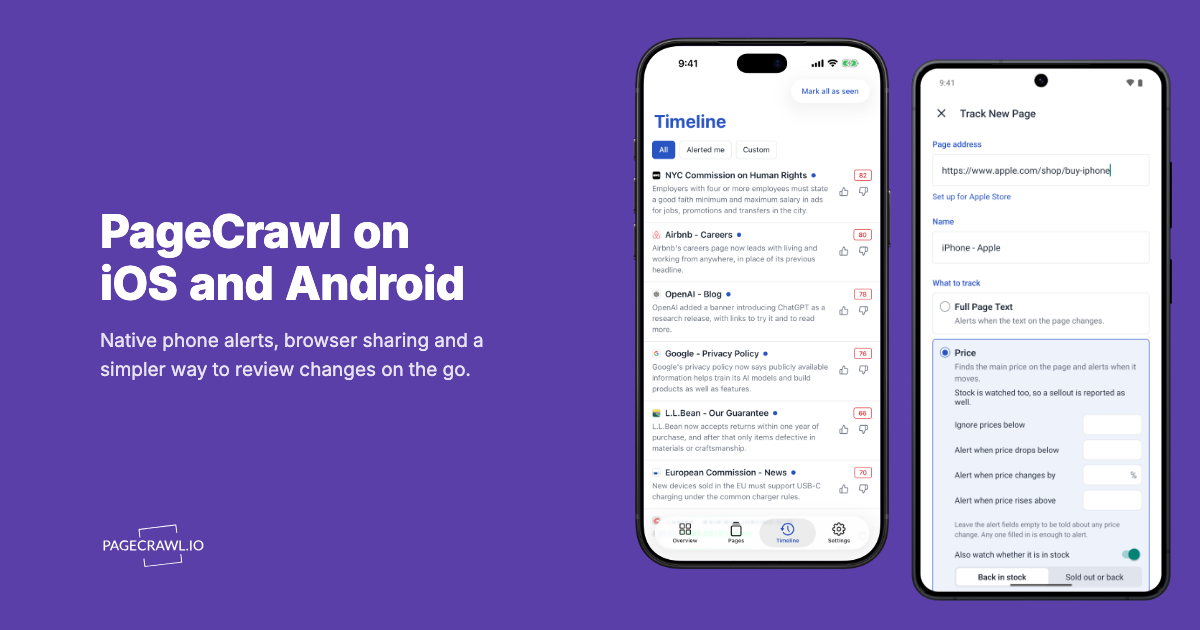
Copy the URL of the page showing the size or configuration you want, paste it into Track New Page, and choose Restock under What to track. PageCrawl shows you the stock state it found before you save, so you can confirm it has the item right.

- Select your size or configuration first. Do this on the store's page before you copy anything, so the URL in the address bar points at the variant rather than the product.
- Paste it into Track New Page. The page loads in a preview so you can see exactly what will be watched.
- Choose Restock under What to track. The option appears on pages where availability can be tracked reliably. If it does not appear, point the monitor at the buy area as a specific element instead and you get the same result.
- Check the stock state it reports. Out of stock is what you want to see before saving, because it confirms the monitor has the right item on the right page.
- Leave the default alerting. By default a Restock monitor tells you when the item goes from unavailable to available. Tick "Also alert me when it sells out" only if you are tracking demand rather than trying to buy.
- Correct it if the stock state looks wrong. Boutiques get creative with sold-out wording, and there is an option to tell the monitor what counts as unavailable on that particular store.
- Add a fast channel, and keep email as a backup. A push channel reaches a device you are carrying, and email leaves a record you can search later.
- Use the screenshot on the alert. Screenshots are on by default for a monitor set up this way, so when the alert fires the image shows you the page as it stood, and you can tell a real restock from a backorder or a marketplace listing before you rush.
Note: watch one URL per variant you would actually buy. Two sizes means two monitors, and that is the whole reason this beats a product-level waitlist. If you end up with a long list, conditional alert rules let you add a price ceiling so a restock at a markup does not wake you up.
Why does a page say "in stock" when you still cannot buy it?
Because availability text covers several states that are not the restock you are waiting for. Backorder and preorder listings read as available. So do third-party sellers at a markup, pickup-only stock at a store an hour away, and items whose price only appears in the cart. A screenshot attached to each alert lets you tell them apart before you drop what you are doing.
The tell for a backorder is a shipping estimate measured in weeks rather than days. The item is genuinely purchasable, so nothing is broken, but you are buying a promise rather than a parcel.
The tell for a third-party listing is a seller name that is not the retailer, usually in small text under the buy box. The page is in stock, but at whatever price that seller set, which on a hyped item is often well above retail.
The tell for pickup-only stock is a store selector or a toggle between delivery and collection. Availability at a location you cannot reach reads identically to availability you can use, so this one catches people out repeatedly.
The tell for a hidden price is a note asking you to add the item to your cart to see the price, which retailers use when a listed price would breach a supplier agreement. The item may be buyable, but you will not know what it costs until checkout.
If you want the wider toolkit for keeping alerts trustworthy, the help centre covers reducing false positives, and the same ground is covered for shoppers in the guide to cutting down false positives.
Notify-me behavior at the stores shoppers ask about most
Waitlist behavior varies more than most people expect. Some large retailers put a button on nearly every sold-out listing, some only expose it inside an account, and some offer nothing at all. Each store below has a fuller guide, so this is a map rather than a repeat.
Amazon shows a notification option on many listings, but a single listing can carry several sellers, so "available" and "available from the retailer at retail price" are not the same thing. The Amazon in-stock alerts guide covers reading the buy box properly.
Best Buy surfaces stock notifications on high-demand electronics, where the constraint is usually how fast the window closes rather than whether you were told. The Best Buy restock guide goes into the timing.
Apple sells configurations rather than products, so scarcity tends to sit on one storage tier or finish while the rest of the line is fine. The Apple in-stock guide explains how to point a watch at the exact configuration.
LEGO distinguishes between temporarily out of stock and sold out on its own product pages, which is unusually helpful, because the first wording tells you a return is expected. The LEGO restock guide covers the difference.
Apparel stores are where the variant problem bites hardest, since one page can hold a dozen sizes. The American Eagle and Abercrombie guides both work through size-level watching. And for the two big categories with no waitlist to fall back on, see the Costco and Etsy guides.
Common questions about notify me emails
These are the questions shoppers ask after signing up for a waitlist and hearing nothing back.
Does signing up for Notify Me reserve the item for me?
No. The signup adds your address to a list and nothing more. No unit is held, no queue position is assigned, and no checkout priority is granted. When the item returns you compete with everyone else on equal footing, including people who never joined the list and simply happened to be on the page.
How long does a back in stock email usually take?
It depends entirely on the store's send schedule, because the trigger fires when inventory is recorded and the message goes out with the next batch. Some stores send within minutes of the trigger, some group sends into windows through the day, and some split the list deliberately. You cannot see which applies to you from the outside.
Why did I never get my back in stock email?
Work through it in order: promotions and spam folders, then whether you are unsubscribed from that store's marketing mail, then which address the signup actually captured, then whether the confirmation email ever arrived. If the item restocked in small quantity, your subscription may also have been spent on a send that reached you after it sold out.
Can I sign up for Notify Me on more than one size?
Sometimes, and it comes down to the store's software rather than its URLs. Some platforms record the signup against the size you had selected even when every size shares one page, and the confirmation email names it back to you. Others record it against the product, so one signup covers whichever variant returns first. Where variants live on separate URLs you can simply sign up on each one. Watching a URL per size is the reliable version of what a product-level list only approximates.
Does the waitlist work if the item never restocks?
No, and a sold-out page can sit there for years with a working signup form on it. Signs a listing is finished rather than pending include disappearing from category pages and search, losing its reviews section, or being quietly replaced by a newer model that links from the same navigation. At that point neither the waitlist nor a watch will help.
Choosing your PageCrawl plan
PageCrawl's Free plan lets you monitor 6 pages with 220 checks per month, which is enough to validate the approach on your most critical pages. Most teams graduate to a paid plan once they see the value.
| Plan | Price | Pages | Checks / month | Frequency |
|---|---|---|---|---|
| Free | $0 | 6 | 220 | every 60 min |
| Standard | $8/mo or $80/yr | 100 | 15,000 | every 15 min |
| Enterprise | $30/mo or $300/yr | 500 | 100,000 | every 5 min |
| Ultimate | $99/mo or $999/yr | 1,000 | 100,000 | every 2 min |
Annual billing saves two months across every paid tier. Enterprise and Ultimate scale up to 100x if you need thousands of pages or multi-team access.
The math is straightforward. Standard at $80/year covers 100 product pages. If monitoring catches one $20 price drop, one mispriced competitor SKU, or one restock you would otherwise miss each month, the plan has paid for itself roughly four times over in the first year. For teams running real competitive pricing programs, Enterprise at $300/year tracks 500 SKUs, which is usually enough to cover a full category across every major competitor.
Getting Started
Pick the one item you actually want and open its exact variant page, the one showing your size or configuration. Sign up for the store's waitlist if it offers one, because it is free and occasionally useful. Then paste the same URL into PageCrawl, choose Restock under What to track, and add a channel that reaches your phone.
The free tier covers six pages, which is enough to watch a single item across several retailers and find out which one restocks first. Start there, and add variants as you learn which ones are actually scarce.
The difference between the two approaches is worth stating plainly. The waitlist is the store deciding when you hear about a product. Your own watch is you deciding. Keep both, and let the one you control be the one you plan around.