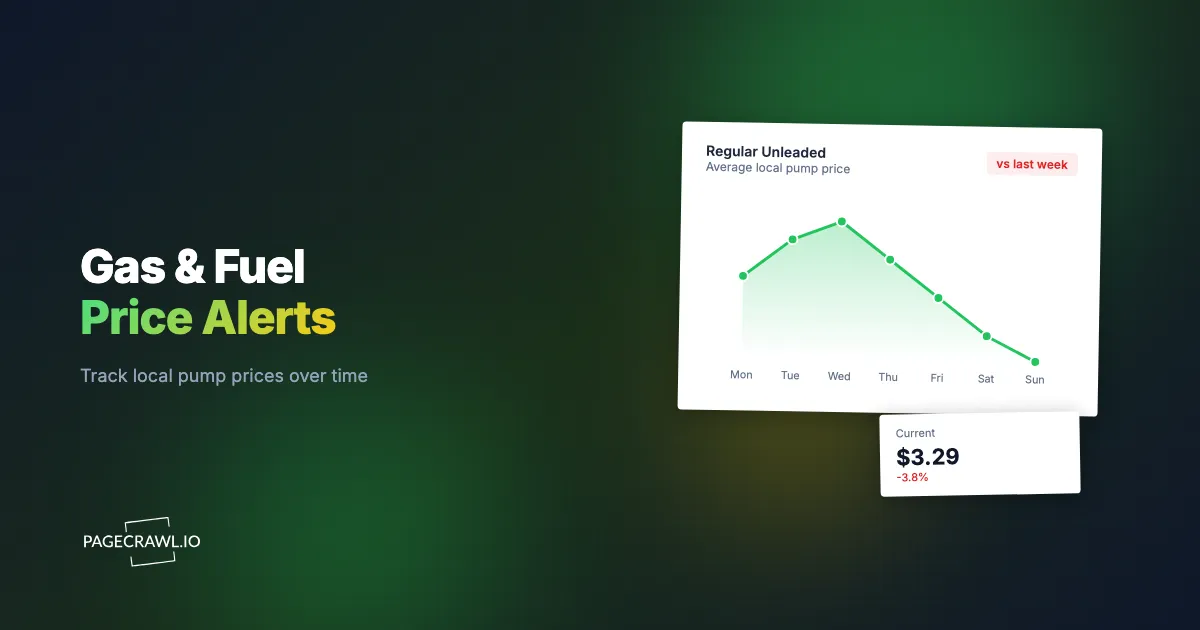
You pull into the station with the low-fuel light glowing, swipe your card, and watch $62 disappear. On the drive home you pass a station three blocks from your house advertising regular for thirty cents less a gallon. On a 14-gallon fill that is more than four dollars, every single week, gone because you guessed wrong about timing and location.
Gas prices are not random. They move on a rhythm: wholesale costs ripple through over days, stations near each other play follow-the-leader, and the same corner can swing forty cents in a single week. The problem is that the prices live on web pages you would have to refresh by hand, and nobody is going to load GasBuddy or a station chain's fuel-finder page twenty times a day on the off chance the number dropped.
That is exactly what automated monitoring is for. Instead of checking pump prices yourself, you point price and stock monitoring at the pages that show them, and it watches the number around the clock and pings you as soon as a check finds your station below the price you are willing to pay. This guide shows you how to set that up, which pages are worth watching, how to keep the alerts clean, and how to turn "I think gas is cheaper across town" into a notification that says exactly where and exactly how much.
Why do local gas prices swing so much day to day?
Local pump prices move because retail fuel is one of the most visibly competitive products in any town. Wholesale costs shift daily, stations adjust to match nearby competitors within hours, and demand patterns (weekends, holidays, commute times) can push the same corner up or down by tens of cents a gallon inside a single week. The weekly retail price series published by the US Energy Information Administration shows how quickly the underlying average moves.
The practical consequence is that timing matters enormously. The station that is cheapest on Monday morning is often not the cheapest by Thursday afternoon, and two stations on the same intersection can post different prices for the same grade. Because the swing is large relative to a tank (thirty cents across 14 gallons is over four dollars) and because you fill up roughly weekly, small timing wins compound into real money over a year.
You cannot beat that rhythm by checking manually. By the time you remember to look, the price has moved, and you have no record of whether $3.29 is a good price for your area or a mediocre one. A monitor solves both halves: it watches continuously so you never miss the dip, and it builds a price history so you can tell a genuine low from a number that just sounds cheap. The same logic drives grocery and food cost tracking, where small per-trip differences add up to a meaningful annual number.
Which fuel price pages can you actually monitor?
You can monitor any public web page that displays a current fuel price, which covers most of the places drivers already look. The strongest candidates are fuel-finder pages that list a specific station and grade, individual station or chain pages that post their own posted price, and regional price pages that show an area average you can benchmark against.
Here are the page types worth pointing a monitor at:
- Fuel-finder station pages: Sites like GasBuddy show a specific station with its regular, midgrade, premium, and diesel prices. A page for "your" station is the single most valuable thing to watch because it maps directly to where you fill up.
- Station chain pages: Many large chains and warehouse clubs (the kind with notably low member pricing) publish current fuel prices on their store-locator or club pages. These are clean, single-station numbers.
- Regional and state average pages: Auto club and energy pages, such as AAA's daily national and state gas price averages, publish an area average. Watching one gives you a benchmark so you know whether $3.19 is a real deal in your market or just an okay price.
- Diesel and alternative-fuel pages: If you drive diesel, or track propane, E85, or EV charging rates, those usually live on their own pages or tabs, and you monitor each one separately.
- Brand loyalty and fuel-rewards pages: Grocery fuel-points programs and station apps post promotional cents-off offers on web pages that change when a new promo goes live.
The rule of thumb: if a human can open a URL and read a price off it, a monitor can watch that same price for you and tell you when it changes. You do not need an official data feed or an API, just the page address.
How do you set up a gas price alert in PageCrawl?
You set up a fuel-price alert by adding the station page as a price-type monitor, then telling PageCrawl to notify you when the price drops below your target. The whole process takes about three minutes per station, and the free tier (6 monitors and 220 checks per month) is enough to watch your two or three closest stations.

Here is the full walkthrough:
Step 1: Find the page that shows your station's price
Open the fuel-finder or station page for the exact station you fill up at, the one with regular and diesel prices visible on screen. Copy that page's URL from your browser's address bar. Pick the page that shows the price as plain text on the page, not one hidden behind a map pin you have to click, because the cleaner the number is to read, the cleaner your alerts will be.
Step 2: Add the URL and choose price tracking
In PageCrawl, create a new monitor and paste the URL. For tracking type, choose Price. Price mode is built to find the primary number on the page, pull out just the numeric value, and record it over time as a clean data series instead of a wall of text. That means your history reads like "3.49, 3.46, 3.42, 3.29" rather than a diff of the whole page. The help article on monitoring numeric values to spot trends shows the charts and statistics you get from that series.
Step 3: Target the exact price element if the page has several
If the page lists regular, midgrade, premium, and diesel side by side, point the monitor at the specific grade you buy so it does not track the wrong number. You do this by selecting the price element directly. If you want precise control, our CSS selector guide explains how to grab one specific value on a page that shows many. For a page that only shows one price, you can skip this and let price mode auto-detect.
Step 4: Set your check frequency
Decide how often PageCrawl should re-read the page. Fuel prices typically move a few times a day, so checking every 15 to 60 minutes catches the dips without wasting checks. On the free tier you get hourly checks, which is fine for catching day-over-day moves. If you are chasing same-day swings on a fast-moving corner, a paid plan's 15-minute (or faster) interval gives you a tighter net.
Step 5: Add a drop condition so you only hear about wins
This is the step that makes the difference between a useful alert and noise. Instead of being told about every two-cent wiggle, set a rule like "notify me only when the price is at or below $3.25." PageCrawl's conditional price and threshold rules let you alert on a target price, a percentage drop, or a down-only direction so you never get pinged when prices rise. The help article on notification conditions and filters covers how to build the rule per page. Set the threshold to the price that would make you go fill up now.
Step 6: Choose how you want to be told
Pick your notification channel. Email works for a daily-ish "prices in your area" rhythm, and our email alert setup guide walks through it. When you want to hear about a drop the same day it happens, browser and web push notifications land on your phone or desktop on the check that detects it, so you can detour on the way home. If you coordinate a family or a small fleet, route alerts into a Slack channel everyone watches.
Step 7: Duplicate for your other stations
Repeat steps 1 through 6 for the two or three stations you actually consider, plus one regional-average page as a benchmark. Now you are watching the station by your house, the warehouse club on your commute, and the cheap independent across town, all in one dashboard. When any of them crosses your target, you know before you are running on fumes.
How do you stop fuel-price alerts from becoming noise?
You keep alerts clean by tracking only the numeric price (not the whole page) and by alerting on a condition rather than on any change at all. Price-type monitoring extracts just the value, so station hours, station photos, nearby-station lists, and ad banners on the same page never trigger a false alarm. Add a threshold or down-only rule and you only hear about prices you would act on.
The biggest source of noise on fuel-finder pages is everything around the price: rotating promotions, "last reported 2 hours ago" timestamps, user comments, and lists of other nearby stations whose prices change constantly. If you monitored the full page text, that churn would bury the one number you care about. Targeting the price element, as in Step 3, strips it away.
A few more tactics keep things tidy:
- Alert down-only. You almost never want a notification that gas went up. Set the direction so only drops reach you.
- Use a real threshold, not "any change." A penny move is not worth a buzz. "At or below my target" is.
- Add a percentage floor for benchmark pages. On a regional-average monitor, alert on a one-percent-plus daily move so you see real market shifts, not rounding.
- Watch the right grade. Half of "wrong" alerts are just the monitor reading premium when you buy regular. Fix the target element once and it stays fixed.
If you do start seeing alerts that do not match what you expected, our guide to reducing monitoring false positives covers the systematic way to tighten any monitor. With fuel pages, though, the price-mode-plus-threshold combination handles the vast majority of cases out of the box.
How fast will you know when a price drops?
You find out as quickly as your check frequency and notification channel allow, which for a paid plan checking every 15 minutes and pushing to your phone means within minutes of the station posting the new price. On the hourly free tier, you typically hear within the hour. Either way, it is the difference between filling up at the low and finding out after you already overpaid.
Speed only helps if the alert reaches you where you will see it, so match the channel to the urgency:
- Web push is the best fit for "I am about to drive past it" decisions. It reaches your phone or browser on the check that spots the drop, with no inbox to check.
- Email suits a calmer cadence, like a morning glance at whether any of your stations dipped overnight.
- Slack or a team channel works when a household or a small business is coordinating who fills up and when.
The combination most drivers settle on: hourly-or-faster checks, a down-only threshold at their target price, and push notifications. That setup stays silent for days, then lights up exactly when one of your stations crosses the line. You spend zero attention on prices until there is something worth acting on.
Can you track diesel, premium, and other fuel types separately?
Yes, and you should, because each grade moves on its own and a single page often lists four or five prices at once. Set up one monitor per fuel type you care about, point each at its specific price on the page, and give each its own threshold. Diesel, regular, premium, E85, and propane all have different price levels and different "good deal" cutoffs.
Diesel deserves special attention. It often swings on a different schedule than gasoline (more tied to commercial and seasonal demand) so a diesel driver watching a regular-gas average gets misleading signals. Point a dedicated diesel monitor at the diesel number and set the threshold to what is genuinely low for diesel in your area, not what is low for regular.
The same one-monitor-per-value approach handles fuel rewards and promotions. If a grocery fuel-points program or a station app posts cents-off offers on a web page, monitor that page too, watching for the promo text to change rather than a price. When a new "earn 4x points" or "save 30 cents a gallon" offer goes live, you find out the day it posts instead of the week after it expires.
Because each grade and promo is its own monitor, your dashboard becomes a clean board of exactly the fuel decisions you make: regular for the commuter car, diesel for the truck, and the loyalty promo on top. Each one stays quiet until its own number crosses its own line.
What do real fuel-monitoring setups look like?
Most people land on one of three patterns depending on how much they drive and who they buy for. The common thread is a small set of station pages watched in price mode with down-only thresholds, so the dashboard stays silent until a genuine win shows up.
The weekly commuter
You fill up roughly once a week and want to catch the low without thinking about it. Monitor the three stations you would realistically use: the one by home, the one by work, and a cheap outlier you would detour for. Add a regional-average page as a benchmark. Set push notifications with a down-only threshold at a price that beats your usual fill. Total: four monitors, comfortably inside the free tier, hourly checks. You stop overpaying without ever opening a fuel app.
The road-tripper
You are planning a long drive and want cheap fuel along the route, plus a heads-up if prices spike before you leave. Set up monitors on station pages near your planned stops and a couple of state-average pages for the regions you will cross. Watch for drops in the days before departure, and keep the route-stop monitors running so you know which exit to take. This usually wants a paid plan for the higher page count.
The small fleet or family
You buy fuel for several vehicles and the per-gallon difference scales with every tank. Monitor the stations and warehouse-club pages your drivers use, split diesel and regular into separate monitors, and route everything into a shared Slack channel so whoever is heading out next knows where the cheap fuel is. At fleet volume, a 15-cent-per-gallon edge caught consistently pays for the plan many times over.
Can you compare the same grade of fuel across every nearby station in one view?
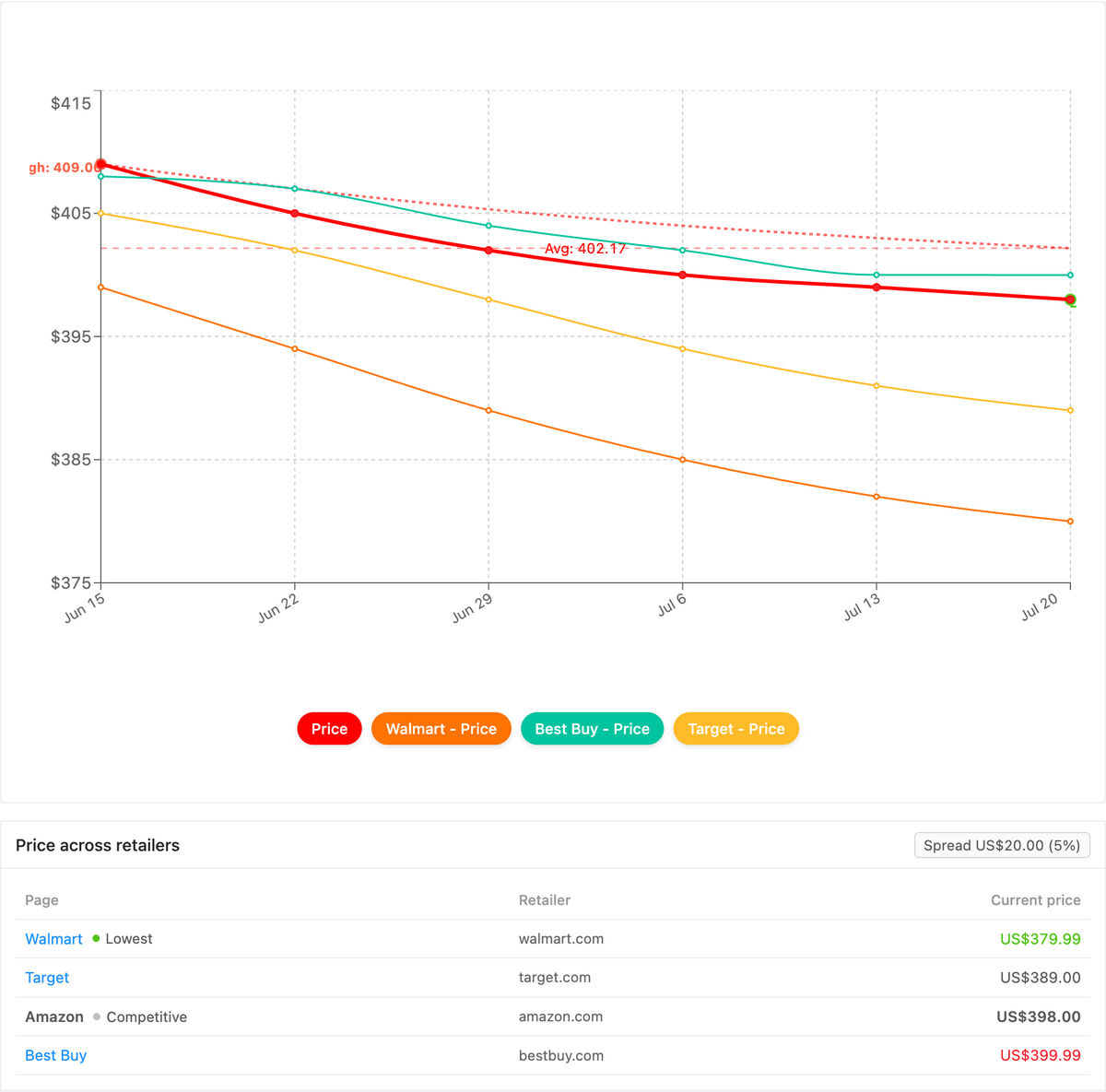
Yes. PageCrawl's Product Comparison capability groups the monitors for one fuel grade across every station you watch into a single view, highlights the cheapest advertised price, and tracks the spread between the lowest and highest station. Instead of eyeballing four fuel-finder tabs, the cheap corner surfaces as an obvious outlier and the day's price gap becomes a live figure.
Once your per-station price monitors are running, Product Comparison stitches together the ones that share a fuel grade (regular, diesel, premium, or your own reference tag) into one grouped comparison. The station by your house, the warehouse club on your commute, and the cheap independent across town line up side by side, the lowest posted price is flagged, and the spread updates as each corner moves. When one station drops below the others, a cheapest-price or spread-threshold alert flags it on the next check, routed to email, Slack, or a webhook, and you can export the whole grid as a spreadsheet. The full walkthrough lives in the cross-retailer price comparison guide, and Product Comparison is a custom capability we enable on request.
Choosing your PageCrawl plan
PageCrawl's Free plan lets you monitor 6 pages with 220 checks per month, which is enough to watch your two or three closest stations plus a regional benchmark and prove the approach saves you money before you pay anything.
| Plan | Price | Pages | Checks / month | Frequency |
|---|---|---|---|---|
| Free | $0 | 6 | 220 | every 60 min |
| Standard | $8/mo or $80/yr | 100 | 15,000 | every 15 min |
| Enterprise | $30/mo or $300/yr | 500 | 100,000 | every 5 min |
| Ultimate | $99/mo or $999/yr | 1,000 | 100,000 | every 2 min |
Annual billing saves two months across every paid tier. Enterprise and Ultimate scale up to 100x if you need thousands of pages or multi-team access.
For most drivers, the Free plan is genuinely enough: a handful of stations checked hourly catches almost every meaningful dip. Standard at $80/year makes sense once you want 15-minute checks or you are tracking fuel across a wider area, multiple grades, and a stack of loyalty promos. A fleet or a multi-region road-tripper grows into Enterprise, where 500 pages and 5-minute checks cover many stations across many markets at once. The math is simple: if monitoring catches even one well-timed fill a month, a plan that costs a few dollars has already paid for itself. Every plan, including Free, also connects to the PageCrawl MCP Server, so you can ask an AI assistant like Claude to set up or query your fuel monitors in plain language.
How do you get started with fuel price alerts?
Start with the one station you fill up at most and expand once you trust the alerts. Add its page as a price monitor, set a down-only threshold at a price that would make you pull in today, and turn on push notifications. That single monitor, on the free tier, will already start saving you money the first time it catches a dip you would have missed. Then add your second and third stations and a benchmark page, and let the dashboard do the watching.
Stop guessing which corner is cheap and let the alert come to you. The next time your low-fuel light comes on, you will already know exactly where to go and exactly what you will pay.