Compliance teams rarely need to hear about a vendor's privacy policy edit within the hour. They do need to know it happened, decide whether it matters, and be able to show later that someone looked. Per-change alerts are bad at all three. They arrive one at a time, get skimmed, and leave no record of what was reviewed.
The Compliance Monthly report is built for that rhythm. On the first of each month it gathers every change detected on your policy, legal and vendor pages, has AI sort them by risk, lets your team mark each one as reviewed, and attaches a spreadsheet you can file with the rest of your evidence.
This guide covers how to set it up, what the monthly digest contains, what you learn from a year of them, and how to adapt it for vendor risk, privacy and regulatory watch programmes.
What is the Compliance Monthly report?
Compliance Monthly is a PageCrawl report template that sends one digest per month covering every change on the monitors in a chosen folder. It lists all changes, not just high-scoring ones, adds an AI risk assessment, includes review board actions for sign-off, lists monitors that are failing, and attaches an Excel file for record keeping.
The template pre-fills these settings:
| Setting | Template value |
|---|---|
| Include changes from | By folder (you choose the folder, for example "Legal") |
| Send | Monthly, on day 1 at 09:00 in your workspace timezone |
| Delivery | |
| Minimum change importance | All changes |
| Show only most recent change per monitor | Off, so every change in the month is listed |
| Attach Excel report | On |
| Enable review board actions | On |
| Include failing pages | On |
| AI executive summary | On, Risk assessment style |
| What matters in this report | Data retention, sub-processor lists, transfer mechanisms, security posture, privacy policy and terms wording, ignoring cosmetic and marketing changes |
| Priority escalation | Off |
Everything can be changed before you save.
Why use a monthly report for compliance monitoring?
A monthly report matches how most compliance reviews actually run: on a fixed cycle, with a record at the end. It turns a stream of scattered page changes into one reviewable package per period, so nothing is skimmed and forgotten, and each month leaves behind a dated digest and spreadsheet showing what changed and what was checked.
The pages compliance teams watch change slowly but with consequences:
- Sub-processor lists. Under Article 28 of the GDPR, processors must inform controllers of intended changes to sub-processors. Many vendors do that by editing a web page. Our guide to monitoring sub-processor lists covers which pages to track.
- Privacy policies and terms of service. Wording changes on data use, retention or liability often land without an announcement. See monitoring privacy policy and terms changes.
- Vendor security and trust pages. Certifications, hosting regions and security commitments feed straight into supplier assessments. Frameworks such as ISO/IEC 27001 expect supplier relationships to be monitored, not just assessed once.
- Regulator guidance pages. Updated guidance, FAQs and consultation pages that your policies depend on.
Most of these pages change a few times a year. A monthly digest with a paragraph and a short list is far easier to act on than a dozen alerts spread across the quarter.
How do you set up the Compliance Monthly report?
Put your policy and vendor monitors in one folder, then open Settings, choose Notifications, scroll to Scheduled Summary Reports and click Add Report. Pick Compliance Monthly, select your folder under Include changes from, review the delivery and AI settings, and click Create report. Generate a sample to preview last month.
Step by step:
- Organise the monitors. Create a folder such as "Legal" or "Vendor compliance" and move the relevant monitors into it. Subfolders are included automatically, so "Legal / Vendors" and "Legal / Regulators" both feed the same report.
- Turn on Review Boards if your workspace does not use them yet. It is one of the workspace features in Settings > General. The report's review option only appears when Review Boards are on.
- Go to Settings > Notifications and click + Add Report in Scheduled Summary Reports.
- In Pick a starting point, choose Compliance Monthly ("Monthly risk-assessed roundup of policy and legal pages, with Excel attachment for the audit trail.").
- Under Include changes from, keep By folder and select your folder. The template does not pick one for you.
- Under Delivery, choose who receives it. Add team members, and use + Add Cc / Bcc for verified outside addresses such as external counsel or a DPO.
- Check the AI executive summary style (see the plan note below) and edit What matters in this report to describe your own obligations.
- Click Create report. When asked Generate a sample digest?, pick Cover the past 30 days and click Generate sample.
Plan note: scheduled reports need a paid plan. The Risk assessment summary style is available on Enterprise and Ultimate plans. On other plans, switch the style to Patterns or Action briefing before saving.
What does the monthly compliance digest contain?
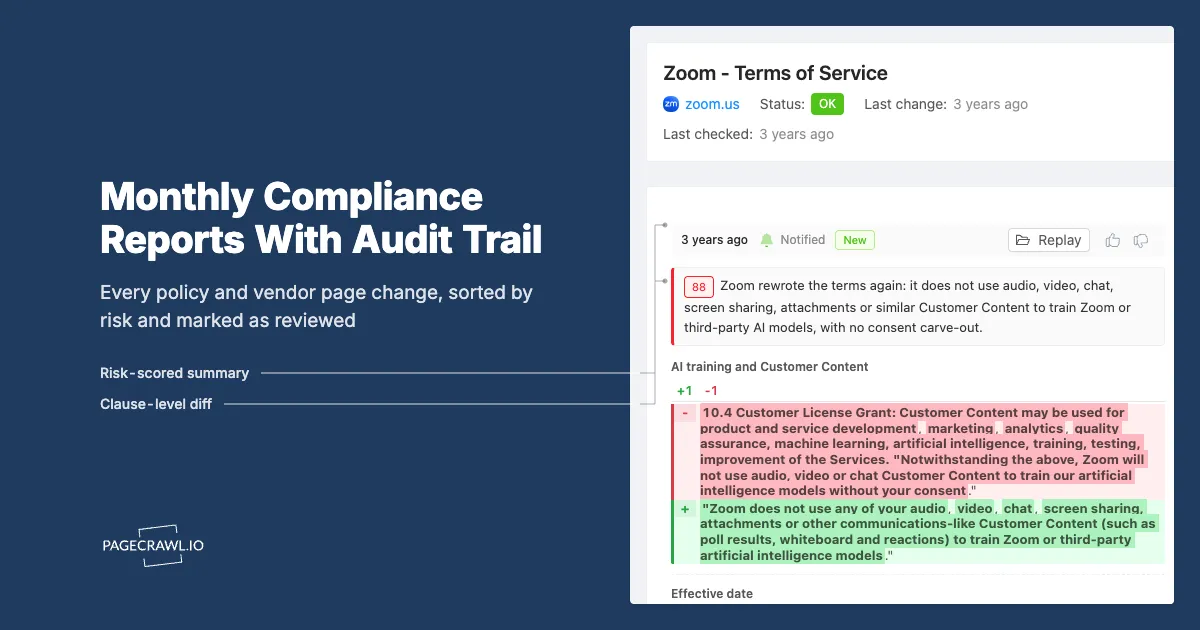
Each digest covers the changes since the previous one and opens with the report name, the period and the number of changes. Below that sit the AI risk assessment, then every change with its importance score, summary and link to the diff, then any monitors that are currently failing. The email carries the Excel file, and the full digest opens in a browser.
The risk assessment
The Risk assessment style groups the month's changes under High Risk, Medium Risk and Low Risk headings, with a short explanation of why each change matters. Empty levels are left out, so a quiet month might show only a few low-risk items. The What matters in this report prompt steers what the AI treats as significant, which is why it is worth replacing the template text with your own obligations.
Every change, not just the top ones
Because the template sets Minimum change importance to All changes and leaves Show only most recent change per monitor off, the digest lists every change on every monitor in the folder. For an audit record that completeness matters more than brevity: if a vendor edited its terms twice in a month, both edits appear.
Review board actions
With Enable review board actions on, each change in the web digest shows a board selector. Team members signed in to PageCrawl can move a change to To Review, Flagged or Reviewed directly from the digest, and the same status shows on the workspace Review Board. Recipients without a PageCrawl login can still read the digest, comment and give thumbs up or down feedback, but cannot change review status.
Failing pages
Monitors that could not be checked (blocked, timed out, missing element, page not found and so on) are listed so a quiet section is never mistaken for "no changes". A vendor page that has been failing all month is a gap in your evidence, and the report surfaces it.
The Excel attachment
The attached .xlsx file has an Overview sheet, a Data sheet with the changes, and an Info sheet describing the export. If the file is too large to send by email, the digest is sent without the attachment and the spreadsheet stays available from the digest page.
How do you keep an audit trail from these reports?
Every digest is stored in the report's History with its period, change count and status, and each one opens as a dated web page you can download as Excel or print to PDF. Combined with the review status on each change, that gives you a monthly record of what changed, how it was rated and who reviewed it.
A simple routine that works for most teams:
- When the digest arrives, the owner works through it on the web page, marking each change Reviewed or Flagged.
- Flagged items get a comment explaining the follow-up (update the vendor record, ask legal, re-run the assessment).
- At month end, download the Excel file and print the digest to PDF from the digest page, then file both with your compliance evidence.
- Open the report's History at any time to find a past month.
If you need evidence of what a page actually looked like on a given date, not just that it changed, pair the report with web archiving. The help article on creating an audit trail for regulators explains how archived captures work alongside change history.
PageCrawl provides the record; deciding what a change means for your obligations stays with your compliance and legal team.
What can you learn from a year of compliance reports?
Twelve monthly digests show which vendors change their terms often, which changes turned out to matter, and whether your review process keeps up. Trends that are invisible in individual alerts, such as a supplier steadily expanding its sub-processor list, become obvious when you read the reports side by side.
Patterns worth watching:
- Vendors that change frequently. A supplier that edits its data processing terms most months deserves a closer look at the next assessment.
- Direction of change. New sub-processors, new hosting regions and longer retention periods, month after month, add up to a different risk profile than the one you signed.
- Flagged items that never close. If the same vendor keeps appearing as Flagged, the follow-up process is stuck, not the monitoring.
- Failing monitors that persist. A policy page that has been blocked or missing for months is a blind spot in your coverage.
- Month-on-month volume. A sudden jump in changes often follows a regulation taking effect, when many vendors update policies at once.
How can you customise the compliance report?
The template is a starting point. You can change the scope to tags or specific websites, send it weekly instead of monthly, route different page groups to different owners, or add escalation so the rare urgent change does not wait for the first of the month. Running several focused compliance reports usually works better than one large one.
Split by audience
- Vendor risk. A report on a "Vendors" folder for procurement and vendor managers. Pair it with our vendor risk management software guide.
- Privacy. A report tagged
#privacyfor the DPO covering sub-processor lists, privacy notices and cookie policies. - Regulatory watch. A report on regulator guidance pages for legal. The compliance monitoring software guide and the DORA monitoring guide cover which sources to add.
Change the cadence
Send supports Daily, Weekdays only, Weekends only, Weekly, Monthly (any day from 1 to 31) and On-demand only. Heavily regulated teams often run the same scope weekly for the working review and keep the monthly report as the record.
Add escalation for urgent changes
The template leaves Priority escalation off because most compliance changes can wait for the monthly cycle. If some cannot, turn on the high-priority option under Priority escalation, set the Escalation threshold (for example 80) and choose an escalation channel such as email or Slack. High-scoring changes are then sent as soon as a check detects them and still appear in the monthly digest.
Tune what counts as important
Rewrite What matters in this report in your own terms, for example "Changes to data transfer mechanisms, new sub-processors outside the EEA, and changes to breach notification timelines. Ignore navigation and marketing copy." The prompt allows 300 characters, or 1,000 on Enterprise and Ultimate plans.
Frequently asked questions about compliance reports
Which period does a monthly report cover?
A scheduled monthly digest picks up every change since the previous digest, so a report sent on the 1st covers roughly the prior month. You can also click Generate now on the report list and pick a custom time period, which is useful when an auditor asks about a specific window.
Can external auditors or counsel read the report?
Yes. Add their verified email as Cc or Bcc and they receive the digest and the Excel file. They can open the digest page from the link in the email without a PageCrawl account, but only signed-in team members can change review status.
What happens if the Excel file is too big?
The email is still sent, without the attachment, and the spreadsheet can be downloaded from the digest page instead. This mostly affects reports covering very large folders with many changes.
Does the report replace legal review?
No. The report collects changes, summarises them and records their review status. Whether a change affects your obligations is a judgement for your compliance or legal team.
Start with one folder
Move your ten most important vendor and policy pages into a folder, create the Compliance Monthly report on it, and generate a sample for the past 30 days. Review that sample the way you would a real month, then add pages and split the report by audience once the routine sticks. The Monitoring Reports reference covers every report option in detail.