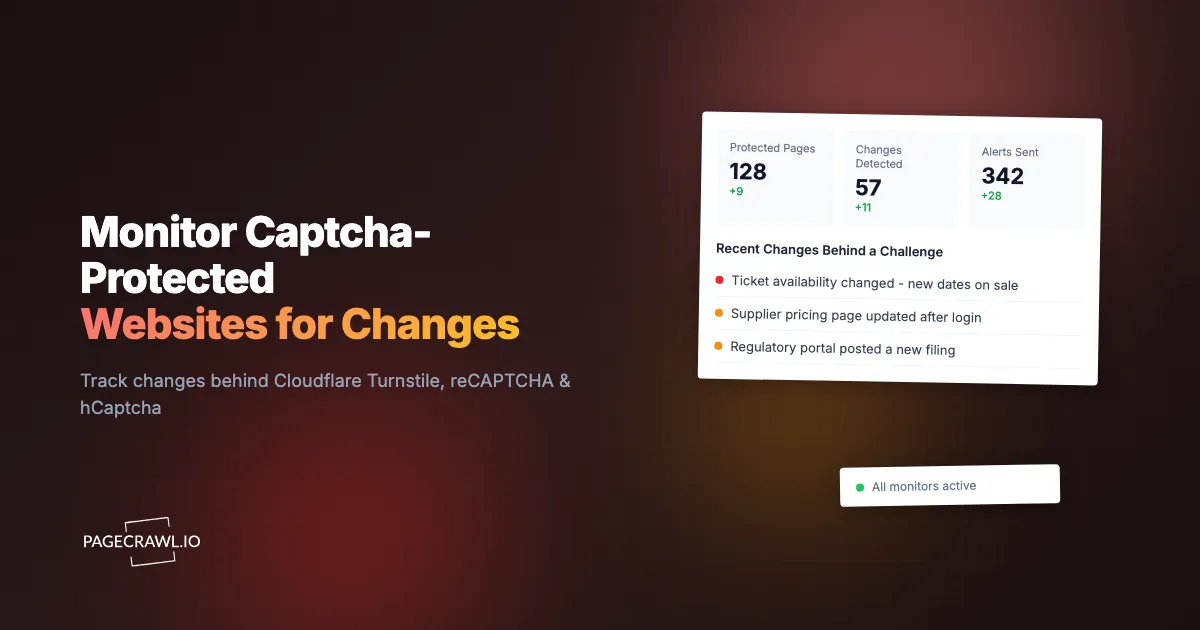
Some of the pages worth watching most closely sit behind a captcha. A supplier's stock page, a ticketing site, a government portal, a competitor's login-gated pricing screen: all of them may show a challenge before they let you through. Ordinary monitoring tools stop at that challenge and report nothing, so you never learn what changed.
Monitoring a captcha-protected website means checking a page even when it asks a human-verification challenge first. PageCrawl completes the challenge automatically on paid plans, then reads the page behind it and alerts you when the content changes. This guide covers the three challenges you will meet most often (Cloudflare Turnstile, reCAPTCHA, and hCaptcha), the common case where the challenge only appears after you type or click something, and how to keep the cost low.
If you are new to change monitoring, start with our complete guide to monitoring website changes for the fundamentals, then come back here for the captcha-specific parts.
What does it mean to monitor a captcha-protected website?
Monitoring a captcha-protected website means running an automated check that can get past a human-verification challenge and read the real page behind it. When PageCrawl loads a monitored page and a challenge appears, it completes the challenge automatically (on paid plans), captures the page, and compares it to the last version to detect changes.
The key difference from a normal monitor is that the challenge sits between the check and the content. A basic tool that only fetches raw HTML sees the challenge page, not the page you care about, so it either reports "no change" forever or alerts on the challenge screen itself. PageCrawl loads pages the way a real browser does, so it can pass the challenge and then track the content that actually matters.
Which captchas can PageCrawl handle?
PageCrawl handles the three challenge types you meet most often on the public web: Cloudflare Turnstile, Google reCAPTCHA (v2 checkbox, invisible, and v3 score-based), and hCaptcha. These cover the large majority of captcha-protected pages, whether the challenge appears on page load or only after you interact with the page. The help centre explains the setup and what is required in monitoring pages that show CAPTCHA.
Each has its own focused guide:
- Monitor websites protected by Cloudflare Turnstile: the lightweight challenge that often runs invisibly in the background.
- Monitor websites protected by reCAPTCHA: the "I'm not a robot" checkbox, image grids, and the invisible score-based version.
- Monitor websites protected by hCaptcha: the privacy-focused challenge used across many independent sites.
If you are not sure which one a site uses, you usually do not need to know. PageCrawl detects the challenge on the page and handles it. The separate guides are there mainly for search and for the small setup details that differ between them.
What about a captcha that appears only after I log in, search, or submit a form?
This is the most common and most useful case. Many sites do not show a challenge on the first page. It appears only after you do something: sign in, run a search, pick a filter, or submit a form. PageCrawl runs your configured actions first (type, click, select), and if a challenge appears as a result, it completes that challenge and then captures the page.
Why the challenge often appears mid-flow
Sites frequently place the challenge at the point of highest value, not on the landing page:
- After login: you fill your email and password, click sign in, and the challenge appears before the dashboard loads.
- After a search: you type a query, submit it, and the results are gated behind a challenge.
- After choosing options: you select a location, date, or product variant, and the challenge appears before showing availability or price.
- After a form submit: you complete a multi-step form, and the final step verifies you are human before revealing the result.
How PageCrawl handles the action-then-challenge sequence
PageCrawl monitors these pages through its Actions system, the same steps a person would take by hand. A typical sequence looks like this:
- Navigate to the starting page.
- Fill any fields (email, password, a search query).
- Select any dropdown options (location, category, date).
- Click the submit or search button.
- The challenge appears. PageCrawl completes it automatically.
- Wait for the real page to load.
- Check the content for changes.
You configure steps 1 to 4 and 6 to 7. Step 5 is automatic once captcha handling is enabled. For the mechanics of building action sequences and finding the right fields, see monitoring password-protected websites and the CSS selector guide. If the site also emails or app-generates a one-time code, PageCrawl can handle that step too.
Because PageCrawl saves and reuses the signed-in session between checks, the login and its challenge usually come up only occasionally (the first sign-in, or when the session expires), not on every single check. Most checks run straight through.
How much does it cost to monitor a captcha-protected page?
Checking a captcha-protected page costs more per check than a standard page, because completing the challenge takes extra work behind the scenes. The good news is that the cost scales with how often you check. If you monitor once a day or once a week, the total stays very low. It only adds up if you check every few minutes.
For most real needs, infrequent checks are exactly right. A supplier's terms page, a regulatory database, a competitor's pricing screen, or a partner portal rarely changes more than once a day, so a daily or twice-daily check catches everything that matters while keeping the cost near the floor. Reserve high-frequency checks for the handful of pages where minutes genuinely count, such as a limited restock or an on-sale ticket drop.
A simple rule of thumb:
- Rarely changes (policies, docs, contracts): check daily or weekly. Cost is negligible.
- Changes a few times a day (pricing, availability): check every few hours. Cost stays modest.
- Time-critical (restocks, ticket releases): check frequently, and expect it to use more of your quota.
Note: captcha handling is available on paid plans. Start on a low frequency, confirm the monitor is capturing the right content, and only increase the frequency for the specific pages that need it.
What kinds of pages do people monitor behind a captcha?
People monitor captcha-protected pages whenever the valuable content sits behind a challenge: ticketing and event availability, retail stock and pricing, government and regulatory portals, competitor login areas, and partner dashboards. The common thread is that the page changes in ways worth knowing about, and a challenge stands between you and that information.
Common real-world examples
- Event and ticket availability: seats, dates, and on-sale status on ticketing platforms that challenge every visitor.
- Retail stock and price: product pages that show a challenge before revealing availability or a member price.
- Government and legal portals: permit statuses, filings, procurement notices, and court dockets and case records behind a verification step.
- Competitor pricing behind login: B2B pricing and plan pages that only appear after you sign in and pass a challenge.
- Account and dashboard changes: balances, order status, and settings pages that verify you are human after login.
For the difference between legitimate monitoring and abusive bot traffic, our explainer on what a bot is is a useful companion. Monitoring your own or publicly available pages for changes at a sensible frequency is a normal, low-impact use.
How do I get alerted when a captcha-protected page changes?
Once PageCrawl can see the page, alerting works exactly as it does for any other monitor. When a scheduled check finds the content has changed, you get a notification through your chosen channel with an AI summary of what changed, so you can tell at a glance whether it needs attention. The challenge is invisible to you; you only see the change.

You can route alerts to email, Slack, Discord, Teams, Telegram, or a webhook, and PageCrawl includes a priority score so routine updates do not distract from important ones. Because captcha-protected checks are best run at a lower frequency, alerts on these pages tend to be meaningful rather than noisy.
Choosing your PageCrawl plan
Captcha handling is a paid-plan feature. PageCrawl's Free plan lets you monitor 6 pages with 220 checks per month, which is enough to validate ordinary monitoring on your most critical pages before you add captcha-protected ones.
| Plan | Price | Pages | Checks / month | Frequency |
|---|---|---|---|---|
| Free | $0 | 6 | 220 | every 60 min |
| Standard | $8/mo or $80/yr | 100 | 15,000 | every 15 min |
| Enterprise | $30/mo or $300/yr | 500 | 100,000 | every 5 min |
| Ultimate | $99/mo or $999/yr | 1,000 | 100,000 | every 2 min |
Annual billing saves two months across every paid tier. Because captcha-protected pages are usually best checked once or twice a day, even a handful of them fits comfortably inside a paid plan's monthly checks. Set these monitors to a daily or twice-daily frequency, keep your fast checks for the pages that truly need them, and the captcha pages add very little to your total usage.
All plans include the PageCrawl MCP Server, which lets you ask an MCP-compatible tool like Claude or Cursor "what changed behind my monitored logins this week?" and get a summary drawn straight from your monitoring history, rather than signing in and passing each challenge by hand.
Getting Started
Pick one page that sits behind a challenge, whether it shows on load or only after you log in and search, and set up a monitor for it. Add your action steps, enable captcha handling, start on a daily check, and confirm the monitor captures the real content rather than the challenge screen. Once it works, add the rest.
Create a free PageCrawl account and set up your first captcha-protected monitor today.