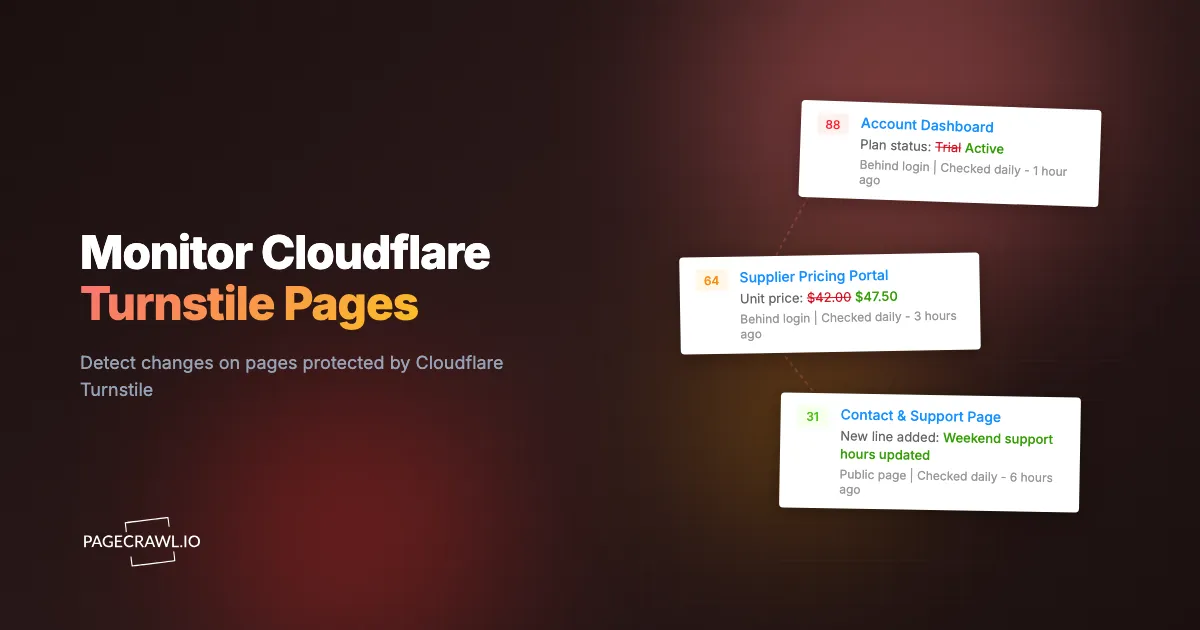
Cloudflare Turnstile is one of the most common human-verification challenges on the web today. It often runs quietly in the background, showing a small widget or nothing visible at all, and then decides whether to let a visitor through. For anyone trying to track changes on a page behind it, that decision is the problem: a basic monitoring tool never gets past the challenge and never sees the real content.
Monitoring a Turnstile-protected page means running a check that completes the challenge and then reads the page behind it. PageCrawl does this automatically on paid plans, including the common case where the challenge only appears after you log in, run a search, or submit a form. This guide explains how it works and how to keep the cost low.
This is one part of a broader topic. For the full picture across every challenge type, see the guide to monitoring captcha-protected websites.
Can PageCrawl monitor a page behind Cloudflare Turnstile?
Yes. PageCrawl loads monitored pages the way a real browser does, so when a page presents a Cloudflare Turnstile challenge, PageCrawl completes it automatically (on paid plans) and then captures the content behind it. It compares each capture to the previous one and alerts you when something changes, exactly as it would for an unprotected page.
This matters because Turnstile is designed to stop automated tools that only fetch raw HTML. Those tools receive the challenge page instead of the content, so they report "no change" indefinitely or, worse, alert on the challenge screen. PageCrawl passes the challenge first, then tracks what you actually care about.
What does Cloudflare Turnstile look like on a page?
Cloudflare Turnstile usually appears as a small widget with a checkbox and a "Verifying..." message, or it runs invisibly with no widget at all. Which of those you see is a site-owner choice: Cloudflare's own Turnstile documentation describes managed, non-interactive, and invisible widget modes. Many sites use it on login forms, signup pages, contact forms, and search actions, and it often resolves in a second or two without asking the visitor to do anything.
Because Turnstile frequently runs in the background, you may not even realize a page uses it until an ordinary monitoring tool silently fails on it. If a monitor reports a page as unchanged for a suspiciously long time, or keeps capturing a short "checking your browser" style page, a background challenge like Turnstile is a likely cause. PageCrawl handles both the visible-widget and the invisible variants.
How do I monitor a Turnstile challenge that appears after login or a search?
This is the most common setup. The challenge often does not appear on the first page. It shows up after you act: after you submit a login form, run a search, or choose an option. PageCrawl runs your action steps first, and if Turnstile appears as a result, it completes the challenge and then captures the page.
A typical action-then-challenge sequence
- Navigate to the starting page.
- Fill the fields you need (for example, an email and password, or a search box).
- Select any dropdown options (a location, a category, a date).
- Click the submit or search button.
- Turnstile appears. PageCrawl completes it automatically.
- Wait for the real page to load.
- Check the content for changes.
You set up steps 1 to 4 and 6 to 7 in PageCrawl's Actions system; step 5 is automatic once captcha handling is on. For help building action sequences and finding the right fields to fill and click, see monitoring password-protected websites and the CSS selector guide.
Because PageCrawl reuses the signed-in session between checks, a login and its challenge usually come up only occasionally, not on every check. Most checks run straight through to the content.
How much does it cost to monitor a Turnstile-protected page?
Checking a page behind Turnstile costs more per check than a standard page, because completing the challenge takes extra work. The cost scales with frequency, so if you check once a day or once a week, the total stays very low. It only becomes noticeable if you check every few minutes.
Turnstile often protects pages that change slowly, such as login-gated dashboards, account settings, and the contact or pricing pages worth watching for price and availability moves. Those are a natural fit for a daily or twice-daily check, which keeps the cost near the floor while still catching every meaningful change. Save frequent checks for the rare page where minutes matter.
Note: captcha handling is available on paid plans, and the help centre covers what it needs in monitoring pages that show CAPTCHA. Begin with a low check frequency, confirm the monitor captures the right content, and raise the frequency only for the specific pages that need it.
What can I do once PageCrawl sees the page?
Once PageCrawl completes the Turnstile challenge and captures the page, everything works like any other monitor. As soon as a scheduled check detects a difference, you get a notification with an AI summary of what changed, routed to email, Slack, Discord, Teams, Telegram, or a webhook, and a priority score helps you focus on the changes that matter.

You can track the whole page or just a specific element (a price, a status label, a table row) using a CSS selector, so a background challenge on the page never gets in the way of watching exactly the content you care about.
Choosing your PageCrawl plan
Turnstile handling is a paid-plan feature. PageCrawl's Free plan lets you monitor 6 pages with 220 checks per month, enough to validate ordinary monitoring before you add protected pages.
| Plan | Price | Pages | Checks / month | Frequency |
|---|---|---|---|---|
| Free | $0 | 6 | 220 | every 60 min |
| Standard | $8/mo or $80/yr | 100 | 15,000 | every 15 min |
| Enterprise | $30/mo or $300/yr | 500 | 100,000 | every 5 min |
| Ultimate | $99/mo or $999/yr | 1,000 | 100,000 | every 2 min |
Annual billing saves two months across every paid tier. Since Turnstile-protected pages are usually best checked once or twice a day, even several of them fit comfortably inside a paid plan's monthly checks. All plans include the PageCrawl MCP Server, so you can ask an assistant like Claude or Cursor what changed behind your monitored logins this week and get an answer drawn straight from your history.
Getting Started
Choose one page behind Cloudflare Turnstile, whether the challenge shows on load or only after you log in and search, and set up a monitor. Add your action steps, enable captcha handling, start with a daily check, and confirm it captures the real content. Then add the rest of your protected pages.
Create a free PageCrawl account and start monitoring your Turnstile-protected pages today.