You have a spreadsheet with 400 URLs in it. Competitor product pages, regulatory bulletins, supplier catalogs, a dozen pricing pages, a stack of policy documents. Someone needs to know when any of them changes, and "someone" has been opening tabs and eyeballing them every Monday. That does not scale past about twenty pages, and it definitely does not survive a vacation.
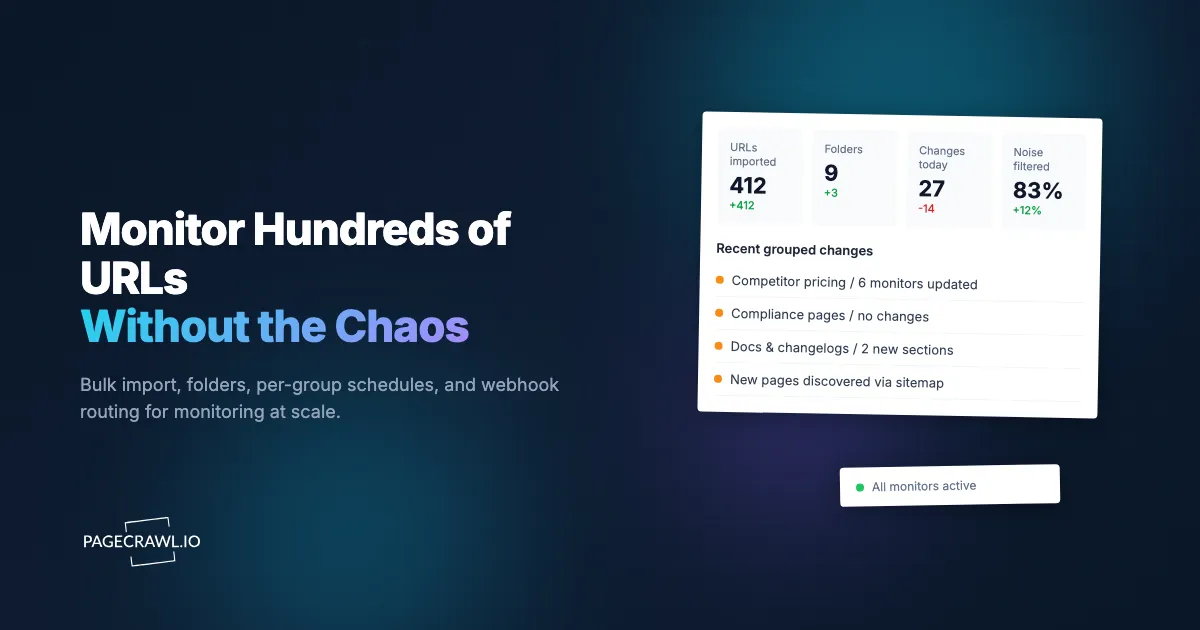
Bulk URL monitoring solves this by turning that spreadsheet into a managed system: every URL checked automatically on a schedule, grouped so the right people see the right alerts, and filtered so you hear about the changes that matter instead of every cookie banner that wiggles. The difference between monitoring 10 pages and monitoring 1,000 is not effort, it is structure.
This guide covers how to monitor URLs in bulk the right way: importing quickly, organizing with folders and tags, setting frequencies and notifications per group, keeping noise under control, and routing everything into your own systems with webhooks and the API. Examples use PageCrawl, but the principles apply to any serious monitoring setup.
What does bulk URL monitoring actually mean?
Bulk URL monitoring means tracking many web pages for changes through one managed workflow instead of checking each page by hand. You import a list of URLs once, apply shared settings to all of them, group them by purpose, and receive consolidated alerts. The unit of work shifts from "a page" to "a portfolio of pages."
At small scale, monitoring is about a single page: pick a URL, choose what to track, set an alert. At bulk scale, three new problems appear that single-page monitoring never forces you to solve. First, setup time, because configuring 400 monitors one click at a time is a non-starter. Second, organization, because a flat list of 400 monitors is unusable as soon as you need to find the eight that belong to one client. Third, alert volume, because 400 monitors checking hourly can generate thousands of notifications a day if you do not filter aggressively.
The rest of this guide is structured around those three problems: import (speed), organization (folders and tags), and routing plus noise control (sanity). Get all three right and a thousand-URL program feels lighter to run than a messy ten-URL one.
How do you import hundreds of URLs at once?
The fastest path is bulk import: paste or upload a list of URLs and create every monitor in a single action instead of adding them one at a time. PageCrawl accepts a pasted block of URLs, a CSV upload, and sitemap-based import, so a list that took weeks to compile becomes a working monitoring set in a couple of minutes.
There are three practical ways to bring a large list in, and most teams use a combination.
Paste or upload a CSV of URLs
The simplest method is a flat list. Drop a column of URLs into the bulk add box, or upload a CSV where the first column is the URL. Each row becomes its own monitor. If your CSV carries extra columns (a label, a category, a target price), keep them, because you can use those values to name monitors and pre-assign folders or tags during import rather than tidying up afterward.
Before you import a large file, clean it. Remove duplicate URLs, strip tracking parameters that do not change the page (anything after a utm_ is usually safe to drop, since UTM parameters exist only for campaign attribution), and confirm the URLs resolve. A 400-row import where 60 rows are dead links wastes checks and clutters your dashboard with permanent errors. Ten minutes in a spreadsheet up front saves an hour of cleanup later.
Import an entire site from its sitemap
When you want to monitor a whole site rather than a hand-picked list, point the importer at the site's sitemap.xml, the standard sitemap protocol file most sites publish. PageCrawl reads the sitemap and lets you select which URLs to add, which is far faster than copying links by hand. This is ideal for documentation sites, large catalogs, and any property where the URL structure is predictable.
Sitemaps also solve a problem flat lists cannot: new pages. A static CSV only ever knows about the URLs you gave it. If a competitor adds 30 new product pages next month, your CSV import will never see them. For that you want ongoing automatic page discovery, which re-scans a site and adds newly published URLs to your monitoring set on its own. Pair a one-time bulk import for what exists today with sitemap monitoring that tracks new pages automatically so your coverage grows with the site instead of going stale.
Create monitors programmatically with the API
If your URLs already live in a database, a product feed, or another internal tool, the cleanest import is no import at all: have your system create monitors directly through the API. This keeps your monitoring set in sync with the source of truth automatically. When a new SKU is added to your catalog, your code creates the monitor; when it is discontinued, your code archives it.
The API is the right tool whenever the list of URLs is itself dynamic. See the website change monitoring API developer guide for endpoint details, and the guide to building custom monitoring dashboards on the PageCrawl API if you want to surface results back inside your own product. For competitive use cases specifically, monitoring competitor pricing at scale is almost always worth wiring directly to your catalog so coverage never drifts from your actual product line.
How should you organize monitors with folders and tags?
Use folders for the primary structure (one folder per client, project, or domain) and tags for the cross-cutting attributes that span folders (priority, owner, content type). A flat list of 400 monitors is unmanageable; folders give you a navigable tree, and tags let you slice across that tree without duplicating anything.
The mental model that works best: folders answer "where does this belong," tags answer "what kind of thing is this." A monitor lives in exactly one folder but can carry many tags.
A workable folder scheme for a mid-sized program might look like this:
- Competitors with a subfolder per competitor
- Compliance for regulatory and policy pages
- Suppliers for vendor catalogs and stock pages
- Internal for your own properties and status pages
Then layer tags across all of them: priority:high, type:price, type:legal, owner:marketing, client:
Set this structure up before you import, not after. If your CSV already has a category column, map it to a folder or tag during import and all 400 monitors land pre-organized. Retrofitting structure onto hundreds of existing monitors is tedious work that never quite gets done.
Can you set different check frequencies for different groups?
Yes, and you should. Not every page deserves the same cadence. Set tight intervals only for the pages where minutes matter, and slow everything else down. Frequency is your single biggest lever over check consumption, so spending it where it counts is how a bulk program stays inside its plan limits.
Think in tiers rather than a single global setting:
- High urgency (every 5 to 15 minutes): flash-sale prices, stock availability, breaking regulatory bulletins, and school closure and delay alerts. A handful of monitors, checked hard.
- Medium urgency (hourly to a few times a day): competitor pricing, active job boards, changelog pages. The bulk of most programs.
- Low urgency (daily or weekly): terms of service, policy documents, reference pages that change a few times a year.
The arithmetic matters at scale. One monitor checked every 5 minutes burns roughly 8,640 checks a month all by itself. The same monitor checked daily uses about 30. If you put all 400 of your URLs on a 5-minute interval "just in case," you will exhaust an Enterprise-sized check budget on pages that change twice a year. Group your monitors, then assign each group the slowest frequency that still catches changes in time to act.
When many of those URLs sit on the same site, their checks also land on that site together. A site that limits visits per minute can then answer some of them with a block or a half-loaded page. Turn on Crawl Politeness to set a minimum delay per domain, so checks to one site start one after another instead of in a burst.
How do you keep bulk alerts from becoming noise?
Control noise at the source with element targeting and filters, then control it at the destination with grouping and thresholds. At ten monitors a few false positives are tolerable; at a thousand they will bury every real signal and train your team to ignore alerts entirely. Noise control is not optional at scale, it is the whole game.
Start at the source. The most effective single change is to stop monitoring entire pages where you only care about one part of them. Targeting a specific element (a price, a stock badge, a changelog section) instead of the full page eliminates the vast majority of false positives, because a banner ad rotating or a "customers also viewed" carousel reshuffling no longer counts as a change. Layer on the standard filters: ignore dates and timestamps, strip cookie banners, and set a percentage threshold so a one-word tweak does not fire an alert. Our guide to reducing website monitoring false positives covers the full toolkit.
Then add conditions so monitors only alert when something meaningful happens. Instead of "tell me when this page changes," use rules like "alert only when the price drops below $50" or "alert only when the words 'out of stock' appear." Conditional alerts based on price, keyword, and threshold rules turn a firehose into a short list of things worth acting on.
Finally, control volume at the destination. Rather than 400 separate emails, group changes by folder into a single digest, or route each group to its own channel so they self-sort. A daily roll-up of "everything that changed in the Compliance folder" is far more useful than 40 individual pings scattered through the day.
How do you route alerts to the right place at scale?
Route by group, not by monitor, and push the structured data into systems that can act on it. At bulk scale you do not want one inbox catching everything; you want each folder or tag sending its changes to the channel, person, or automation that owns it. Per-group notification settings plus webhooks make that routing automatic.
Per-group channels are the first layer. Point the Competitors folder at a Slack channel for website change alerts the analyst team watches, send the Compliance folder to legal as a daily email digest, and fire the Internal status pages straight to an on-call webhook. Each group goes where its owners already look, so nobody has to triage a shared pile.
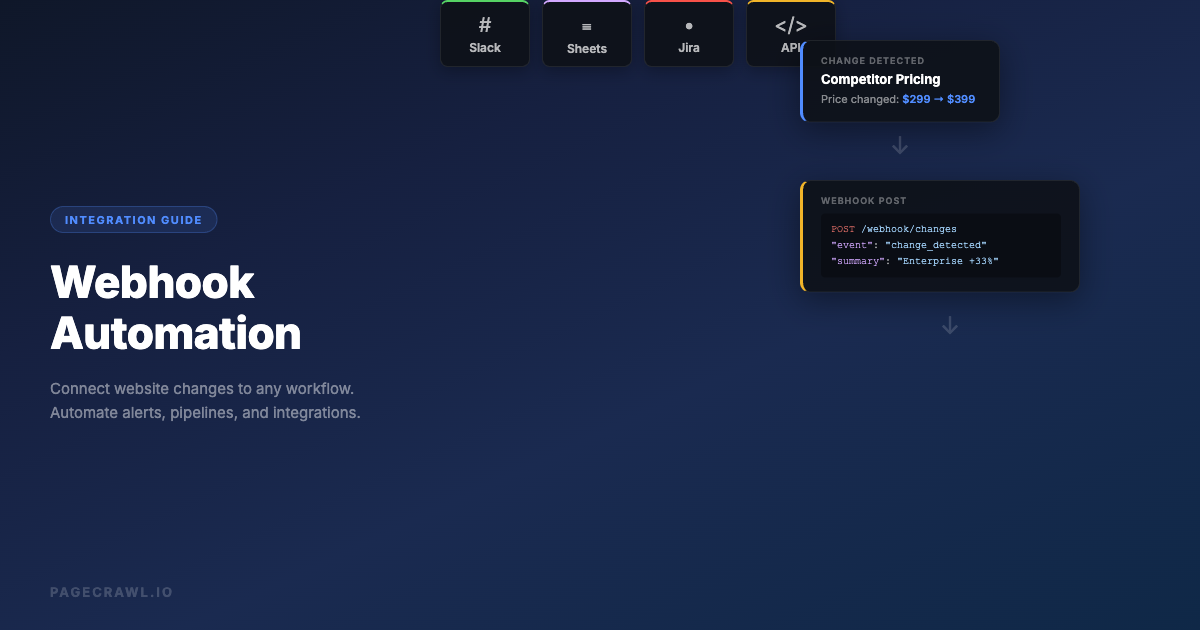
Webhooks are where bulk monitoring becomes genuinely powerful, because they turn a change into structured data your own systems can consume. Instead of a human reading an alert, a webhook delivers the URL, the old value, the new value, and metadata to any endpoint you choose. From there you can log it to a database, update a pricing model, open a ticket, or trigger a downstream workflow. The guide to webhook automation for website changes covers payloads and patterns. Combined with tags, you can route by attribute: every type:price change to your repricing service, every type:legal change to your compliance log. The monitoring system watches; your systems decide what to do.
Setting up bulk monitoring step by step
Here is a concrete walkthrough for going from a spreadsheet to a running portfolio. You can do the entire thing on the free tier first to validate your structure before scaling up.
Step 1: Clean your URL list
Open your spreadsheet and remove duplicates, strip tracking parameters, and confirm the links resolve. If you have category or label columns, keep them; you will map them to folders and tags during import. A clean file is the single biggest predictor of a smooth setup.
Step 2: Build your folder and tag scheme first
In PageCrawl, create your folders, labels, and workspaces (by client, project, or domain) and decide on a short tag vocabulary (priority:high, type:price, type:legal, an owner per team). Defining structure before import means every monitor lands organized instead of in one undifferentiated pile.
Step 3: Bulk import the URLs
Use the bulk add box to paste your list or upload your CSV, or point the importer at a site's sitemap.xml to pull in a whole property. Map your category column to a folder or tag during import so the organization happens automatically. Every row becomes a monitor in one action.
Step 4: Apply tracking settings per group
For each group, choose the right tracking mode: price mode for product pages, reader mode for articles and policy documents, and element targeting for anything where you care about one specific part of the page. Bulk editing pages per folder rather than per monitor is what keeps bulk setup fast.
Step 5: Assign frequency tiers
Set high-urgency groups to 5 to 15 minute checks, the bulk of your monitors to hourly or daily, and reference pages to daily or weekly. Match each group's cadence to how fast you actually need to react, not to how important the pages feel.
Step 6: Configure noise filters and conditional alerts
Turn on date and cookie-banner filtering, set a sensible change threshold, and add conditions so monitors fire only on meaningful changes. Tighten the groups that turn out to be chatty after the first few days of real data.
Step 7: Route notifications per group
Point each folder at its owner's channel: Slack for the analyst team, email digests for legal, webhooks for anything that should trigger an automated workflow. Use tags to route by attribute where a single channel per folder is not granular enough.
Step 8: Run a calibration week, then scale
Let the portfolio run for a week. Mute the groups that are too noisy, tighten thresholds, switch full-page monitors to element targeting where false positives pile up, then expand to the rest of your list once the structure proves out.
What does a real bulk setup look like?
A competitive intelligence team monitoring five competitors might run something like this. 250 product pages imported by CSV, organized into one folder per competitor with type:price tags throughout, all on price-tracking mode at an hourly cadence, routed to a Slack channel grouped by competitor with a weekly AI roll-up. Alongside it, 40 policy and terms pages in a Compliance folder on reader mode, checked daily, delivered to legal as a single morning digest. And a thin top tier of a dozen stock-availability pages on 10-minute checks firing webhooks straight into an internal alerting service.

That is roughly 300 monitors generating a manageable handful of grouped notifications a day instead of hundreds of scattered pings, because the structure does the triage. The same shape works for a compliance program watching regulators, a procurement team watching suppliers for stock, lead time, and pricing shifts, or an agency watching client sites. Folders, tags, frequency tiers, filtered alerts, and webhook routing are the same five tools every time.
Choosing your PageCrawl plan
PageCrawl's Free plan lets you monitor 6 pages with 220 checks per month, which is enough to prove out your folder structure, import flow, and alert routing on a small slice before you scale to the full list.
| Plan | Price | Pages | Checks / month | Frequency |
|---|---|---|---|---|
| Free | $0 | 6 | 220 | every 60 min |
| Standard | $8/mo or $80/yr | 100 | 15,000 | every 15 min |
| Enterprise | $30/mo or $300/yr | 500 | 100,000 | every 5 min |
| Ultimate | $99/mo or $999/yr | 1,000 | 100,000 | every 2 min |
Annual billing saves two months across every paid tier. Enterprise and Ultimate scale up to 100x if you need thousands of pages or multi-team access.
For bulk monitoring specifically, the number that matters most is checks per month, not just page count, because frequency multiplies fast across a large set. Standard's 15,000 checks comfortably covers 100 pages on a daily-to-hourly mix. Enterprise's 500 pages and 100,000 checks suit a full competitive or compliance program with a fast top tier, and it unlocks the full API for programmatic monitor creation. Ultimate suits portfolios in the thousands or multi-team setups. All plans include the PageCrawl MCP Server, which connects to Claude, Cursor, and other MCP-compatible tools so you can create and query monitors in natural language on every plan, including Free.
Getting Started
Start with the list you already have. Take the spreadsheet you have been checking by hand, clean it, sketch a folder scheme, and bulk-import the first handful of URLs on the free tier to feel out the flow. Once the structure clicks, the jump from ten URLs to a thousand is just more rows, not more work.
Sign up for a free PageCrawl account, import your list, and let the structure do the watching so you can get back to acting on what changes.