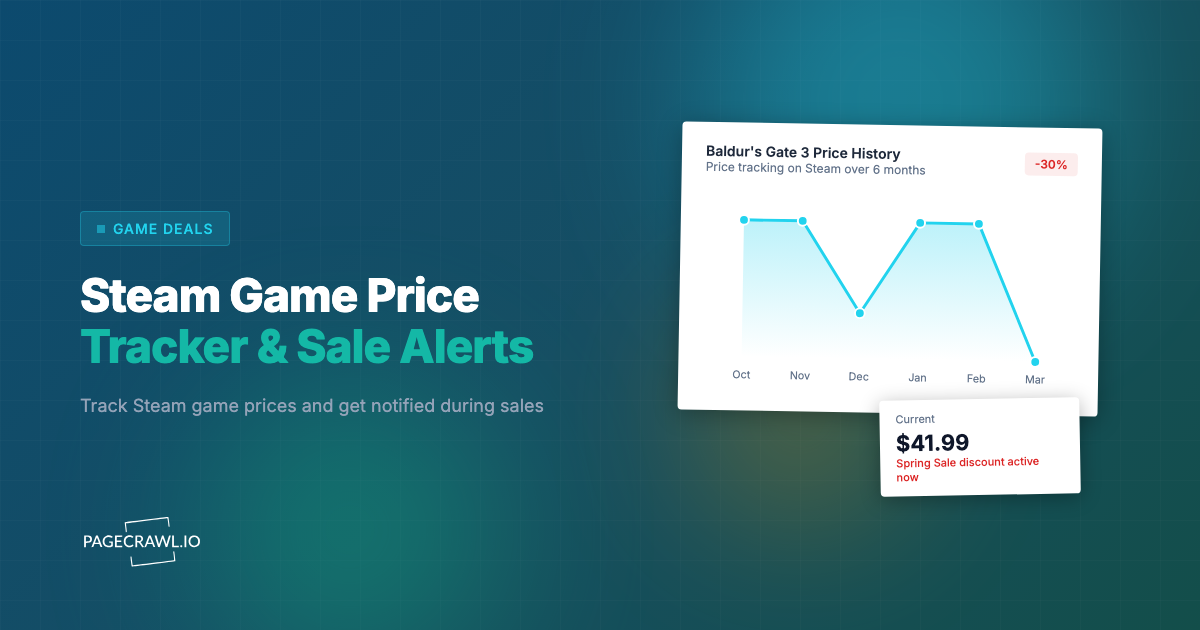

Marek had wanted the same strategy game for eleven months. It sat at the top of his wishlist through two seasonal sales, never going below 25% off, and he held out for the 60% he knew publishers eventually reach. In February the publisher ran a franchise weekend that nobody wrote about. The game hit 65% off on a Thursday afternoon and went back to full price on the Monday. Marek found out in April, from a forum thread, in a post titled "best deal this game has ever had."
The Steam wishlist email did go out. It landed in the Promotions tab of a Gmail account he checks on Sundays. By the time he opened it, the discount had expired and the store page had already gone back to the regular price. He had not missed the deal because he was unwilling to pay. He missed it because the only channel telling him about it was slower than the sale itself.
That gap is the whole problem. Steam runs discounts constantly across four seasonal sales, dozens of themed fests, publisher weekends, and one-off franchise events, and most of them last days rather than weeks. The base game is only part of it. DLC, season passes, complete editions, and bundles discount on separate schedules, so the cheapest way to own a game is often a combination that is only correct for a few days.
This guide covers what on a Steam page is worth watching, how the sale calendar behaves, why DLC and bundle pricing needs its own monitor, and how to wire up alerts that arrive while the discount is still live. For the broader mechanics of building a price history for a single title, our companion piece on tracking Steam game prices covers that ground.
Why do Steam wishlist notifications arrive too late?
Steam's wishlist notification is an email, sent on Valve's schedule, into an inbox you may not read for hours or days. It has no threshold, no channel choice, and no filtering. For a publisher weekend that runs 72 hours, an email discovered on Sunday evening is a record of something that already ended.
One notification, no conditions
The wishlist alert fires when a game is discounted at all. It cannot say "only tell me at 50% or better," or "only if the Complete Edition drops below 30 euros." A title that goes on sale at 10% off six times a year trains you to swipe the emails away, and the seventh email, the one at 70%, gets swiped away with the rest. Alert fatigue is the predictable result of a notification with no threshold.
Wishlist coverage stops at the base game
Steam notifies you about the product on your wishlist. If you wishlisted the base game, you generally will not be told that the season pass went to half price, that a new Complete Edition appeared at a lower total than buying the parts, or that a franchise bundle now includes the title you wanted at a better effective rate. Those are separate store products with separate discount schedules, and they are exactly where the biggest savings hide.
It tells you nothing about the sale opening
Wishlist mail arrives after a discount is applied to a specific game. It does not tell you that a seasonal sale has gone live and that 40 of your wishlisted titles just changed price at once. For the shopper who wants to do one considered buying session per sale, knowing the sale has opened is more valuable than 40 separate emails trickling in.
When do Steam's seasonal sales actually start?
Steam anchors its year on four major seasonal sales, each announced in advance to developers through Steamworks and each typically opening at 10am Pacific. Around them sit dozens of themed fests and publisher events. The seasonal dates are predictable enough to plan around. Everything between them is not.
The four seasonal anchors
Valve publishes its upcoming sale and fest calendar to developers well ahead of time through the Steamworks partner announcements, so the seasonal dates circulate publicly weeks before they open. The four majors (traditionally Lunar New Year or Spring, Summer, Autumn, and Winter) are the events where nearly every publisher participates at once, and they are the only events exempt from Steam's normal discount cooldown, according to the Steamworks discounting documentation.
That exemption matters more than it sounds. It means a game that discounted three weeks ago and is otherwise locked out of a new promotion can still discount during a seasonal sale. Seasonal sales are therefore the one reliable moment when almost anything on your wishlist can move.
The unpredictable middle
Between the seasonal anchors, Steam runs themed fests, publisher and franchise weekends, midweek deals, and developer-scheduled discounts that follow no calendar you can subscribe to. A publisher can decide on a Tuesday to run a franchise weekend starting Thursday. The store page simply changes, and that change is the only signal that exists.
The 30-day cooldown shapes the rhythm
Steam's discounting rules impose a cooldown between promotions on the same product, and a waiting period after a release or a price increase before a discount can run at all. The practical effect for a buyer is that a game which just came off a discount is very unlikely to discount again for about a month, unless a seasonal sale intervenes. If you saw a title at 40% off last week and passed, the next realistic window is either roughly a month away or the next seasonal sale, whichever comes first. That planning fact comes straight from Valve's own discounting rules for partners.
What should you monitor on a Steam store page?
Watch four things: the current price and discount percentage on the base game, the DLC and edition list further down the page, any bundle the game appears in, and the store or fest page that signals a sale has opened. Each changes on a different schedule, and each can be the cheapest route to owning the game.
The price block on the base game page
This is the core monitor. A Steam store page shows the current price, the original price when discounted, and the discount percentage. Tracking the numeric price rather than the whole page means an alert fires on the thing you care about and stays quiet when Valve reshuffles the recommendations carousel or the review counter ticks up. Set a threshold so the monitor only speaks when the price crosses a number you would actually pay.
DLC, season passes, and editions
Below the trailer and description, most established games list their DLC, season passes, Deluxe and Complete editions, and franchise collections. These are individually purchasable store products with their own price fields and their own discount schedules. A base game at 50% off alongside a season pass at 20% off is a worse deal than waiting two weeks for the Complete Edition to hit 65%. You cannot see that pattern unless something is watching all of them.
Bundles the game belongs to
Steam bundles apply "complete the set" pricing, so the amount you pay depends on what you already own. A franchise bundle can quietly become the cheapest path to a title you want, especially when the bundle discount stacks differently from the individual game discount. Bundle pages have their own URLs and change independently of the games inside them.
The sale or fest page itself
A themed fest or seasonal sale has a landing page on the Steam store. Monitoring that page tells you the event has gone live, which is the trigger for your one considered buying session. This is the same pattern as watching a retailer's sale hub rather than 40 individual products, covered in our guide to getting notified when anything goes on sale.
How do you set up Steam sale alerts in PageCrawl?
You add the Steam store URL, choose price tracking so the monitor reads the price field rather than the whole page, pick a check frequency, route alerts to a channel you actually watch, and add a threshold so only a real bargain breaks the silence. Ten minutes of setup, then it runs without you.
Copy the store URL for the exact product. Open the game, DLC, edition, or bundle page on the Steam store and copy the address bar. Each product is a separate page, so a base game, its season pass, and the Complete Edition are three URLs. Take all three if all three could be the cheapest route.
Add each URL to PageCrawl and pick price tracking. Price mode reads the price value on the page and records it as a number, which is what lets you compare against a target later. For a fest or sale landing page, where there is no single price, use content tracking instead so you are alerted that the event page changed.
Set the check frequency to match the shortest sale you care about. The free tier checks every 60 minutes, which is plenty for a two-week seasonal sale. A 72-hour publisher weekend is also comfortably caught hourly. If you chase daily deals or flash discounts, the paid tiers check every 15, 5, or 2 minutes, and alerts arrive within minutes on those plans.
Choose notification channels you actually look at. PageCrawl can send to email, Slack, Discord, Microsoft Teams, Telegram, or a webhook. For deals, a chat channel beats email every time. A Discord alert into your gaming server or a Telegram message reaches your phone while a wishlist email is still sitting in Promotions. Keep email as the archive copy, not the primary channel.
Add a price threshold instead of alerting on every change. Set a target price or a percentage floor so a 10% discount stays silent and a 60% one does not. Our walkthrough on conditional alerts using price, keyword, and threshold rules covers the exact rule shapes, including "below X" and "changed by more than Y."
Add keyword rules where a number will not do. On a bundle or fest page, the interesting signal is often text rather than price: the appearance of "Complete the Set", a new edition name, or a fest banner going live. A keyword condition on the page content covers those.
Group the monitors in a folder and turn on screenshots. A folder called "Steam wishlist" keeps the base games, DLC, and bundles together. Screenshot capture means the alert shows you the discount badge and the price side by side, so you can decide from the notification whether to open the store at all.
Why is DLC and bundle pricing harder to track than base game prices?
Because the cheapest way to own a game is rarely a single price. Base game, season pass, Deluxe edition, Complete edition, and franchise bundle each discount on their own schedule, and bundle pricing changes depending on what you already own. The best deal is a combination, and it is only correct for a few days.
Editions do not discount in step
A publisher will often discount the base game aggressively during a seasonal sale while leaving the Complete Edition at a milder percentage, or the reverse. Two weeks later the pattern flips. If you only watch the base game, you see one of those two prices and assume it is the answer. Monitoring the base game and the Complete Edition together turns a guess into an arithmetic comparison.
Here is the shape of the decision, using illustrative numbers rather than any specific title's real prices:
| Route | Base price | During sale | What you get |
|---|---|---|---|
| Base game only | 40 | 16 at 60% off | Core game, no expansions |
| Base game plus season pass | 40 + 30 | 16 + 24 at 20% off pass | Core plus all DLC, bought separately |
| Complete Edition | 60 | 21 at 65% off | Core plus all DLC in one product |
| Franchise bundle | 110 | varies by what you own | Several titles, set-completion pricing |
The row that wins changes between sales. The only way to know which one is cheapest today is to have the numbers in front of you at the same time, which is exactly what a folder of parallel monitors gives you.
Bundle pricing is relative to your library
Steam bundles that "complete the set" charge only for the parts you do not own, so the displayed bundle price is not fixed across shoppers. Monitor the bundle page for its discount percentage and contents rather than treating the headline figure as universal, then confirm the final amount in your own cart.
Cross-platform comparison
If you buy the same title on more than one platform, the same monitoring pattern applies to the console stores. Our guides to PlayStation game price and sale alerts and Xbox game price tracking use the same threshold approach, so you can compare a Steam discount against a console sale before committing.
How do you keep Steam alerts from becoming noise?
Track the price value rather than the whole page, set a threshold that reflects what you would genuinely pay, and let low-value discounts pass in silence. A Steam store page changes constantly for reasons that have nothing to do with price, so a page-level monitor will bury you. A price-level monitor with a floor will not.
Set a threshold you would actually act on
Decide the number before the sale, not during it. If 55% off is your line for a given title, set the target price accordingly and let the 20% and 35% discounts pass without a sound. This is the single change that keeps deal alerts useful over a full year, because it converts a stream of "something changed" into a short list of "buy this now." The same principle is covered in more depth in our guide to reducing website monitoring false positives.
Different thresholds for different tiers of want
Not every wishlist entry deserves the same rule. A game you actively want can have a generous threshold, say anything at 40% or better, because you will buy it this year regardless. A game you are curious about gets a strict one, 75% or nothing. Sorting your list into two or three want-levels and giving each its own threshold does more for alert quality than any other setting.
Which monitoring approach fits which kind of buyer?
It depends on how many titles you track and how short the sales you chase are. A handful of wishlist favourites at hourly checks is a free-tier problem. A hundred-title wishlist with DLC and bundle coverage, checked fast enough to catch a weekend deal, needs a paid plan.
| Buyer | Pages to monitor | Frequency needed | Channel |
|---|---|---|---|
| Patient wishlist holder, 5 to 6 titles | Base game price pages | Every 60 min | Email or Telegram |
| Deal hunter with a full wishlist | Base games plus editions and DLC | Every 15 min | Discord or Telegram |
| Bundle optimiser | Base, editions, bundles, fest pages | Every 15 min | Discord plus webhook |
| Flash and daily deal chaser | Front page, fest pages, top targets | Every 5 or 2 min | Push and webhook |
Most people start in the first row, prove the setup works during one seasonal sale, and move up a row when they realise how many editions and expansions they were never told about.
Choosing your PageCrawl plan
PageCrawl's Free plan lets you monitor 6 pages with 220 checks per month, which is enough to validate the approach on your most critical pages. Most teams graduate to a paid plan once they see the value.
| Plan | Price | Pages | Checks / month | Frequency |
|---|---|---|---|---|
| Free | $0 | 6 | 220 | every 60 min |
| Standard | $8/mo or $80/yr | 100 | 15,000 | every 15 min |
| Enterprise | $30/mo or $300/yr | 500 | 100,000 | every 5 min |
| Ultimate | $99/mo or $999/yr | 1,000 | 100,000 | every 2 min |
Annual billing saves two months across every paid tier. Enterprise and Ultimate scale up to 100x if you need thousands of pages or multi-team access.
If monitoring helps you land one sold-out concert ticket pair, one limited sneaker drop, or one in-demand product at retail instead of resale, Standard at $80/year is already paid for. 100 monitored pages covers every major retailer you care about, and the 15-minute check frequency catches most drops the moment they go live.
Getting Started
Pick the three titles you most want to own and set up one monitor each on the Steam store page, using price tracking with a target price you would genuinely pay. That fits inside the free tier with room to spare, and it will survive the next seasonal sale without any further attention from you.
Then add depth where the money is. For your top title, add the season pass and the Complete Edition as separate monitors so you can compare routes instead of assuming the base game is the answer. Add the seasonal sale landing page as a content monitor so you know the event has opened. Route alerts to Discord or Telegram, and keep email as the archive.
Run it through one full seasonal sale. The first time an alert reaches your phone with a 65% discount on something you had been patiently waiting eleven months for, the setup has already paid for itself.
Stop refreshing your wishlist. Let the discount come to you.