The Steam Summer Sale starts and within hours, your wishlist has 47 discounted games. You buy six. A week later, you discover three of them were cheaper during the Winter Sale, and one hit an all-time low just two months ago that you completely missed. Sound familiar?
Steam runs sales constantly. Seasonal mega-sales, midweek madness, publisher weekends, daily deals, franchise sales, themed events. Prices fluctuate across hundreds of thousands of games throughout the year. Even dedicated bargain hunters miss deals because the sheer volume of price changes makes manual tracking impossible. A game you have been watching for months might drop to its lowest price at 2am on a random Tuesday during an unannounced publisher sale.
This guide covers how Steam pricing actually works, why built-in tools fall short, and how to set up automated price tracking that alerts you as soon as a check finds a game at your target price.
How does Steam pricing actually work?
Prices on the Steam store are set by publishers and discounted through overlapping promotion types: four seasonal mega-sales, publisher and franchise events, and a constant rotation of daily, midweek, and weekend deals. Understanding those mechanics helps you set smarter price alerts and avoid overpaying.
Seasonal Sales
Steam's biggest discounts happen during four major seasonal sales: the Summer Sale (late June), Autumn Sale (late November), Winter Sale (late December), and Spring Sale (mid-March). These events typically last two weeks and feature site-wide discounts across thousands of titles.
During seasonal sales, most publishers offer their deepest discounts of the year. However, not every game reaches its lowest price during every seasonal sale. A game might hit its all-time low during Summer but only get a moderate discount during Winter. Historical data matters.
Publisher and Franchise Sales
Between seasonal events, Steam runs publisher-specific sales (Ubisoft Publisher Sale, Capcom Sale, EA Sale) and franchise sales (Assassin's Creed franchise, Final Fantasy franchise). These often match or beat seasonal sale prices for specific catalogs.
Publisher sales can be particularly good for newer titles that haven't gone through multiple seasonal sales yet. A game released six months ago might see its first significant discount during its publisher's sale rather than waiting for the next seasonal event.
Daily Deals, Midweek Madness, and Weekend Deals
Steam rotates smaller promotions throughout the week. Daily Deals change every 24 hours. Midweek Madness runs Tuesday through Thursday. Weekend Deals cover Friday through Monday. These promotions are easy to miss if you are not checking Steam regularly.
Some of the best deals appear in these rotations. A game that never goes below 40% off during seasonal sales might hit 60% off as a Midweek Madness feature because Valve or the publisher is using it as a promotion spotlight.
Regional Pricing
Steam prices vary by region. Publishers set a price per currency, using Valve's purchasing-power-parity recommendations as a starting point, and Valve has changed which currency some regions are billed in over the years. Regional pricing means that "all-time low" depends on where you are, and on which store page you are actually looking at.
DLC and Bundle Pricing
DLC pricing follows different patterns than base game pricing. Expansion packs and season passes often see smaller discounts than base games. Complete Edition bundles (base game plus all DLC) sometimes cost less than buying DLC individually, even when you already own the base game, because Steam calculates a "complete the set" discount.
Bundle deals through Steam's bundle system also complicate pricing. A bundle of three games might be 80% off, but if you already own one game, your effective discount changes based on Steam's bundle completion calculation.
Why does Steam's built-in wishlist fall short?
Because it fires on any discount, with no price threshold, no historical context, and no way to prioritise a long list. Steam has a wishlist feature with email notifications, and on paper it should solve price tracking. In practice, four limitations get in the way.
Delayed Notifications
Steam wishlist emails typically arrive after a sale has already started, sometimes hours or even a day into the event. For flash deals or limited-time promotions, this delay can mean missing the window entirely. The notification tells you a game is on sale, not that it is about to go on sale.
No Price Threshold Alerts
Steam's wishlist sends a notification whenever a wishlisted game goes on any sale. There is no way to say "only alert me when this game drops below $15." You get the same email whether the game is 10% off or 75% off, which creates notification fatigue and makes it hard to identify the deals that actually matter to you.
No Historical Context
When Steam notifies you about a sale, it shows the current discount percentage and price. It does not tell you whether this is a good deal historically. Is 40% off the best this game has ever been? Or does it regularly hit 60% off? Without historical context, you cannot make informed purchasing decisions.
Limited Wishlist Size and Organization
Power users with hundreds of wishlisted games face practical problems. The wishlist becomes unwieldy. There is no way to categorize games by priority, set different price thresholds for different titles, or filter notifications by discount depth.
Third-Party Price Tracking Tools
Several dedicated services address Steam wishlist limitations.
IsThereAnyDeal
IsThereAnyDeal (ITAD) tracks prices across Steam and dozens of other legitimate game stores. It imports your Steam wishlist, shows price history, and sends email alerts based on price thresholds you set.
Strengths: Cross-store comparison, historical price charts, custom price alerts, wishlist integration.
Limitations: Email-only notifications (no Slack, Discord webhooks, or mobile push), limited to stores ITAD tracks, no monitoring for specific page elements beyond price.
SteamDB
SteamDB tracks every price change on Steam with granular historical data. You can see exactly when prices changed, how long sales lasted, and compare regional pricing.
Strengths: Extremely detailed historical data, regional price comparison, sale duration tracking, free to use.
Limitations: No alerting system at all. SteamDB is a research tool, not a notification tool. You have to check it manually.
Augmented Steam (Browser Extension)
Augmented Steam adds price comparison, historical low indicators, and enhanced store page information directly into Steam's web interface.
Strengths: Inline historical data while browsing Steam, cross-store pricing, free and open source.
Limitations: Only works while you are actively browsing Steam in a web browser. No background monitoring or alerts.
Web Monitoring Approach with PageCrawl
Web monitoring offers capabilities that dedicated game price trackers lack, particularly for automation, custom alerts, and integration with your own workflows.

How It Works
PageCrawl monitors Steam store pages directly in a real browser, extracting the current price and detecting changes. When a check finds a lower price than the one before it, you receive an alert through your preferred channel, whether that is email, Slack, Discord, Telegram, or a webhook for automation.
This approach works because Steam store pages display pricing information in a consistent format that can be reliably extracted.
Setting Up Steam Price Tracking
Step 1: Add the Steam Store Page
Navigate to the game on the Steam store and copy the URL. The format is typically https://store.steampowered.com/app/APPID/GameName/. In PageCrawl, create a new monitor with this URL and select "Price" tracking mode.
Step 2: Configure Price Extraction
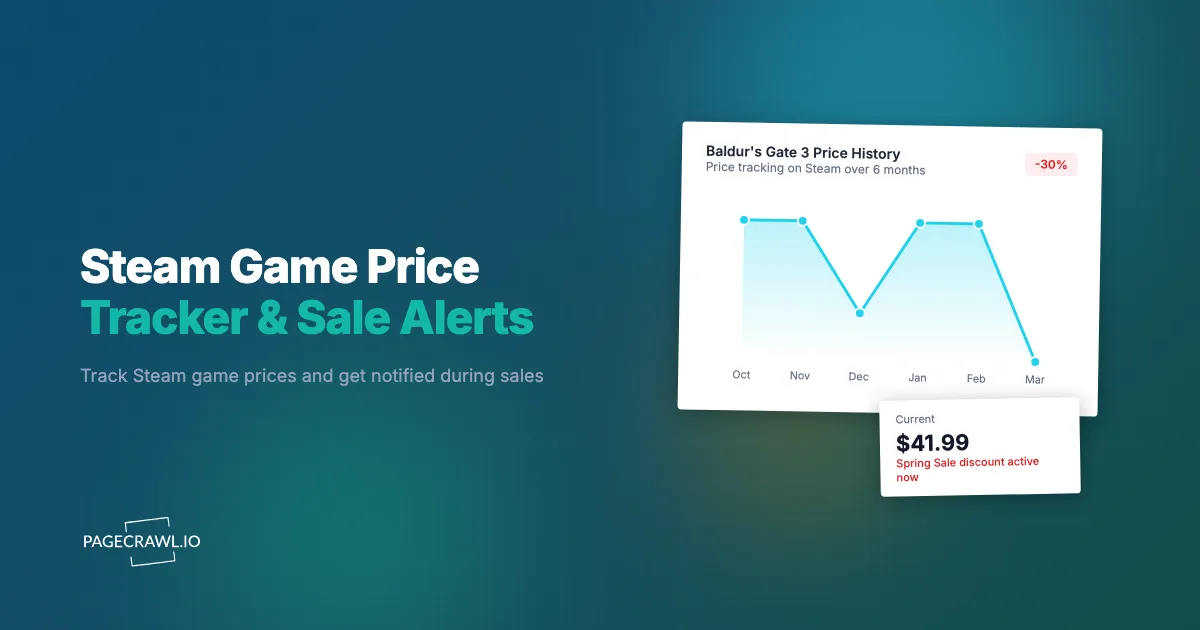
The Price tracking mode automatically detects the displayed price on Steam store pages. PageCrawl renders the page in a full browser, so dynamic pricing elements and JavaScript-rendered content load correctly. This handles Steam's various sale display formats, including crossed-out original prices and discount percentages. Because the value is stored as a number, you also get charts and statistics on how the price has moved over time, which is the historical context Steam itself never shows you.
Step 3: Set Check Frequency
For most games, checking every 6-12 hours provides good coverage. During known sale periods (seasonal sales, publisher events), you can increase frequency to every 2-4 hours to catch deals faster. Outside of sale seasons, daily checks are sufficient for most titles.
Step 4: Configure Notifications
Set up alerts for price changes. PageCrawl supports:
- Email: Receive a summary of the price change with old and new prices
- Slack/Discord: Fast alerts in your gaming or deals channels
- Telegram: Mobile push that reaches you away from the desk
- Webhook: Structured JSON data for automation (more on this below)
For guidance on targeting specific price elements when the automatic detection needs refinement, see the CSS selector guide.
Monitoring for Specific Price Thresholds
The real power of web monitoring is conditional alerting. Instead of getting notified about every minor price change, you can focus on meaningful drops.
PageCrawl's AI-powered change detection can summarize price changes and distinguish between minor fluctuations and significant drops. Its conditional alerts let you set a price threshold directly, so you only get notified when a game drops below your target price.
For example, if you are watching Baldur's Gate 3 and your target is $30, you set up monitoring on the Steam page and add a conditional alert that only fires when the price is at or below $30. The first check that reads a price at or under your target sends the alert. Higher prices are still recorded, but they stay silent. The help centre covers the full set of notification conditions and filters you can layer on a single monitor.
This eliminates the noise of 10% off notifications when you are waiting for 50% off.
PageCrawl's noise filtering lets you click on any detected change to ignore it in future checks. This eliminates false alerts from date stamps, ad rotations, and visitor counters that change on every check. Steam store pages often update elements like "players online" counters and rotating featured recommendations, and noise filtering ensures those changes never trigger an alert while genuine price changes still come through.
Tracking Multiple Games Efficiently
With PageCrawl, each game gets its own monitor. For tracking 10-20 games, create individual monitors and organize them in a folder called "Steam Wishlist" or similar. Each monitor tracks its own price independently.
For tracking larger numbers of games, the PageCrawl API lets you create monitors programmatically. Build a script that reads your Steam wishlist and creates a monitor for each game.
Tracking DLC and Bundle Pricing
DLC and bundles require slightly different monitoring approaches than base games.
Individual DLC Tracking
Each piece of DLC has its own Steam store page with its own URL. Create a separate monitor for each DLC you are interested in. DLC often goes on sale at different times than the base game, so individual tracking catches opportunities you would otherwise miss.
Complete Edition and Bundle Monitoring
Steam bundles have dedicated pages that show the bundle price, including any "complete the set" discount for games you already own. Monitor the bundle page URL to track the overall bundle price.
Note: Steam's "complete the set" pricing is personalized based on your account's existing library. Monitoring the public page shows the full bundle cost, which works as a baseline. To track your personalized "complete the set" price, connect your Steam login so PageCrawl signs in and reads it directly. The signed-in session is saved and reused, so you only log in once.
Season Pass and Edition Comparisons
For games with multiple editions (Standard, Deluxe, Ultimate), monitor each edition separately. Sometimes the price gap between editions narrows during sales, making the upgrade worthwhile. Tracking all editions lets you spot these opportunities.
Using Webhooks for Automated Purchase Alerts
Webhooks transform price monitoring from a passive notification system into an active automation trigger.
Webhook Setup
When you configure a webhook notification in PageCrawl, every detected price change sends a JSON payload to your specified URL. This payload includes the monitored URL, the detected change, timestamps, and other metadata.
For a detailed walkthrough of webhook configuration and payload formats, see the webhook automation guide.
Automation Ideas
Price threshold alerts: PageCrawl's conditional alerts already fire only when the price hits your target. For extra logic on top of that, you can route webhook data through an automation (Zapier, Make, n8n, or a custom script) and forward alerts only when your own criteria are met.
Spreadsheet logging: Send every price change to a Google Sheet or Airtable base. Over time, this builds your own historical price database that you control. Analyze trends, identify patterns, and make data-driven purchasing decisions.
Multi-store comparison: If you also monitor game prices on other stores using price tracking approaches similar to Amazon, your webhook automation can compare prices across stores and alert you to the cheapest option regardless of platform.
Budget management: Build an automation that tracks your total potential spend across all games below their target price. When total spend exceeds your monthly gaming budget, it pauses lower-priority alerts.
Tips for Optimal Steam Sale Timing
Track Historical Patterns
Most games follow a predictable discount curve. A new release opens with a shallow discount on its first sale, the discount deepens as the title ages through successive seasonal events, and older catalogue games eventually reach the steep reductions that make wishlists worth keeping. Rather than trusting a rule of thumb, watch what a specific game has actually done: your own price history tells you where it sits on that curve and what target is realistic.
Watch for "Historical Low" Moments
A game's all-time lowest price on Steam typically occurs during one of two scenarios: a seasonal sale after the game has been out for 1-2 years, or a publisher sale where the publisher is promoting a franchise ahead of a sequel announcement. These moments are when monitoring pays off most.
Consider Upcoming Releases
Publishers frequently discount existing titles ahead of sequel or franchise releases. When a sequel is announced, set up monitoring on the predecessor. Elden Ring Nightreign's announcement would be a signal to monitor the original Elden Ring for deeper discounts.
Bundle and Collection Timing
Bundle discounts sometimes exceed individual game discounts during the same sale. If you want multiple games from the same publisher, wait for a bundle deal rather than buying individually during a general sale.
New Release Patience
Most games reach their first meaningful discount within the first year on sale. If you are not in a rush, patience combined with monitoring means you catch that first real markdown without checking manually.
Comparing Price Tracking Methods
| Feature | Steam Wishlist | IsThereAnyDeal | SteamDB | PageCrawl |
|---|---|---|---|---|
| Price alerts | Yes (basic) | Yes (threshold) | No | Yes (threshold + AI) |
| Historical data | No | Yes | Yes (detailed) | Yes (builds over time) |
| Cross-store | No | Yes | No | Yes (with separate monitors) |
| Custom notifications | Email only | Email only | None | Email, Slack, Discord, Telegram, Webhook |
| Automation support | No | No | No | Yes (webhooks + API) |
| DLC tracking | Basic | Yes | Yes | Yes |
| Regional pricing | Your region | Multiple regions | All regions | Configurable |
| Cost | Free | Free | Free | Free tier (6 monitors) |
For a broader comparison of price tracking tools across retail categories, including approaches that work beyond gaming, see our dedicated comparison guide.
Beyond Steam: Tracking Game Prices Across Stores
Steam is not the only place to buy PC games, and console players can track Nintendo Switch game prices the same way. Legitimate stores like Humble Bundle, Fanatical, GOG, Green Man Gaming, and the Epic Games Store all sell the same titles, often at different prices.
While IsThereAnyDeal covers many of these stores, PageCrawl's price and stock monitoring lets you track any store page directly. Create monitors for the same game across multiple stores and compare pricing side by side as each round of checks reports in. This is particularly useful for stores that ITAD does not cover or for monitoring store-specific bundles and promotions.
The approach mirrors cross-retailer price comparison for physical products, adapted for the digital game market.
Common Challenges
Age-Gated Content
Some Steam store pages require age verification before displaying content. PageCrawl handles dynamic page content automatically, and you can add page actions (select the date of birth and click through the age gate) so the price loads normally. Alternatively, the direct store API URL format for the game skips the age gate entirely.
Regional Store Pages
Steam redirects to your regional store based on IP address. Ensure your monitoring is configured for the correct regional store to see accurate pricing for your region.
Free-to-Play and Free Weekend Events
Games occasionally become free-to-play permanently or run free weekend promotions. Your price monitor will detect these as price changes (dropping to $0.00), which is useful information. Free weekends are a great way to try games before committing to a purchase during the next sale.
Bundle Page Complexity
Steam bundle pages can display multiple price elements (individual prices, bundle price, your price). Make sure your monitor targets the specific price element you care about. The CSS selector guide explains how to target specific elements when automatic detection needs refinement.
Choosing your PageCrawl plan
PageCrawl's Free plan lets you monitor 6 pages with 220 checks per month, which is enough to validate the approach on your most critical pages. Most teams graduate to a paid plan once they see the value.
| Plan | Price | Pages | Checks / month | Frequency |
|---|---|---|---|---|
| Free | $0 | 6 | 220 | every 60 min |
| Standard | $8/mo or $80/yr | 100 | 15,000 | every 15 min |
| Enterprise | $30/mo or $300/yr | 500 | 100,000 | every 5 min |
| Ultimate | $99/mo or $999/yr | 1,000 | 100,000 | every 2 min |
Annual billing saves two months across every paid tier. Enterprise and Ultimate scale up to 100x if you need thousands of pages or multi-team access.
If you have 10 or more games sitting on your wishlist that you are waiting to buy at the right price, the math is simple: catching one title at its historical low rather than a mediocre sale discount typically saves $15 to $30. Standard at $80/year covers 100 monitored pages, enough to track your entire wishlist across Steam and multiple other stores simultaneously. Checking every few hours during sale seasons means you catch 24-hour daily deals and limited publisher sales that Steam's own wishlist notifications routinely miss.
How do you start tracking Steam prices today?
Pick 3-5 games you are actively waiting to buy. Find their Steam store pages, note the URLs, and set up monitors in PageCrawl with "Price" tracking mode. Configure Slack or Telegram notifications for fast mobile alerts when a check finds the price has moved.
Run the monitors for a few weeks to establish baseline pricing data. When the next Steam sale hits, you will have historical context to know whether the discounts are genuinely good or just average. Expand to more games and add webhook automation as your needs grow.
PageCrawl's free tier includes 6 monitors, enough to track a handful of wishlist titles and see the value before scaling up. Paid plans start at $80/year for 100 monitors (Standard) and $300/year for 500 monitors (Enterprise), giving serious bargain hunters room to track their entire wishlist across multiple stores.