A product manager at a logistics software company set up a personal monitoring account in the spring: four competitor pricing pages, alerts to her own inbox. It worked, so it grew. The compliance officer asked her to add two regulator pages and forward anything relevant. A sales engineer asked for a partner's API changelog. By autumn her personal account watched 23 pages for three departments, and the forwarding rules in her inbox were, without anyone deciding it, company infrastructure. Then she took two weeks of leave. A competitor repriced in week one; the alert sat unread in her inbox. A monitor on the regulator's site broke in week two when the page moved; nobody knew, because nobody else could see the account. Sales found the pricing change from a prospect, and compliance found the moved page a month later during an internal review. The postmortem conclusion was not "she did something wrong." It was "we built infrastructure by accident and never noticed."
Most teams discover website monitoring exactly this way: one person's setup quietly becomes something departments depend on, with a single point of failure nobody appointed. This guide is the playbook for doing it deliberately instead: how to structure monitors so a team can share them, how to route alerts so the right people see the right changes, what the first 30 days of a rollout look like week by week, and how to govern the setup so it stays healthy after the novelty wears off.
Why do teams outgrow a personal monitoring setup?
A personal setup breaks down at the point where the alerts matter to more people than the inbox they arrive in. Forwarded emails get missed, nobody else can pause or edit a monitor, and the change history that would answer "when did their pricing change?" lives in one person's account. A team setup replaces that with shared visibility.
The concrete failure modes are the ones in the opening story, and they are predictable. Coverage gaps: when the account owner is away, alerts go unread and broken monitors go unfixed, and both failures are silent. Duplicate work: two people in different departments monitor the same competitor page separately, each assuming they are the only one. Knowledge loss: when the owner leaves the company, the monitors, the tuning decisions behind them, and the accumulated change history either leave with them or survive as an account nobody has credentials for. There is also an accountability gap that only shows up under pressure: when a change is missed, "whose job was it to see that alert?" has no answer in a personal setup, because the honest answer is "whoever the forwarding rule was for."
Moving to a shared team account fixes all four at once. Everyone sees the same monitors, the same diffs, and the same history; any authorized person can fix or adjust a monitor; and ownership of each alert stream is explicit because routing is configured per team rather than per inbox. The migration is usually an afternoon of work, and the right time to do it is before the leave, not after.
How should a team organize its monitors?
Organize by audience, not by website. Create a workspace per team or client, group monitors into folders by topic, and use labels for anything that cuts across folders, such as priority or region. The test of a good structure is that a new team member can find the monitor they need without asking anyone.
In PageCrawl this maps directly: workspaces separate teams or clients with their own members and notification settings, folders group monitors inside a workspace, and labels handle cross-cutting concerns. Templates take care of shared settings, so "how we monitor a regulator page" is defined once and applied to every monitor of that kind. If you monitor many similar pages on one site, automatic page discovery can add new pages to a template as the site publishes them.
Here is what the structure looks like for a real shape of company: a 12-person product and compliance organization (five in product, four in sales engineering, three in compliance) at a B2B software firm watching competitors, regulators, and key vendors:
Product workspace/
  Competitors/
    CompetitorA - pricing page
    CompetitorA - changelog
    CompetitorB - pricing page
    CompetitorB - feature pages (via template)
  Partners/
    Partner API changelog
    Partner status page
  Own site/
    Pricing page (integrity watch)
    Signup flow landing page

Compliance workspace/
  Regulators/
    Primary regulator - guidance index
    Primary regulator - enforcement list
    Data protection authority - news
  Vendors/
    Vendor DPA and terms (one folder per Tier 1 vendor)
    Vendor subprocessor lists

Labels (cross-cutting, both workspaces):
  priority:critical - anything justifying same-day review
  region:eu / region:us - jurisdiction filters
  renewal-2026 - vendors and competitors tied to this year's renewal cycle
Two workspaces, not one, because product and compliance have different members, different notification channels, and different answers to "who is allowed to edit this." Folders follow topics because that is how humans browse; labels carry the dimensions that do not fit a tree, so compliance can pull every priority:critical monitor across both regulators and vendors in one view. Resist the urge to create deep folder hierarchies: two levels (folder, then monitors) stays navigable, and anything that wants a third level is usually a label.
How do you route alerts so the right people see them?
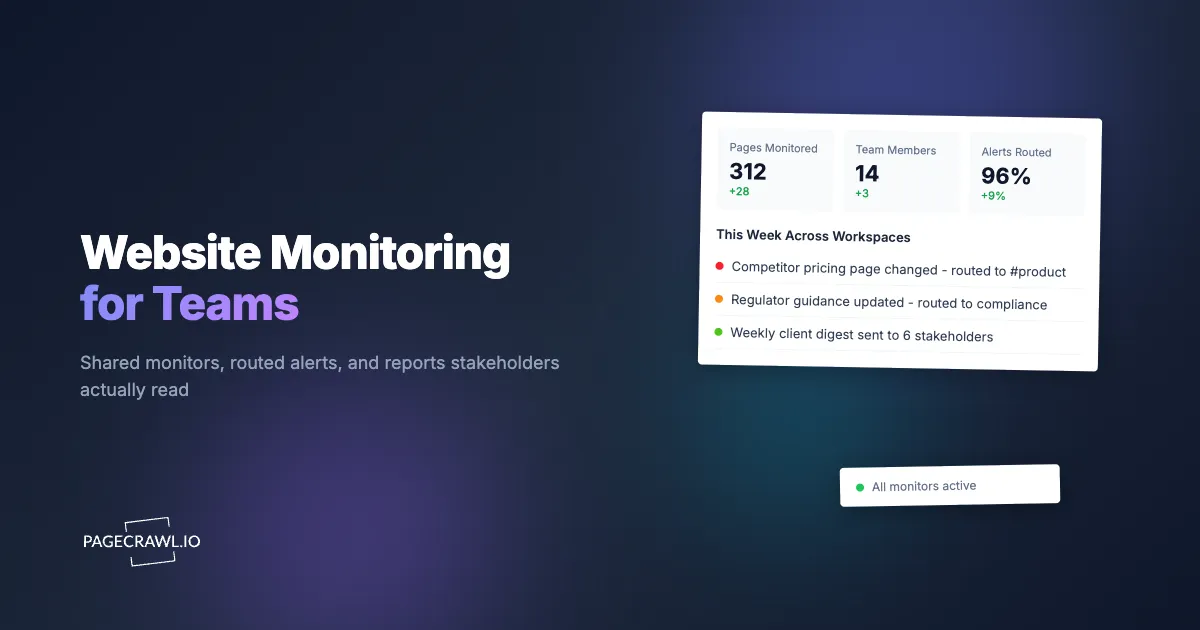
Route by destination channel, not by recipient list. Send each folder or workspace's alerts to the channel where that team already works, and name an owner for each stream, because a channel without an owner is just a quieter version of the forwarded inbox. A change nobody is accountable for reading is a change you are not monitoring.
A routing design for the 12-person org above looks like this:
| Change type | Destination | Owner |
|---|---|---|
| Competitor pricing or packaging | #competitive-intel (Slack) | Product manager |
| Competitor product and changelog | #competitive-intel (Slack) | Product marketing |
| Regulator guidance and enforcement | Compliance channel (Teams) | Compliance officer |
| Vendor terms, DPA, subprocessors | Compliance channel (Teams) + email to vendor manager | Vendor manager |
| Partner API and status changes | #eng-alerts (Slack) | Sales engineering lead |
| Own-site integrity failures | #eng-alerts (Slack) + webhook to incident tool | On-call engineer |
PageCrawl supports Slack, Microsoft Teams, Discord, Telegram, email with per-monitor recipients, and signed webhooks for anything custom. Alerts arrive when the next scheduled check detects the change, with checks as frequent as every 2 minutes depending on plan, and each alert carries the diff so the reader can judge relevance without opening a dashboard. Note: the owner column is the part teams skip and regret. It does not mean that person handles every change; it means that person is accountable for the stream being read and for tuning it when it gets noisy.
What do the first 30 days of a rollout look like?
One team, one workspace, four weeks, each with a concrete deliverable. The goal of the first 30 days is not coverage; it is a working pattern (structure, routing, review habit) that the second team can copy instead of reinvent. Expanding before the pattern works just multiplies the noise.
Week 1: Inventory and migrate
The rollout owner (usually the person who ran the informal setup) lists every page currently being watched, by anyone, anywhere: personal accounts, browser bookmarks, "I just check it sometimes" habits. Deduplicate the list, then migrate it into one shared workspace with the folder structure above. Set workspace defaults (screenshots on, sensible check frequency) before adding monitors so every page inherits them. Deliverable: one workspace, every known page in a folder, personal setups retired.
Week 2: Wire the routing
The rollout owner connects each folder to its destination channel from the routing table and names the owner of each stream. Send a test alert into each channel and confirm the owner saw it. Turn on a weekly summary report for stakeholders who want the signal but will never log in. Deliverable: no alert lands in a personal inbox; every stream has a named reader.
Week 3: Tune the noise
Stream owners review a week of real alerts and flag false positives. The rollout owner fixes each one: switch noisy pages to content-focused tracking modes, add keyword conditions where only certain terms matter, exclude page regions that churn cosmetically. This week decides whether the team trusts the alerts, so treat tuning as the main job, not a chore. Deliverable: a channel the owning team actually reads, with false alerts rare enough to comment on.
Week 4: Document and hand off
Write the one-page runbook: the folder structure and what belongs where, the routing table with owners, how to add a monitor (and the template to use), and who to ask for access. Review the month with the team: what was caught, what was missed, what the second team needs. Deliverable: a setup that survives the rollout owner's next holiday, which was the whole point.
After day 30, expansion is additive: the second team gets its own workspace, copies the templates and the runbook, and repeats weeks two and three for its own pages. Growth from there is new pages joining existing folders and new teams getting new workspaces, not redesigns.
How do you handle permissions and roles?
Give edit access generously within a team's own workspace and use workspace boundaries, not individual permissions, to separate teams. The failure mode to design against is the one from the opening story: exactly one person who can fix things. Every workspace needs at least two people who can edit monitors and one clear administrator. PageCrawl's user access roles (Owner, Administrator, Standard User, Viewer) map onto that split.
Workspaces are the permission boundary that matters in practice. Product's workspace members can add, pause, and tune product's monitors without being able to disturb compliance's regulator watchlist, and vice versa. Within a workspace, prefer more editors over fewer: the cost of a colleague mis-editing a monitor is small and visible (the change history shows what happened), while the cost of a broken monitor waiting three days for the one authorized person is silent coverage loss. Reserve tighter control for the account level: billing, plan changes, and workspace creation sit with an administrator, typically the rollout owner plus one deputy so that role also survives holidays. For organizations that manage access centrally, Enterprise plans support single sign-on built on SAML, the identity standard maintained by OASIS, which folds monitoring access into the same joiner-and-leaver process as everything else; when someone leaves, their access ends with their directory account instead of living on in a tool nobody remembered.
What belongs in a shared workspace versus a personal one?
Anything a colleague would need if you were away belongs in the shared workspace; anything that only informs your own judgment can stay personal. The practical test is the miss test: if this page changed while you were on leave and nobody saw it, would anyone care? If yes, it is team infrastructure and belongs where the team can see it.
Shared by default: competitor pages you track for pricing and product moves, regulator sources, vendor terms, partner documentation, tender portals, and your own site's critical pages, along with anything wired to a team channel or included in a stakeholder report. Legitimately personal: exploratory monitors you are still evaluating, pages relevant to your own research, and drafts you have not tuned enough to inflict on a team channel. The healthy pattern is personal-as-staging: try a page personally, and once it proves signal-worthy, move it into the shared workspace and route it properly. If a "personal" monitor's alerts get forwarded to anyone even semi-regularly, it has already failed the test; move it.
How do you keep stakeholders informed without adding seats?
Use scheduled summary reports instead of dashboard access. A daily or weekly report collects everything that changed in a folder, workspace, or label, summarizes it, and emails it to any address you choose. Recipients do not need a PageCrawl account, which is usually the right shape for executives, clients, and adjacent teams.
Reports can be filtered to important changes only, grouped by domain, and include an AI-written summary of what changed and why it matters. Teams that report to clients can share a web version of each digest. In the 12-person org above, this is how the VP hears about competitor moves: not by joining #competitive-intel, but through a Monday digest of the Competitors folder that takes ninety seconds to read. For the mechanics, see the scheduled reports overview.
How do you govern the setup so it stays healthy?
Name an owner, review failing monitors weekly, prune quarterly, and fold the workspace into onboarding. Monitoring setups do not decay dramatically; they decay quietly, one broken monitor and one ignored channel at a time, and a small recurring governance habit is the difference between infrastructure and clutter.
Four habits cover it. First, the named owner: one person (plus a deputy) is accountable for the health of the setup itself, not for reading every alert; the role lives in the runbook and transfers deliberately when people change jobs. Second, the weekly failing-monitor review: five minutes scanning for monitors whose checks are erroring or whose target pages have moved. A broken monitor is silent coverage loss, and it only gets caught by someone who looks. Third, quarterly pruning: walk the workspace and retire monitors nobody has acted on in three months. Monitoring lists grow easily and shrink never, and every stale monitor pays a small tax in noise and check budget. Fourth, onboarding: new joiners get the runbook and a fifteen-minute tour of their team's workspace in week one, which is how "check the competitive-intel channel" becomes culture rather than tribal knowledge. Combined, these habits take under an hour a month; skipping them is how a deliberate rollout drifts back into accidental infrastructure.
How do you evaluate team monitoring before paying?
Run a two-week pilot on your real pages, not a demo. Create a free account, add the pages one team genuinely needs (the free plan is enough for a first folder), wire alerts into one Slack or Teams channel, and let the team live with the results. The questions that matter only get answered by real usage.
Those questions are: alert quality on your specific pages, reliability on the sites you care about, and whether people actually read the channel. Two weeks of the rollout's week-one-to-week-three pattern, in miniature, answers all three. When the pilot works and you need more pages, teams can request an Enterprise trial from subscription settings and evaluate the full plan on their own monitors before any payment. For invoice billing, SAML SSO, a DPA, the platform security overview your IT reviewer will ask for, or a custom quote, talk to sales. If some of your target pages block ordinary monitoring tools, send us the URLs first and we will confirm coverage before you commit. And if the budget conversation needs numbers rather than a working demo, our guide to building the business case for monitoring turns the pilot's results into the one-page memo that closes it.
Choosing your PageCrawl plan
PageCrawl's Free plan lets you monitor 6 pages with 220 checks per month, which is enough to run the first team's pilot before any budget conversation. Most teams graduate to a paid plan once they see the value.
| Plan | Price | Pages | Checks / month | Frequency |
|---|---|---|---|---|
| Free | $0 | 6 | 220 | every 60 min |
| Standard | $8/mo or $80/yr | 100 | 15,000 | every 15 min |
| Enterprise | $30/mo or $300/yr | 500 | 100,000 | every 5 min |
| Ultimate | $99/mo or $999/yr | 1,000 | 100,000 | every 2 min |
Annual billing saves two months across every paid tier. Enterprise and Ultimate scale up to 100x if you need thousands of pages or multi-team access.
For a team rollout the math is about replaced attention. Standard at $80/year covers 100 shared pages, which replaces hours of scattered manual checking across the team every month for less than one loaded hour of anyone's time. Enterprise at $300/year adds 500 pages, 5-minute checks, multiple workspaces, and SSO, the tier where several teams or clients share one pipeline. All plans include the PageCrawl MCP Server, so anyone on the team can ask an AI assistant what changed across the watchlist last month and get the diffs to back it up. AI assistants can create monitors through conversation on every plan, including Free.
Getting Started
Pick the one team with the most painful manual checking habit and run their pages as the pilot: a free account, one workspace, alerts into the channel they already read. Two weeks of real catches beats any internal pitch, and the rollout sequence in this guide takes over from there.