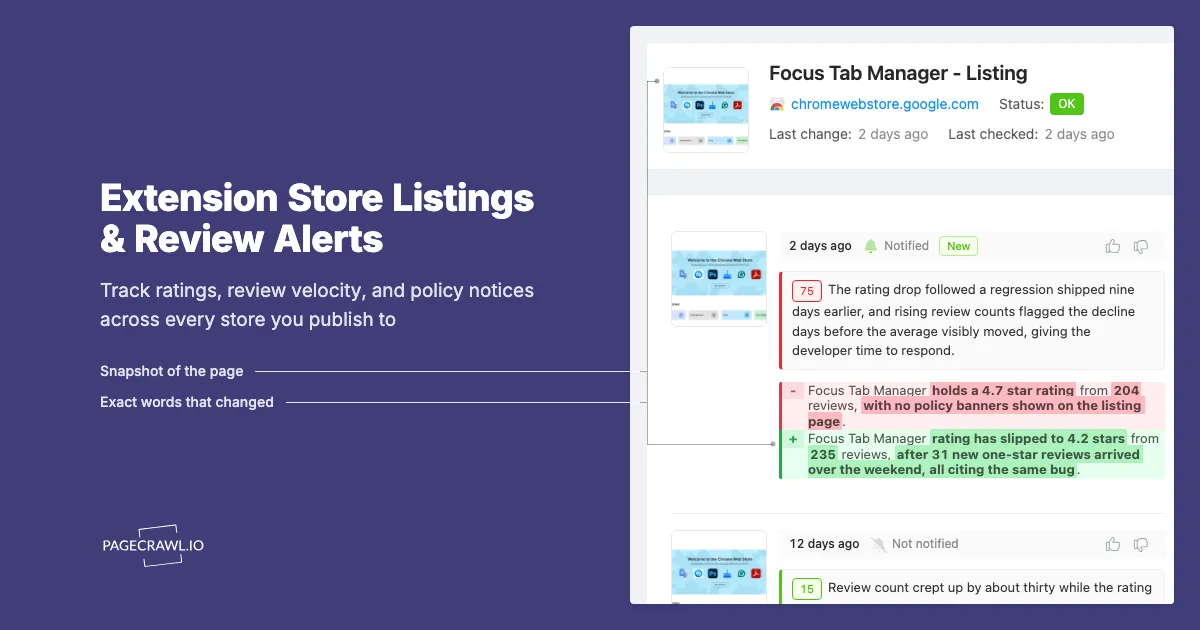
On a Tuesday morning a solo developer opened her Chrome Web Store dashboard to check a support ticket and found her extension's rating had slid from 4.7 to 4.2. Thirty-one one-star reviews had arrived over the weekend, all of them describing the same broken behaviour on a single site. The regression had shipped nine days earlier in a version she considered a minor cleanup. Nobody emailed her. The store did not warn her. Her users simply rated her down and started uninstalling, and the first she knew about it was a rating number that had already been public for days.
Extension publishing is unusually opaque. Your listing is a live page controlled by someone else, edited by a review process you cannot see, decorated with badges that appear and vanish, and ranked against competitors whose changes are invisible unless you go and look. A listing can lose a "Featured" badge, gain a data-disclosure warning, or be quietly unpublished, and the notification is often an email you missed or no email at all.
The publishers who avoid weekend disasters treat their store listings the way an operations team treats a status page. They watch the page, not the dashboard. This guide covers what actually changes on a Chrome Web Store or Firefox Add-ons listing, how to spot a rating slide while it is still small, which policy pages deserve their own monitor, and how to route the alerts into a channel your team already reads.
Why do browser extension store listings change without warning?
Your listing page is rendered by the store, not by you. Ratings, review counts, user counts, badges, category placement, data-safety disclosures, and compatibility notices are all computed on the platform side. Any of them can change from a review action, an algorithm update, or a policy sweep, and most of those changes produce no email to the developer.
The listing is a page you do not control
You submit a name, description, screenshots, and a package. Everything else on the public listing is generated: the aggregate star rating, the "users" figure, the last-updated date, the featured or verified badge, and any warning banners the store decides to display. When Google or Mozilla changes how a field is presented, your listing changes overnight without a single edit from you.
Review actions happen asynchronously
Extension review is continuous, not a one-time gate. Mozilla is explicit that an add-on remains subject to review at any point after publication, and its add-on policies state that non-compliant add-ons may be rejected or disabled. Google's Chrome Web Store program policies work the same way. The developer-facing signal is often an email to the account owner, exactly the message that gets filtered, missed on holiday, or sent to a shared mailbox nobody reads.
Store-wide policy shifts move every listing at once
Platform migrations reshape listings in bulk. Chrome's Manifest V2 to V3 transition changed publishing eligibility for entire classes of extensions, with the Chrome for Developers migration guidance tracking the requirements over several years. When a store enforces a new requirement, an individual developer only learns their listing was caught if they are looking at the page.
Nobody tells you about a slow decline
A single bad review is noise. Eleven bad reviews in three days is a regression. The store shows you a rounded average that hides velocity, so a product problem is visible in the review stream long before it is visible in the star number. Watching the count rather than the average turns a reputation problem into a support ticket you fix on Monday.
What should extension publishers monitor on the Chrome Web Store?
Monitor four things on your own listing: the aggregate rating and review count, the user count, the version and last-updated line, and any badge or warning banner. Together these tell you whether the store changed your listing, whether users are reacting to a release, and whether growth stalled after a ranking change.
Your own listing page
This is the single highest-value monitor. A public listing shows your current version, the date it was last updated, the star rating, the number of ratings, the user total, the category, and any store-applied badge. A change in any of them is a fact about your business you would otherwise learn late. Set this up first and give it your fastest check frequency.
The review stream, not just the average
The star average is a lagging indicator that moves slowly once you have thousands of ratings. The review count and the text of the newest reviews move fast. Watching the reviews area catches three users describing the same crash on the same day, which is a bug report you can act on, rather than a rating dip you can only apologise for. This is the review-velocity logic from our guide to App Store and Google Play review velocity monitoring, applied to a browser store instead of a mobile one.
The user count as a churn signal
The installed-user figure is the bluntest health metric a publisher has. A flat number after a marketing push means acquisition is not working. A falling number after a release means people are uninstalling. A sudden drop with no release means the store changed your distribution or visibility. Capturing the figure on a schedule gives you a series instead of a single glance, so you can point at the day the curve bent.
Badges, warnings, and disclosure banners
Stores decorate listings with signals users read before installing: featured or verified badges, data-collection disclosure statements, permission summaries, and compatibility notices. Any of these appearing, changing, or disappearing affects conversion directly. Microsoft documents a formal curation and review process for the Edge Add-ons store, and curation outcomes surface on the public listing before most developers notice them internally.
| What changes | Where it shows | Why it matters | Sensible check pace |
|---|---|---|---|
| Star rating average | Listing header | Slow-moving trust signal | Daily |
| Rating and review count | Listing header and reviews tab | Fast regression signal | Every few hours |
| User or install count | Listing header | Growth and churn | Daily |
| Version and last-updated date | Listing details | Confirms a rollout went live | Daily |
| Badge, warning, or disclosure banner | Listing body | Distribution and conversion risk | Every few hours |
| Category or ranking placement | Category page | Discovery volume | Daily |
How do you track review velocity and rating drops before they hurt?
Track the review count as a number, not the review text as a blob, and set a threshold so an alert fires when the count jumps more than your normal daily rate. A rating average that has moved a tenth of a point is already weeks old. A count that gained fifteen entries overnight is today's problem, and it is catchable.
Count first, sentiment second
Numeric tracking on the review count gives you a clean, comparable series. If your extension normally collects two or three ratings a day, a rule that alerts above eight catches both a viral moment and an outage, and stays silent the rest of the time. Our walkthrough on conditional alerts using price, keyword, and threshold rules covers how to attach that numeric condition.
Watch the newest reviews for repeated phrases
The text of the most recent reviews is where the actual bug report lives. Users rarely file issues on your tracker; they leave a one-star review saying "stopped working on Gmail after the update." Two reviews saying the same thing is a coincidence. Five is a reproduction path. A content monitor on the reviews area, with keyword rules for "broken", "stopped working", or the name of a site your extension runs on, turns the review stream into an early-warning bug feed.
Separate release-driven noise from real decline
Every release produces a small wave of feedback, and some of it is negative regardless of quality. The useful comparison is against your own baseline, not against zero. Note the date of each rollout, then compare the seven days after against the seven days before. If negative volume is triple the baseline, the release is the cause. A monitor that records the count on a schedule gives you both numbers without any manual bookkeeping.
Rating recovery is slow, so early beats thorough
Aggregate ratings are weighted by history, so a batch of one-star reviews takes a long time to wash out. Fixing the regression on day two costs you a handful of bad ratings. Finding it on day twelve costs you a number that will sit on your listing for months.
How do you set up extension listing monitoring in PageCrawl?
You add your public listing URL, choose a tracking mode that matches whether you want the whole page or a single number, set the frequency your plan supports, route alerts to the channel your team reads, and add threshold or keyword rules so routine changes stay quiet. Setup takes a few minutes per listing.
Add the URL. Open your extension's public listing on the Chrome Web Store, Firefox Add-ons, or the Edge Add-ons store as a logged-out visitor sees it, and copy that URL. Use the public listing, not your developer dashboard: it is what users see and it needs no session to check.
Pick the tracking mode. Content tracking works well for the listing as a whole, catching version, badge, and banner changes while ignoring page furniture. If you only care about one figure, such as the rating count or the user total, use number tracking pointed at that element so you get a clean numeric series and can set thresholds on it. Many publishers run both: one content monitor for the page and one number monitor for the count.
Set the check frequency. Daily is enough for the star average and user count. For the review count and for badge or warning banners, check as often as your plan allows: every 15 minutes on Standard, every 5 on Enterprise, every 2 on Ultimate. The free tier checks hourly, fine for proving the setup works on one listing.
Choose notification channels. PageCrawl delivers to email, Slack, Discord, Microsoft Teams, Telegram, and outbound webhooks. A dedicated "#extension-health" channel works better than a personal inbox, because listing problems are a support and engineering matter rather than a founder-only one. Webhooks push the change into your issue tracker or on-call rotation.
Add keyword and threshold rules. Set a numeric threshold on the review count so only an abnormal jump alerts you. Add keyword rules on the listing body for words that signal trouble, such as "unpublished", "removed", "violation", "disabled", or "no longer available". Add keyword rules on the reviews area for "broken", "crash", and "stopped working".
Turn on screenshot capture. A dated screenshot is your evidence if a badge disappears or a warning banner shows up and you later need to reconstruct what the page said and when. It also lets you read the change from the alert without opening the store.
Group your monitors in a folder. Create a folder per surface, for example "Chrome listing", "Firefox listing", "Competitors", and "Policy pages". When you publish a second extension you clone the group rather than rebuilding it.
Note: check the public listing rather than an authenticated developer console. The public page carries the badges, banners, ratings, and review text that matter here, and it stays reachable without maintaining a login session.
How do you monitor competing extensions and category rankings?
Point the same kind of monitor at your closest competitors' listings and at the category pages you both appear on. Competitor listings publicly expose version cadence, user growth, description rewrites, pricing changes, and rating movement, which is a complete picture of a rival's trajectory that you can collect without asking anyone.
What a rival's listing reveals
A competitor's last-updated date tells you their shipping cadence. Their user count tells you whether they are growing faster than you. A rewritten description or a new screenshot set usually means a positioning change, often ahead of a marketing push. A sudden rating drop means they broke something, which is a support-migration opportunity while it lasts.
Category and search-result pages
The category listing and the store search results for your main keywords determine how much organic install volume you get. When a new extension appears above you, or you slip off the first screen, your install rate changes for reasons that have nothing to do with your product. Monitoring the ranking page tells you which of your growth dips are ranking dips, the same discipline described in our changelog and product update monitoring guide, pointed at a marketplace instead of a release feed.
Keeping competitor noise manageable
A competitor listing changes for trivial reasons, so a full-page monitor on ten rivals produces a stream nobody reads. Restrict competitor monitors to the fields you would act on: version and last-updated, user count, and star rating. Leave description and screenshots on a slower daily check. Our guide to reducing monitoring false positives covers how to train a monitor to ignore regions that change without meaning anything.
What policy and platform pages should extension publishers watch?
Watch the store program policy pages, the developer agreement, and the platform migration and deprecation documentation for every store you publish to. Policy edits are the changes most likely to cost you distribution, and they are published as ordinary page updates without a broadcast email to every affected developer.
The three policy pages that matter most
Track the Chrome Web Store program policies, the Firefox add-on policies on Extension Workshop, and the Edge Add-ons curation and review documentation. A single sentence added to a data-collection or permissions clause can make a shipped feature non-compliant. Because these are long, stable documents, text tracking with a daily check gives you a precise diff of the added wording rather than a vague "policy updated" notice.
Platform deprecation and migration notices
Manifest changes, API deprecations, and permission narrowing are announced on developer documentation before they are enforced. Chrome's Manifest V3 migration documentation is the canonical example of a page whose edits carry real deadlines. If your extension depends on a specific API, a monitor on that API's documentation page tells you when its status text changes from supported to deprecated.
Your own privacy policy and permission disclosures
Stores require your listed privacy policy and your in-store data disclosures to match what your extension actually does. If your privacy policy lives on a marketing site someone else edits, a well-meaning copy change can put you out of alignment with your store disclosure. Monitoring your own policy page is a compliance control, the practice covered in our post on monitoring privacy policy and terms of service changes.
What goes wrong when monitoring extension store listings?
The three recurring problems are page noise from rotating recommendation rails, rating averages that round away small movements, and monitoring only one store while publishing to several. All three are fixable with tighter targeting and a second monitor rather than a different tool.
Recommendation rails and rotating content
Store listings include "related extensions", "you might also like", and promotional modules that change on every load. A whole-page monitor reports those as changes and trains you to ignore alerts. Target the listing header and details region, and mark the rotating modules as ignored regions after the first couple of false alarms.
Rounded averages hide real movement
A displayed rating of 4.6 covers a wide band, so the number will not move for a long time even while sentiment worsens. This is why the review count is the better trigger: it is an integer that increments on every new rating and cannot round away. Treat the average as context and the count as the alarm.
Publishing to more than one store
If you ship to Chrome, Firefox, and Edge, a single monitor covers a third of your exposure. Each store has its own review queue, its own policy text, and its own rating pool, and a takedown or warning in one store does not appear in the others. Three listings plus three policy pages is six monitors, a small footprint for complete coverage of your distribution.
Alerts nobody owns
An alert routed to a personal inbox during a holiday is the same as no alert. Send listing-health alerts to a shared channel with a named owner. Treat a store warning banner with the urgency you would give a failed payment, because both cut off revenue at the source. Broader techniques live in our guide to online reputation monitoring.
Choosing your PageCrawl plan
PageCrawl's Free plan lets you monitor 6 pages with 220 checks per month, which is enough to validate the approach on your most critical pages. Most teams graduate to a paid plan once they see the value.
| Plan | Price | Pages | Checks / month | Frequency |
|---|---|---|---|---|
| Free | $0 | 6 | 220 | every 60 min |
| Standard | $8/mo or $80/yr | 100 | 15,000 | every 15 min |
| Enterprise | $30/mo or $300/yr | 500 | 100,000 | every 5 min |
| Ultimate | $99/mo or $999/yr | 1,000 | 100,000 | every 2 min |
Annual billing saves two months across every paid tier. Enterprise and Ultimate scale up to 100x if you need thousands of pages or multi-team access.
Catching a brand impersonation, a defamatory review, or a negative social post in hours instead of weeks is worth multiples of a Standard subscription. $80/year is enough to monitor 100 pages across your name, your products, and the top-volume places people talk about your brand. Enterprise at $300/year fits larger brand protection programs with dedicated ownership. All plans include the PageCrawl MCP Server, so you can ask Claude to summarize every sentiment shift and new mention across your brand footprint over the last week or month. AI assistants can create monitors through conversation on every plan, including Free, turning your monitoring history into a living reputation timeline instead of a dashboard you have to manually scan.
Getting Started
Start with one monitor on your highest-traffic extension listing. Use content tracking on the listing header and details region, check daily to begin with, and route the alert to the team channel where your support conversations already happen. That covers version confirmation, badge changes, warning banners, and rating movement.
Add a second monitor within the week: a number monitor on the rating or review count with a threshold just above your normal daily rate. This is the one that catches a bad release while the damage is still a handful of reviews rather than a permanent dent in your average.
Then widen the net: your other stores, the two or three competitors whose moves change your roadmap, and the program policy page for every store you publish to.
Stop discovering your own listing changes from an angry user. Point a monitor at the page and let it tell you first.