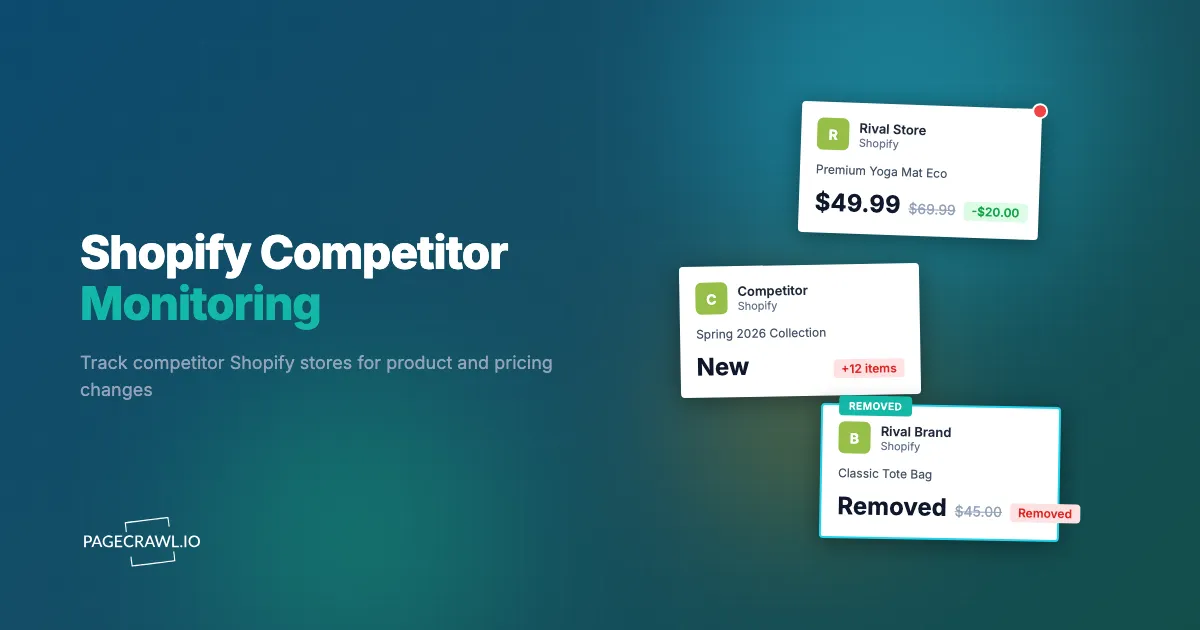
Millions of online stores run on Shopify. Your competitors are among them, and they are constantly launching new products, adjusting prices, running flash sales, and updating their catalogs. None of them will send you a notification when they do. By the time you discover a competitor dropped prices across an entire collection or quietly added a new product line, you have already lost sales to customers who found the better deal first.
Manually checking competitor Shopify stores does not scale. Even tracking five competitors with 20 products each means checking 100 pages regularly. Factor in collection pages, blog posts, and sale events, and the task quickly becomes unmanageable.
This guide covers what you can monitor on a Shopify store, the different methods for doing it, and how to build a practical competitor monitoring system that runs on autopilot. Whether you are tracking a single competitor or building intelligence across dozens of Shopify stores, the approaches here apply to any scale.
Why should you monitor competitor Shopify stores?
Because Shopify stores change constantly and never announce it. Monitoring rival stores tells you when prices move, when new products launch, when promotions start, and when messaging shifts. Shopify stores are also some of the easiest e-commerce sites to monitor because they follow a consistent structure. Every Shopify store uses the same URL patterns, the same product page layouts, and many of the same underlying data formats. This predictability makes automated monitoring reliable and straightforward.
Pricing Strategy
Price is the most common reason to monitor competitors. When a competitor drops the price on a product you also sell, you need to know quickly. Automated monitoring gives you that visibility without spending hours browsing competitor stores. For a broader look at pricing intelligence across all e-commerce platforms, see our competitor price monitoring guide.
Product Launch Detection
New products often signal shifts in competitor strategy. A competitor adding a product line you do not carry could steal market share. A competitor discontinuing products might signal supply issues or a pivot. Monitoring collection pages and catalogs surfaces these changes on the next scheduled check.
Sale and Promotion Tracking
Shopify stores frequently run sales, offer discount codes, and create limited-time bundles. Knowing when a competitor launches a promotion lets you respond with your own offers or at least understand why your traffic dipped on a particular day.
Content and Messaging Changes
Product descriptions, homepage messaging, and blog content all reveal competitor strategy. A competitor rewriting product descriptions to emphasize different features tells you what messaging is resonating with customers. Blog posts signal content strategy and SEO targeting.
What can you track on a competitor's Shopify store?
You can track product pages, collection pages, the products.json catalog feed, the all-products page, blog and content pages, and the sitemap. Shopify stores have a consistent structure that makes each of these predictable to monitor. Here is what each source gives you and where to find it.
Product Pages
Every Shopify product page follows the pattern store.com/products/product-handle. These pages contain the product title, description, pricing, variants, images, and availability status, exactly what product page monitoring for spec, price, and availability changes is built to watch. Price tracking mode works well here, automatically detecting the price and tracking changes over time.
Collection Pages
Collections are how Shopify stores organize products. URLs follow the pattern store.com/collections/collection-name. Monitoring a collection page alerts you when products are added or removed from that category. This is particularly useful for tracking new arrivals or seasonal collections.
The Products JSON Endpoint
Most Shopify stores expose a JSON feed of their products at store.com/products.json. This endpoint returns product titles, prices, variants, inventory status, and more in a structured format. It is one of the most efficient ways to monitor an entire catalog because all the data is in one place. Monitoring this URL in fullpage mode captures the complete product feed.
Note: Some stores disable this endpoint, but most leave it active by default.
The All Collections Page
The URL store.com/collections/all shows every product in the store. Monitoring this page catches new products regardless of which collection they are added to. For stores with large catalogs, this is the single most valuable page to monitor.
Blog and Content Pages
Shopify stores with blogs publish at store.com/blogs/blog-name. Monitoring competitor blog pages reveals their content strategy, the SEO keywords they are targeting, and how frequently they publish, the same signals covered by SEO monitoring for meta tags and content changes. Content changes on the homepage or about page can signal rebranding or positioning shifts.
Sitemap
Every Shopify store generates a sitemap at store.com/sitemap.xml, following the sitemaps.org XML protocol. This lists all pages, products, collections, and blog posts. Monitoring the sitemap catches any new page on the site, making it a broad discovery mechanism. For more on this approach, see our sitemap monitoring guide.
Method 1: Manual Browsing
The simplest approach is visiting competitor stores yourself. Open their website, check product pages, browse collections, and note any changes.
When It Works
Manual browsing works when you have one or two competitors and only care about a handful of products. It costs nothing and requires no setup.
Why It Falls Short
Manual browsing does not scale and is inherently unreliable. You will miss changes that happen between your visits. You will forget to check. You will not catch subtle changes like a $2 price adjustment on a product buried three pages deep in a collection. And the time spent browsing competitor stores is time not spent on your own business.
If you are serious about competitive intelligence, manual browsing should be your starting point, not your long-term strategy.
Method 2: Shopify-Specific Spy Tools
Several tools focus specifically on Shopify store intelligence. These include browser extensions and SaaS platforms designed to extract data from Shopify stores.
What They Offer
Tools like Shopify Inspector (a browser extension), Store Leads, and similar platforms can show you estimated traffic, best-selling products (based on product listing order), technology stack details, and store metadata. Some pull data from the Shopify API endpoints that stores expose by default.
Pros
- Purpose-built for Shopify, so they understand Shopify's data structures
- Can estimate sales volume and best-seller rankings
- Quick to set up for basic store research
Cons
- Limited to Shopify: If your competitors include non-Shopify stores (Amazon sellers, WooCommerce sites, custom platforms), you need separate tools for each.
- Snapshot, not monitoring: Most Shopify spy tools show you a snapshot of the store right now. They do not continuously monitor for changes or send you alerts when something changes. You still have to remember to check.
- No price change alerts: These tools typically do not track price history or alert you when a specific product's price changes. You see the current price, not the trend.
- Surface-level data: Estimated best-seller rankings and traffic guesses are useful for initial research but not actionable for day-to-day competitive response.
Shopify spy tools are good for initial competitor research. For ongoing monitoring with alerts, you need a different approach.
Method 3: Automated Web Monitoring with PageCrawl
Web monitoring tools watch specific pages for changes and notify you when something happens. This approach works with any website, not just Shopify, which means you can monitor all your competitors from one place regardless of their platform.
Here is how to set up comprehensive Shopify competitor monitoring with PageCrawl.
Monitor Product Pages for Price Changes
For products you want to track closely, add each product page URL to PageCrawl using price tracking mode. This automatically detects the product price, tracks it over time, and alerts you when it changes.
- Add the product URL (e.g.,
allbirds.com/products/mens-tree-dasherson the Allbirds Shopify store) - Select "Price detect" as the tracking mode
- Set your check frequency (hourly for fast-moving categories, daily for stable ones)
- Configure alerts for your preferred channels (email, Slack, Discord, or others)
Price tracking mode handles variant pricing, sale prices, and "compare at" prices that Shopify stores commonly use. When a price changes, you get an alert showing both the old and new price.
If you sell the same products as your competitors across multiple stores, PageCrawl's cross-retailer price comparison is a custom capability we can enable on request to automatically group them and show side-by-side pricing.
Monitor Collection Pages for New Products
To catch new product launches, monitor the competitor's collection pages. When they add a new product to a collection, the page content changes and PageCrawl detects it.
Add the collection URL (e.g., allbirds.com/collections/new-arrivals) and use fullpage or content-only mode. The AI summary will tell you exactly what changed, whether a new product appeared, an existing product was removed, or descriptions were updated.
For maximum coverage, monitor the store's /collections/all page (for Allbirds, allbirds.com/collections/all). This catches every product addition and removal across the entire store, regardless of which specific collection it belongs to.
Monitor the Products JSON Feed
For a data-rich view of catalog changes, monitor the store's /products.json endpoint (for example allbirds.com/products.json). This endpoint includes product titles, descriptions, prices, variant details, and inventory information in a single page.
Changes to this feed reflect any product update the competitor makes. New products appear. Price changes show up. Products marked as out of stock are visible. Fullpage monitoring mode works well here because you want to capture any change in the feed.
Note: The JSON feed paginates at 30 products per page. For stores with large catalogs, you may want to monitor products.json?limit=250 to capture more products per page, or monitor specific collection JSON feeds like collections/collection-name/products.json.
Set Up Alerts
PageCrawl supports multi-channel notifications. Route alerts to where your team will actually see them:
- Slack or Discord: Best for team visibility. Everyone sees competitor changes in a shared channel.
- Email: Good for daily digests or when you want a record of changes.
- Webhooks: Feed competitor data into your own systems or workflows.
- Telegram or Microsoft Teams: Use whichever messaging platform your team prefers.
You can also set conditions on alerts. For price monitoring, trigger alerts only when the price drops below a threshold or changes by more than a certain percentage. This reduces noise from minor fluctuations, and the help centre walkthrough on notification conditions and filters covers the keyword and threshold rules in detail. For more on alert routing, see our guide on tracking competitor websites.
Advanced Strategies
Once you have basic product and price monitoring running, these advanced approaches provide deeper competitive intelligence.
Monitor Competitor Blogs for Content Strategy
Shopify stores with active blogs publish at predictable URLs. Monitor the store's /blogs/news page (Allbirds publishes at allbirds.com/blogs/news; other stores may use a different blog slug) to catch new posts. This reveals their content strategy, the keywords they are targeting, and how they position their products.
Content monitoring is particularly useful during product launches. Competitors often publish blog posts explaining new products or announcing sales before updating their product pages.
Track Sitemaps for New Pages
Monitoring a competitor's sitemap at /sitemap.xml (for example allbirds.com/sitemap.xml) is the broadest way to detect changes. New product pages, new collections, new blog posts, and new landing pages all appear in the sitemap. PageCrawl's sitemap monitoring parses the XML and shows you exactly which URLs were added or removed.
This catches things that page-level monitoring might miss, like a new collection page you did not know to monitor or a landing page for an upcoming sale.
Monitor robots.txt for Strategy Signals
A store's robots.txt file (at /robots.txt on the store's domain), written to the Robots Exclusion Protocol, reveals which sections of their site they want search engines to index and which they are hiding. Changes to this file can signal new site sections, reorganization, or deliberate SEO strategy shifts.
Cross-Retailer Comparison
If you and your competitors sell the same products (or similar products from the same brands), set up monitoring across all the stores that carry those items. As a custom capability we can enable on request, PageCrawl can automatically match the same product across different retailers and show you who has the lowest price, who is running a sale, and how pricing trends compare over time. See our cross-retailer price comparison guide for a detailed walkthrough.
This is especially valuable for brands monitoring their own products across authorized Shopify retailers, or for retailers competing on price for identical items. The help centre article on comparing product prices across multiple retailers explains how the matching and side-by-side view work.
Building a Competitive Dashboard
Individual alerts are useful, but consolidating competitor data into a dashboard gives you a strategic view across all competitors and products.

Using the PageCrawl API
The PageCrawl API provides programmatic access to all your monitoring data. Pull monitor statuses, price history, change logs, and alert data into your own tools. Common integrations include:
- Internal dashboards: Build a competitor pricing dashboard in your existing BI tool. Pull current prices for all monitored products and display them alongside your own prices.
- Spreadsheet exports: Automatically export price data to Google Sheets or Excel for the team to review weekly.
- Custom alerting logic: Build alert rules that go beyond what the PageCrawl UI offers. For example, trigger an alert only when a competitor's price drops below your cost basis on a specific product.
Combining Data Sources
Pair PageCrawl monitoring data with other intelligence sources for a complete picture. Combine price tracking data with your own sales data to measure the impact of competitor price changes on your revenue. Add Google Analytics data to correlate competitor promotions with your traffic dips.
The API makes this possible without manual data entry. Set up automated data pulls on a schedule that matches your decision-making cadence, whether that is daily for pricing decisions or weekly for strategic reviews.
Organizing Monitors for Scale
When monitoring multiple competitors, organization matters. Use folders to group monitors by competitor (all Store A monitors in one folder, all Store B in another). Use tags to categorize by type (price monitors, collection monitors, content monitors). This structure makes it easy to review changes by competitor or by monitoring category.
For teams monitoring dozens of competitors, templates let you apply the same monitoring configuration to new stores quickly. Set up a template with your preferred check frequency, alert channels, and tracking mode, then use it every time you add a new competitor.
Which Shopify monitoring approach should you choose?
Use manual browsing only for initial research on one or two competitors, Shopify spy tools for one-off store snapshots and estimated rankings, and automated web monitoring when you want ongoing alerts across any platform. Here is a quick comparison to help you decide.
| Approach | Best For | Limitations |
|---|---|---|
| Manual browsing | Initial research, 1-2 competitors | Does not scale, misses changes |
| Shopify spy tools | Store research, estimated rankings | Snapshots only, no ongoing alerts |
| PageCrawl | Ongoing monitoring, alerts, any platform | Requires setup per page or collection |
For a broader comparison of e-commerce monitoring options, see our best e-commerce monitoring tools guide. If your focus is specifically on pricing tools, the best competitor price tracking tools comparison covers dedicated pricing platforms.
Most teams get the best results by combining approaches: use Shopify spy tools for initial research and competitor discovery, then set up PageCrawl for ongoing automated monitoring of the pages and products that matter most.
Choosing your PageCrawl plan
PageCrawl's Free plan lets you monitor 6 pages with 220 checks per month, which is enough to validate the approach on your most critical pages. Most teams graduate to a paid plan once they see the value.
| Plan | Price | Pages | Checks / month | Frequency |
|---|---|---|---|---|
| Free | $0 | 6 | 220 | every 60 min |
| Standard | $8/mo or $80/yr | 100 | 15,000 | every 15 min |
| Enterprise | $30/mo or $300/yr | 500 | 100,000 | every 5 min |
| Ultimate | $99/mo or $999/yr | 1,000 | 100,000 | every 2 min |
Annual billing saves two months across every paid tier. Enterprise and Ultimate scale up to 100x if you need thousands of pages or multi-team access.
Standard at $80/year covers 100 pages, which is enough to track the core catalog, pricing, and new-product feeds of two or three Shopify competitors. A single pricing adjustment made ahead of a competitor sale, or a new product caught before it gets traction, routinely covers the cost. Enterprise at $300/year scales to 500 pages with 5-minute checks, enough to run a serious competitive pricing program across a full category without building or maintaining any custom tooling.
Getting Started
Pick one competitor Shopify store. The one you lose deals to most often. Add three monitors: their main collection page, their best-selling product (in price tracking mode), and their products.json feed. Route alerts to Slack or email. Let it run for a week.
Within a few days, you will have a clear picture of how often they change prices, whether they are adding new products, and how their catalog compares to yours. From there, expand to more products, more competitors, and more advanced strategies like sitemap monitoring and cross-retailer comparison.
PageCrawl's free tier includes 6 monitors, which is enough to cover the highest-priority pages across a couple of competitors. Paid plans start at $8/month for 100 monitors and $30/month for 500 monitors, scaling as your competitive intelligence needs grow.