A city council publishes its meeting minutes in a shared Google Doc that gets updated weekly. A research team maintains a public Google Sheet tracking clinical trial results. A government agency shares budget data through Google Sheets that journalists and watchdog organizations need to follow. In each case, people depend on being notified when these documents change, and in each case, Google provides no reliable way to make that happen automatically.
Google Docs and Sheets have version history built in, but it only works if you open the document and manually check. There is no native "notify me when this document changes" feature for documents you do not own. If you are watching a publicly shared document maintained by someone else, your only option is to keep opening it and looking.
For individuals and organizations that depend on external Google documents for data, compliance, research, or civic engagement, this manual approach fails. Updates happen on unpredictable schedules. You cannot check every document every day. And when changes matter (regulatory updates, data corrections, policy revisions), finding out days or weeks late defeats the purpose of having access to the document at all.
This guide covers why monitoring Google Docs and Sheets is challenging, every method available for tracking changes, step-by-step setup for automated monitoring, and practical use cases where document change alerts provide real value.
Why is monitoring Google Docs challenging?
Because a Google Doc is an application, not a page. The text arrives after the app loads, the URL you were given may need a login, and Google offers no "tell me when this changes" option for documents you do not own. Those three constraints shape every method below.
JavaScript-Rendered Content
Google Docs, Sheets, and Slides are web applications, not static web pages. The document content loads through JavaScript after the initial page load. A simple HTTP request to a Google Docs URL returns the application shell, not the document content. Tools that fetch page HTML without executing JavaScript see an empty container.
This means basic web scrapers, RSS readers, and simple monitoring tools that check HTML content cannot read Google Docs. The monitoring tool must render the page in a full browser environment, executing JavaScript to load the actual document content.
URL Structure and Access Levels
Google documents have several URL formats that affect monitoring:
Editor URL (docs.google.com/document/d/DOCUMENT_ID/edit): This is the standard editing URL. Access depends on sharing settings. If the document is shared as "Anyone with the link can view," this URL works for monitoring. If access is restricted, you need to be logged in.
Published-to-web URL (docs.google.com/document/d/DOCUMENT_ID/pub): When a document owner publishes to the web (File > Share > Publish to web), it creates a clean, publicly accessible version. This is the ideal URL for monitoring because it is always accessible without authentication and presents content in a simpler format.
Export URLs (docs.google.com/document/d/DOCUMENT_ID/export?format=txt): Google supports exporting documents in various formats (txt, pdf, docx) via URL, and PageCrawl reads those exports directly, including Word documents in doc, docx, and odt format. These work for publicly accessible documents and provide clean text output without the application interface.
Google Sheets published URL (docs.google.com/spreadsheets/d/SPREADSHEET_ID/pubhtml): Published Sheets render as HTML tables, which are straightforward to monitor for content changes.
For monitoring purposes, the published-to-web URL is almost always the best choice. It loads faster, presents cleaner content, and is reliably accessible.
Shared vs Published Documents
There is an important distinction between "shared" and "published" Google documents:
Shared documents (via sharing settings) are accessible to specific people or anyone with the link, but they load within the full Google Docs editor interface. These documents require interactive Google authentication, which automated monitoring tools cannot reliably handle. Shared-only documents are generally not suitable for automated monitoring.
Published documents (via Publish to web) create a separate, simplified view that is publicly accessible without any login requirement. Published documents are the only reliable option for automated monitoring because the content renders cleanly without the editor interface or authentication prompts.
If you control the document, publish it to the web for monitoring. If you are monitoring someone else's document, it must be published to the web (not just shared) for automated monitoring to work. If only a shared link is available, the methods described in Method 1 (Google Version History) or Method 2 (Google Apps Script) are more appropriate.
Method 1: Google Docs Version History
Google Docs has built-in version history that tracks every change.
How It Works
Open a Google Doc and go to File > Version history > See version history. You can see who changed what and when. Named versions can be created manually for milestones. For Google Sheets, the process is similar, and the steps are documented in the Google Docs Editors Help Center.
Pros
- Built into Google Docs, no additional tools needed
- Shows detailed change history with highlighted differences
- Identifies which collaborator made each change
- Free
Cons
- Requires manual checking (no automated alerts)
- Only works for documents you have edit or view access to
- You must be a Google account holder
- No notification when changes occur
- Does not work for documents you do not own unless explicitly shared with you
- Impractical for monitoring many documents
Best For
Tracking changes in documents you actively collaborate on where manual review is acceptable.
Method 2: Google Apps Script Notifications
For technically inclined users, Google Apps Script can automate change detection within Google Workspace.
How It Works
Create a script attached to a Google Sheet or Doc that runs on a time-based trigger (every hour, for example). The script checks if the document has been modified since the last check and sends an email notification if it has.
function checkForChanges() {
  var doc = DocumentApp.openById('YOUR_DOCUMENT_ID');
  var lastModified = doc.getLastUpdated();
  var properties = PropertiesService.getScriptProperties();
  var lastChecked = properties.getProperty('lastChecked');

  if (lastChecked && lastModified > new Date(lastChecked)) {
    MailApp.sendEmail(
      'your@email.com',
      'Document Updated: ' + doc.getName(),
      'The document was updated at ' + lastModified
    );
  }

  properties.setProperty('lastChecked', lastModified.toString());
}
Set up a time-based trigger to run this function periodically.
Pros
- Free (within Google Workspace)
- Automated, runs without manual intervention
- Can be customized (specific content checks, multiple recipients)
- Works for any document you have access to
Cons
- Requires coding knowledge
- Only detects that a change happened, not what changed (without significant additional code)
- Apps Script execution quotas may limit frequency
- Email-only notification without additional integration work
- Only works for documents within your Google Workspace (not external public docs you do not own)
- Script maintenance required when Google APIs change
Best For
Teams monitoring their own Google Workspace documents who have someone comfortable writing and maintaining scripts.
Method 3: Web Monitoring for Google Docs
Web monitoring tools provide the most flexible approach, especially for documents you do not own or control.

How It Works with PageCrawl
PageCrawl can monitor Google Docs and Sheets that have been explicitly published to the web using Google's "File > Share > Publish to web" feature. Regular shared links (with "Anyone with the link can view" permissions) do not work reliably with automated monitoring because Google requires interactive authentication for the editor interface. The document must be published to create a stable, publicly accessible URL that loads content without login prompts.
For published documents, PageCrawl renders the page in a full browser environment, loading the JavaScript-rendered content. This means it sees the actual document content, not just the empty application shell. The help centre walks through the same setup for tracking text changes in Google Sheets, Docs, and Drive files.
Here is a detailed setup for different document types.
Monitoring Published Google Docs
For documents published to the web:
Step 1: Get the published URL. If you are monitoring your own document, go to File > Share > Publish to web and copy the link. If monitoring someone else's document, look for a link with /pub at the end instead of /edit.
If only the edit URL is available and the document is publicly viewable, you can construct a published-style URL by replacing /edit with /pub in some cases, though this only works if the document owner has enabled publishing.
Step 2: Add the published URL to PageCrawl. Select "Content Only" or "Full Page" tracking mode.
"Content Only" (also called reader mode) extracts just the document text, ignoring navigation elements, Google branding, and formatting controls. This produces cleaner change detection focused on the actual document content. Reader mode strips away navigation, ads, and sidebars to focus on the main article content. This is ideal for monitoring Google Docs, where layout elements from Google's interface would otherwise trigger false alerts every time Google updates their UI.
"Full Page" captures everything, which may include interface elements that change independently of the document content. Use this only if you need to monitor formatting or structural changes beyond text.
Step 3: Set check frequency based on how often the document updates. For weekly-updated meeting minutes, daily checks suffice. For actively maintained data sheets, every 6 hours provides timely awareness. For real-time data feeds, check every 1 to 2 hours.
Step 4: Configure notifications. Email works well for document monitoring since you rarely need to act within seconds, and change emails can carry the AI summary, screenshot, and diff so you can judge an update without opening the document. For time-sensitive documents (regulatory updates, breaking data), add Slack or Telegram notifications for faster awareness.
Step 5: Review the first check result. Verify that PageCrawl captured the document content correctly. The AI summary should describe the document content. The screenshot shows how the published document appears.
Monitoring Google Sheets
Google Sheets published to the web render as HTML tables, making them straightforward to monitor.
Step 1: Get the published URL for the Sheet. If it is your sheet, go to File > Share > Publish to web. You can publish the entire workbook or specific sheets. Publishing a specific sheet produces a cleaner monitoring target.
The published URL for a specific sheet looks like: docs.google.com/spreadsheets/d/SPREADSHEET_ID/pubhtml?gid=SHEET_GID&single=true
Step 2: Add the URL to PageCrawl with "Full Page" tracking mode. Google Sheets publish as HTML tables, so full page monitoring captures all cell values.
Step 3: For monitoring specific cells or ranges rather than the entire sheet, use CSS selectors or XPath to target specific table rows or cells. This reduces noise from changes in parts of the sheet you do not care about.
For example, if you only care about data in column B, an XPath expression can target just that column's cells, ignoring changes elsewhere in the sheet.
Step 4: Set check frequency. Sheets used as live data sources may update frequently. Match your check frequency to the update cadence you expect and the timeliness you need.
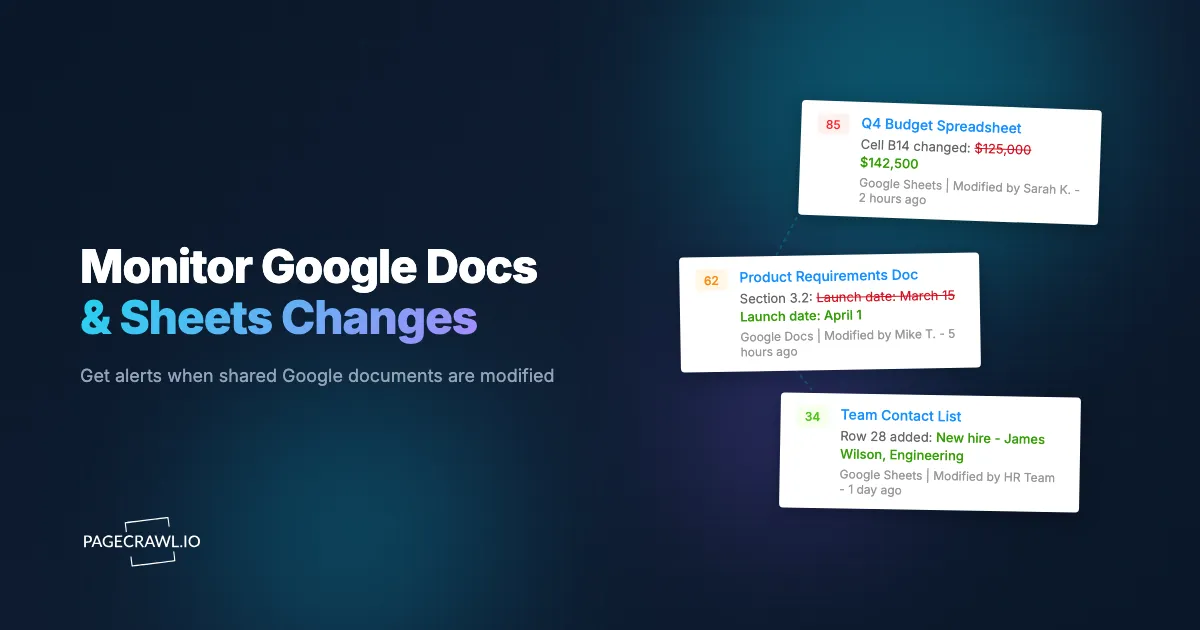
Step 5: AI summaries are particularly valuable for spreadsheet monitoring. Instead of showing you a diff of HTML table markup, the AI explains what changed: "Row 15 updated, value in column C changed from 4.5% to 4.75%." This makes spreadsheet changes understandable at a glance.
Monitoring Google Slides
Google Slides can also be published to the web. The published version cycles through slides as a presentation. Monitoring published Slides detects when new slides are added, content is changed, or slides are removed.
For Slides, full page monitoring captures the rendered presentation. Check frequency can be lower (daily or weekly) since presentation updates tend to be less frequent than document or spreadsheet edits.
Practical Use Cases
Google Docs and Sheets monitoring serves diverse needs across professional and personal contexts.
Public Data Tracking
Government agencies, research institutions, and nonprofits increasingly share data through Google Sheets. Examples include:
- COVID-19 case tracking sheets (many state and local health departments used Google Sheets during the pandemic)
- Budget and spending data from city councils and school boards
- Census data summaries and demographic tracking
- Climate data and environmental monitoring results
- Grant tracking and funding allocation spreadsheets
Monitoring these public sheets provides automated awareness when data updates, eliminating the need to manually check each source.
City Council and Government Minutes
Many local government bodies publish meeting minutes, agendas, and resolutions through Google Docs. Civic-minded residents, journalists, and advocacy organizations need to know when these documents update.
Set up monitoring on each document with weekly check frequency (matching the typical meeting cadence). When minutes are published or agendas are updated, you receive a notification with an AI summary of what was added.
Research Collaboration
Academic research teams often maintain shared data collections, literature reviews, or methodology documents in Google Sheets and Docs. When you need to stay current with a collaborative document without checking it daily, monitoring provides passive awareness.
For shared literature review spreadsheets, monitoring detects when colleagues add new papers. For methodology documents, monitoring catches revisions that affect your work.
Competitive Intelligence
Competitors may publish pricing, feature comparisons, or roadmap information through Google Docs. Public investor presentations, product comparison sheets, and pricing tables shared via Google Sheets provide intelligence when monitored systematically.
Combined with broader website monitoring, Google Docs monitoring captures information competitors share through documents that would not appear on their main website.
Education and Course Materials
Students and educators can monitor shared syllabi, assignment sheets, and resource documents for updates. When a professor updates the course schedule or adds new reading materials, monitoring catches the change.
Legal and Compliance Documents
Shared terms of service, compliance checklists, and regulatory guidance documents sometimes live in Google Docs. Monitoring these for changes ensures you are always working with the current version.
For organizations tracking compliance requirements published by industry bodies or regulators, automated monitoring of published Google Docs replaces manual periodic reviews with an alert on the next scheduled check.
Advanced Monitoring Techniques
Monitoring Specific Sections
Large Google Docs may contain many sections, but you only care about changes to one part. Use element-specific monitoring with CSS selectors to target a particular heading's content, a specific table, or a named section.
For published Google Docs, headings are rendered as HTML heading elements (h1, h2, etc.) and sections are structurally distinct. Targeting a specific section reduces noise from changes in other parts of the document.
Using Export URLs for Clean Text
Google Docs export URLs provide plain text output without HTML formatting. The URL format docs.google.com/document/d/DOCUMENT_ID/export?format=txt returns just the document text.
Monitoring this export URL with PageCrawl gives you the cleanest possible text comparison. Every change detection focuses purely on content, not formatting, styling, or interface elements.
Note: Export URLs only work for documents that are publicly accessible or published to the web.
Google Sheets CSV Export
Similarly, Google Sheets can be exported as CSV: docs.google.com/spreadsheets/d/SPREADSHEET_ID/export?format=csv&gid=SHEET_GID
Monitoring the CSV export provides structured data comparison. Changes appear as specific cell value modifications rather than HTML table diffs.
Webhook Integration for Data Pipelines
For organizations that consume Google Sheets data programmatically, webhook integration feeds change notifications directly into data processing pipelines. When a monitored Google Sheet changes, the webhook triggers a data refresh in your systems.
This is particularly useful for public data sources that update on unpredictable schedules. Instead of polling the Sheet on a fixed schedule from your application, let PageCrawl monitor it and trigger your processing only when actual changes occur.
What are the limits of monitoring Google Docs?
Three limits matter. Documents that need a Google login cannot be monitored from outside, the practical check floor is 15 minutes to an hour because Docs saves continuously, and very large sheets produce noisy diffs unless you narrow the target. Each has a workaround.
Private Documents
PageCrawl monitors publicly accessible URLs. Documents that require Google account login for access need different approaches. For documents within your organization, Google Apps Script (Method 2) or Google Workspace notification features may be more appropriate.
If you have view access to a private document, the editor URL will not work for external monitoring because it requires authentication. Check if the document can be published to the web (creating a public view URL) without compromising sensitivity.
Real-Time Monitoring
Google Docs saves changes continuously, but detecting every keystroke is neither practical nor useful. The minimum practical monitoring interval is 15 minutes to 1 hour, which catches meaningful edits while ignoring in-progress typing.
For most use cases, daily or twice-daily checks provide sufficient awareness. The document is not going anywhere. You receive the notification on the same day the change happens, which is far better than discovering it days or weeks later during manual review.
Large Spreadsheets
Very large Google Sheets (thousands of rows) produce extensive published HTML pages. Full page monitoring of large sheets generates substantial diffs when data changes throughout. Strategies for managing this:
- Publish and monitor only the specific sheet tab you care about
- Use CSS selectors to target specific table sections
- Monitor the CSV export URL for cleaner data comparison
- Use AI summaries to focus on what changed rather than reviewing the full diff
Document Deletion or Access Revocation
If a document owner deletes the document or revokes public access, the monitoring URL stops working. PageCrawl detects this as a page change (the content disappears) and alerts you. This is actually a useful signal, as knowing when a public document is removed can be as important as knowing when it changes.
Which method should you use to monitor a Google Doc?
Use version history for documents you edit yourself, Apps Script for documents inside your own Workspace, and web monitoring for anything published by someone else. Only the third works when you have no account access to the document and no cooperation from its owner.
Google Version History: Best for your own documents. Manual checking only. Free.
Google Apps Script: Best for your organization's documents. Automated but email-only and requires coding. Free within Google Workspace quotas.
Web Monitoring (PageCrawl): Best for external documents you do not control. Fully automated with multiple notification channels. Works with any publicly accessible document. Requires a subscription for heavy use but free tier covers essential monitoring.
For most people monitoring external Google documents, web monitoring is the only method that works without requiring the document owner's cooperation or access to the document's Google Workspace.
Setting Up a Multi-Document Monitoring System
Organizations tracking many Google documents benefit from a structured approach.
Inventory Your Documents
List all Google Docs and Sheets you need to monitor. Categorize by:
- Source (government, research, competitor, internal)
- Update frequency (daily, weekly, monthly, unpredictable)
- Urgency (need to know as soon as a check runs, same-day awareness, weekly review)
Match Monitoring to Urgency
Configure check frequency based on urgency, not update frequency. A monthly government report might update once a month, but if you need to know the day it updates, daily checks are appropriate. A daily-updated data sheet where weekly awareness is sufficient only needs checks every few days.
Organize Monitors
Group document monitors by source or purpose. Government documents in one folder, research data in another. This makes it easy to review alerts in context and adjust monitoring settings per category.
Designate Document Owners
Assign responsibility for reviewing each monitored document's alerts. A civic affairs team member reviews government document changes. A research analyst reviews data sheet updates. Clear ownership prevents alerts from being ignored.
Choosing your PageCrawl plan
PageCrawl's Free plan lets you monitor 6 pages with 220 checks per month, which is enough to validate the approach on your most critical pages. Most teams graduate to a paid plan once they see the value.
| Plan | Price | Pages | Checks / month | Frequency |
|---|---|---|---|---|
| Free | $0 | 6 | 220 | every 60 min |
| Standard | $8/mo or $80/yr | 100 | 15,000 | every 15 min |
| Enterprise | $30/mo or $300/yr | 500 | 100,000 | every 5 min |
| Ultimate | $99/mo or $999/yr | 1,000 | 100,000 | every 2 min |
Annual billing saves two months across every paid tier. Enterprise and Ultimate scale up to 100x if you need thousands of pages or multi-team access.
Standard at $80/year pays for itself the first time it catches a regulatory update, a data correction, or a policy revision the same day it is published rather than days later during a manual review. With 100 monitors you can cover dozens of government sheets, research docs, and shared compliance documents at once. Enterprise at $300/year handles large document portfolios across multiple teams, with 500 pages and 5-minute check intervals.
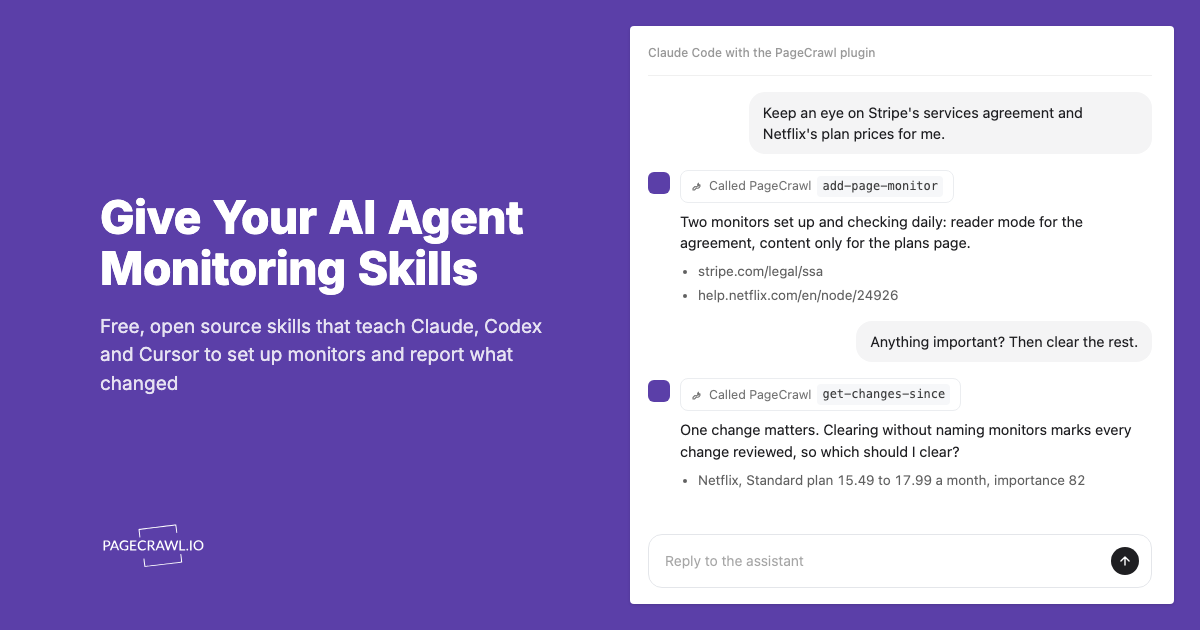
All plans include the PageCrawl MCP Server, so analysts can ask "what changed in the city council budget sheet this month?" and get a plain-language answer from their monitoring archive. AI assistants can create monitors through conversation on every plan, including Free.
Getting Started
Google Docs and Sheets are increasingly used as public information channels by governments, researchers, and organizations. If you depend on information published in these documents, manual checking is unreliable and time-consuming. Automated monitoring ensures you know about changes when they happen, not when you remember to check.
Start with the one or two Google documents that matter most to your work. Get the published-to-web URL (or the public edit URL if publishing is not available). Add them to PageCrawl with content-only monitoring and daily checks. Configure email notifications as a baseline, and add Slack or Telegram if you need faster awareness.
PageCrawl's free tier includes 6 monitors, enough to track a handful of key documents. For organizations monitoring many documents across sources, the Standard plan at $80/year supports 100 monitors and the Enterprise plan at $300/year covers 500 monitors.
The AI-powered change summaries make document monitoring practical by telling you what changed in plain language rather than presenting raw diffs of HTML markup. Combined with screenshot verification and flexible notification channels, you stay current with every document that matters to your work without the manual burden of checking each one.
Create a free PageCrawl account and start monitoring your most important Google documents today.