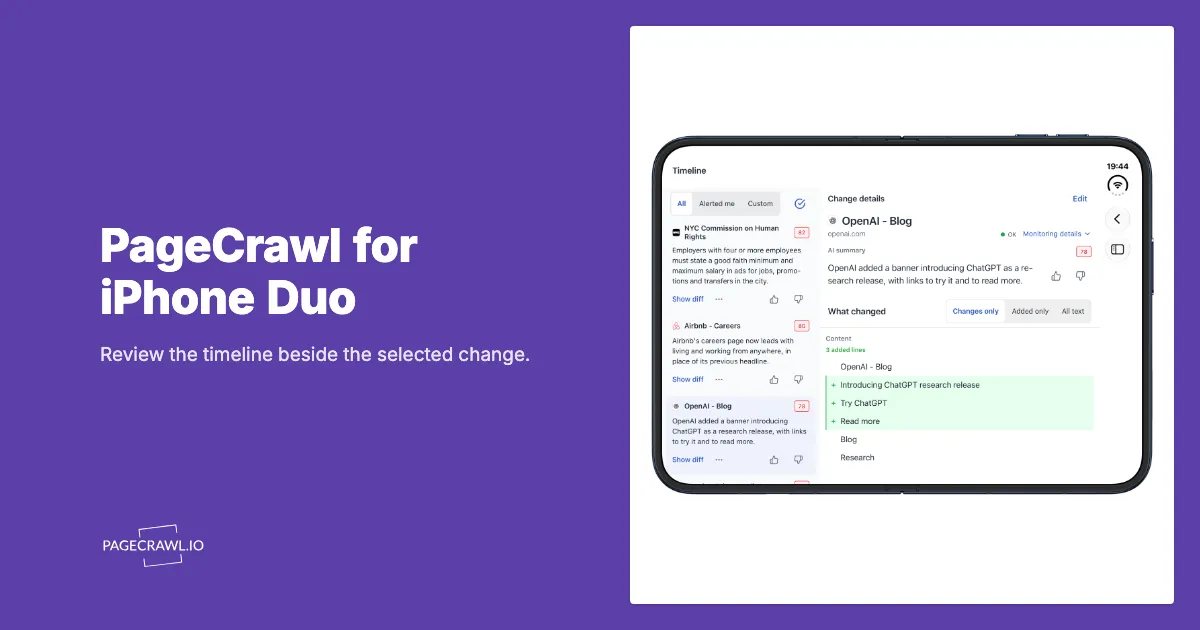
PageCrawl brings your timeline and the selected change together on iPhone Duo. Open the larger display to read what changed while keeping the surrounding updates in view. Close it for a focused view of the same change.
Our team had been looking forward to iPhone Duo for a long time. When we upgraded, we took the opportunity to rethink how PageCrawl should use its larger display. The result centers on a familiar task: choose an update, read what changed and decide what to do next. The same review improvements carry across to iPad, and they are available now in PageCrawl 1.3.0 for iPhone and iPad.
Two choices make that space more useful during a review: Focus on change gives a selected update room to read, and the screenshot viewer puts the Before and Now captures side by side when it has enough room.
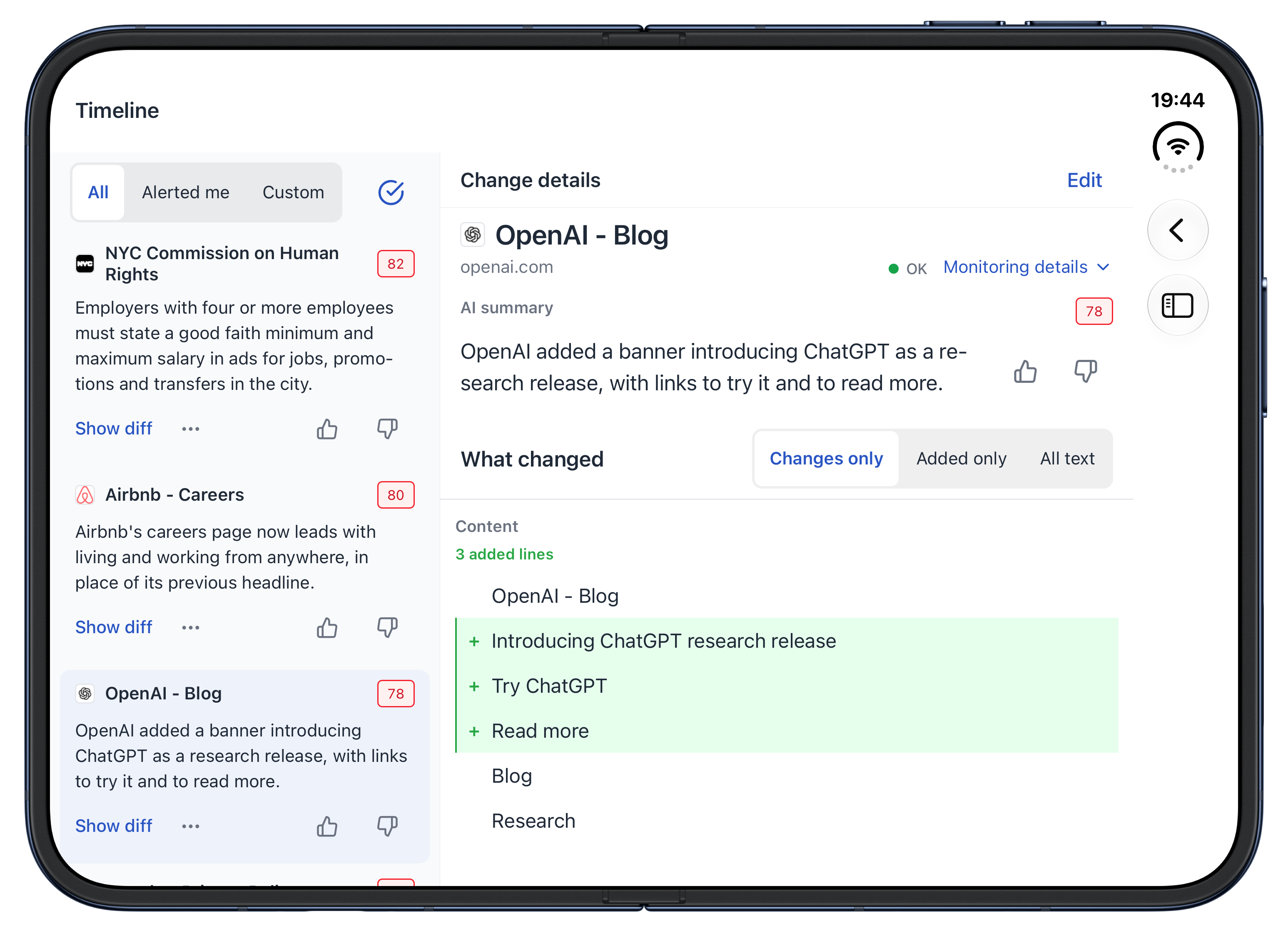
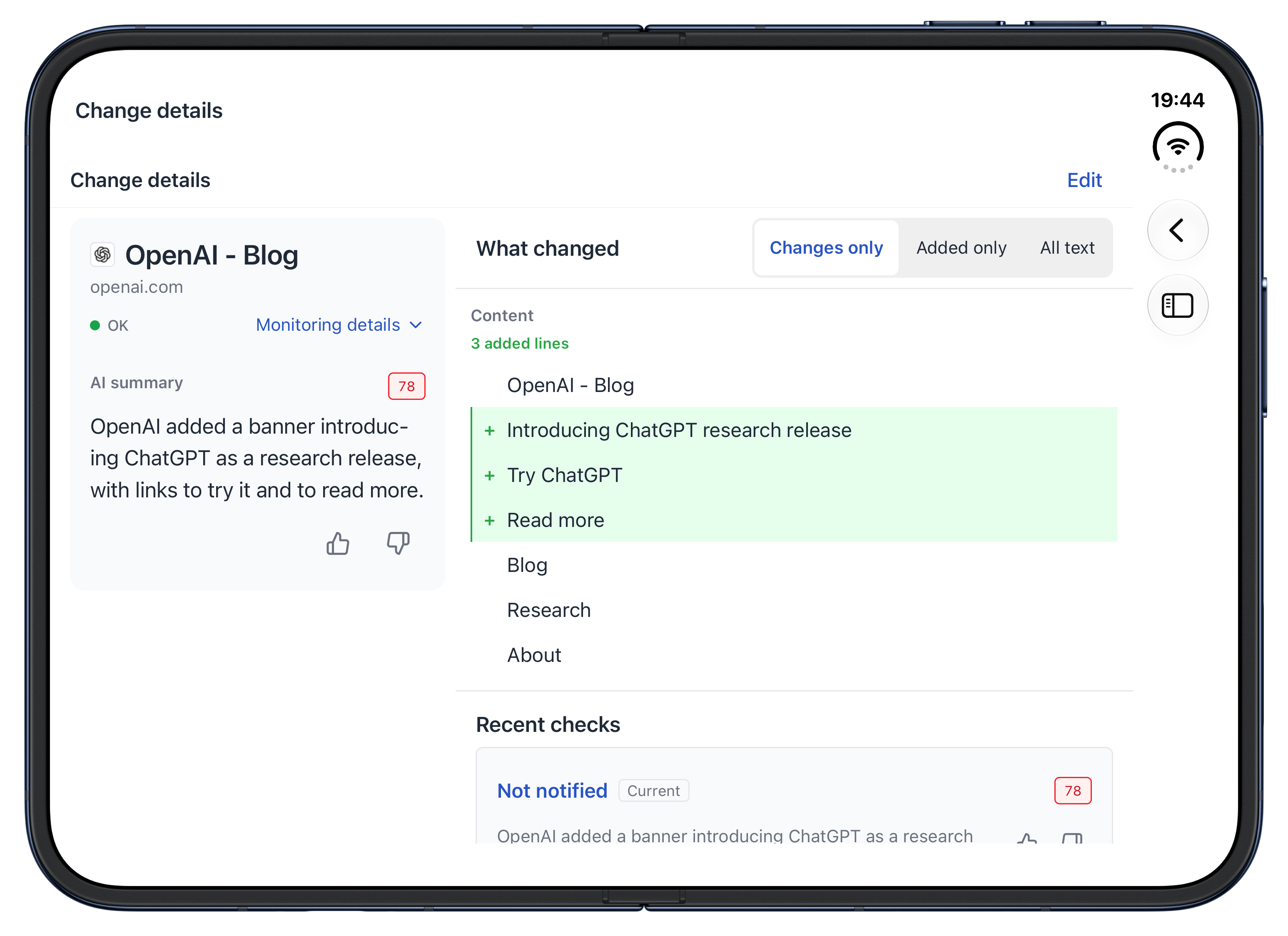
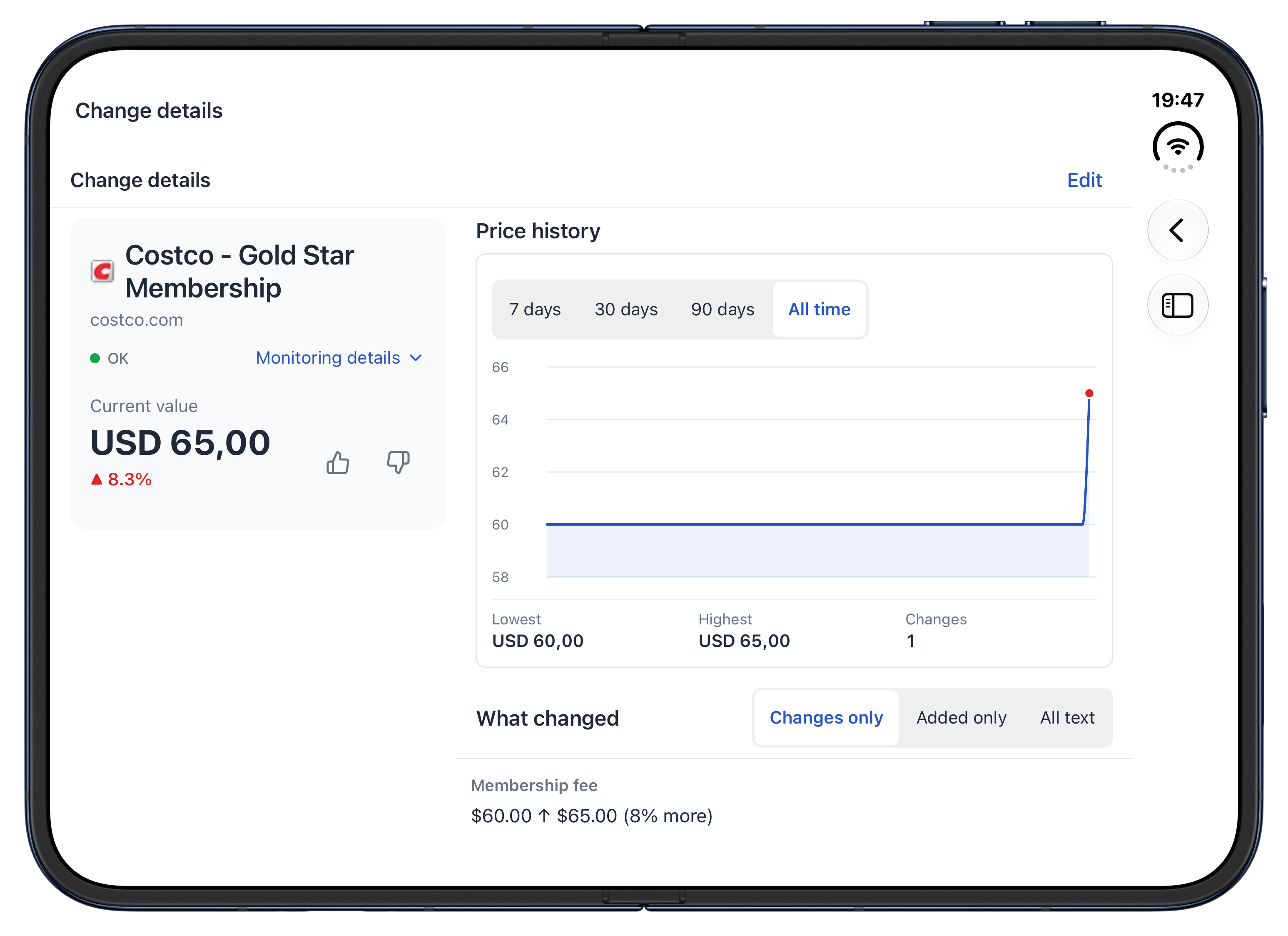
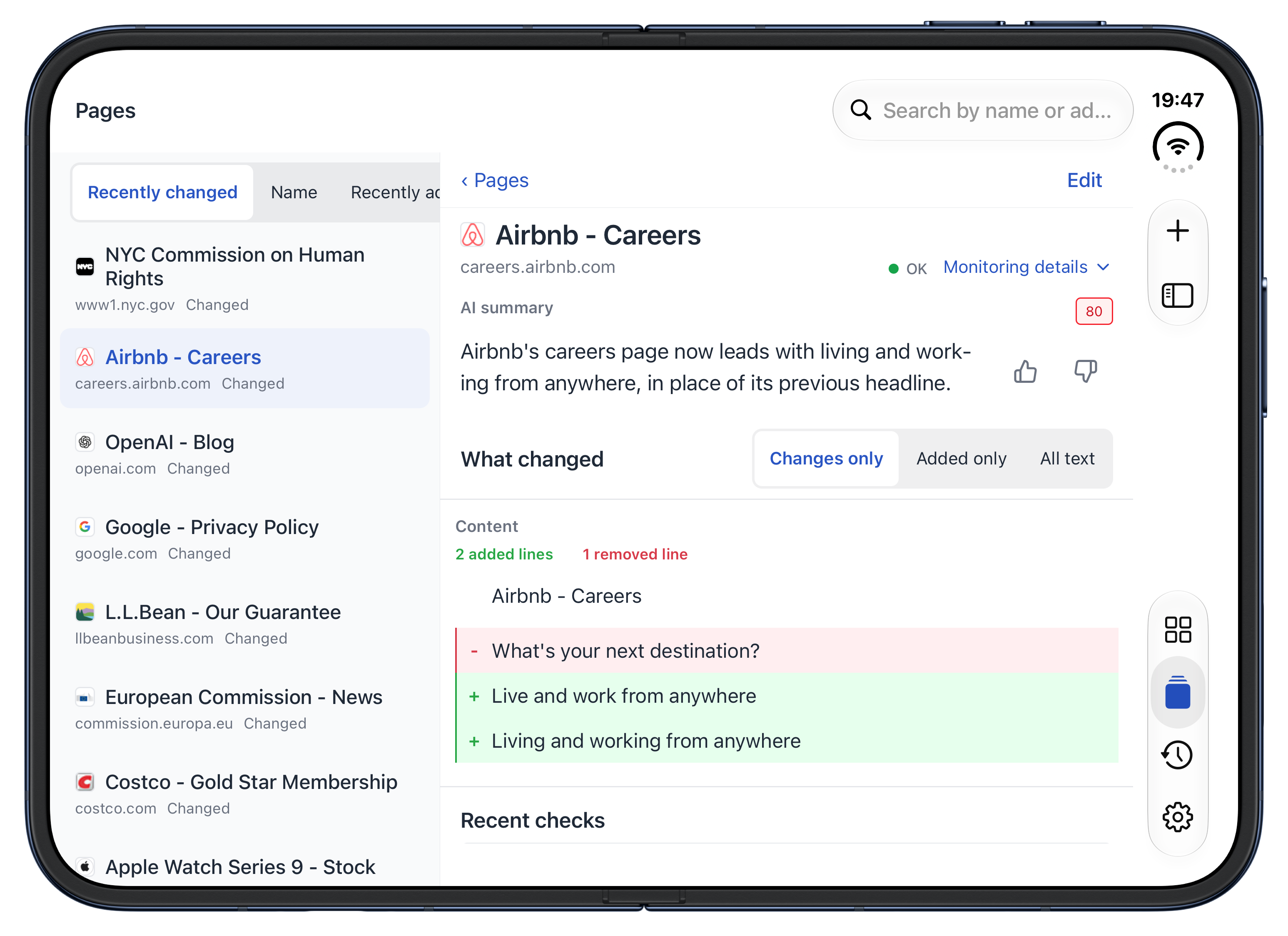
These eight views show PageCrawl 1.3.0 on Duo's inner and outer displays, using the Demo workspace. The monitored changes are real historical examples, not current news, prices or stock updates.
PageCrawl: eight views on iPhone Duo
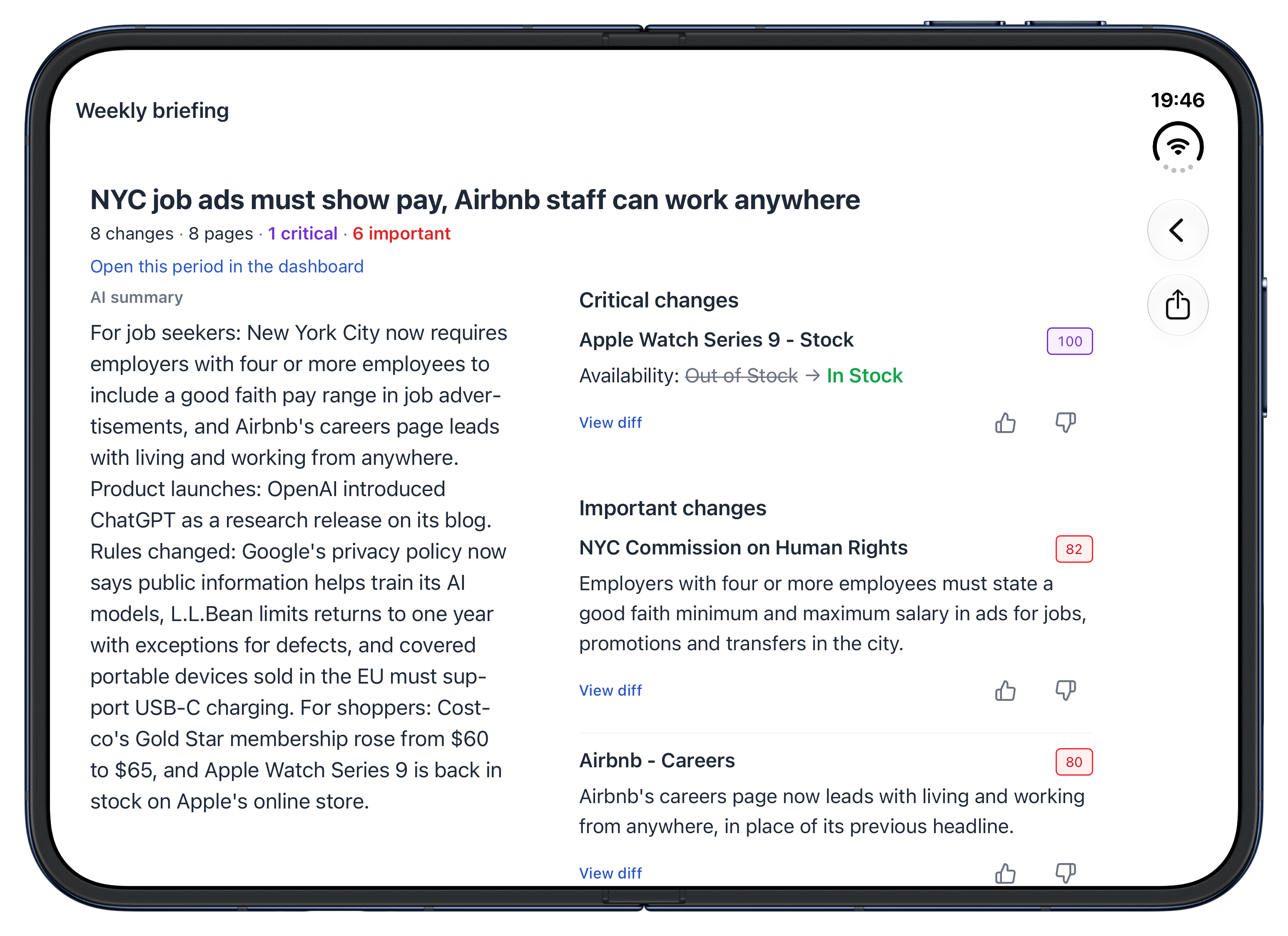
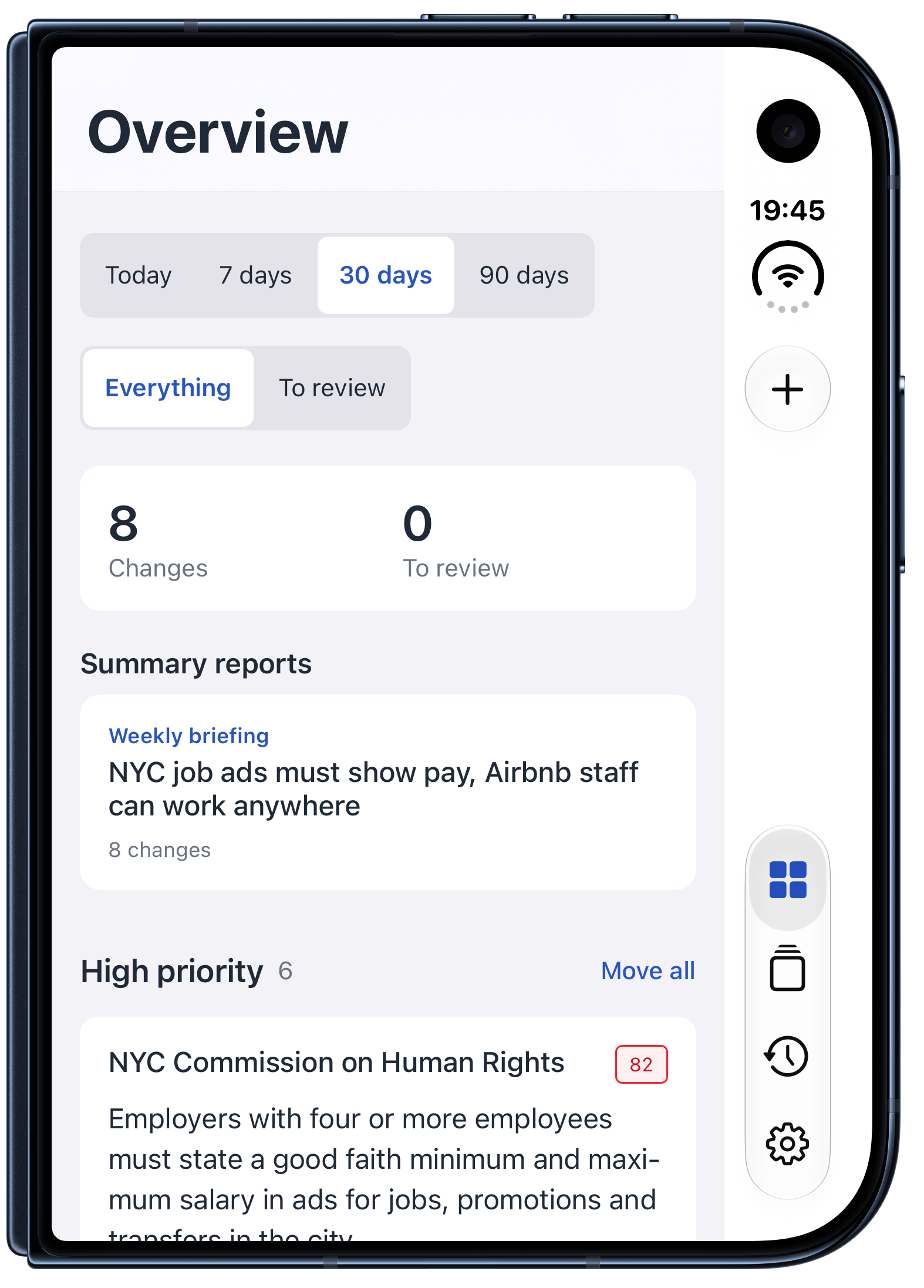
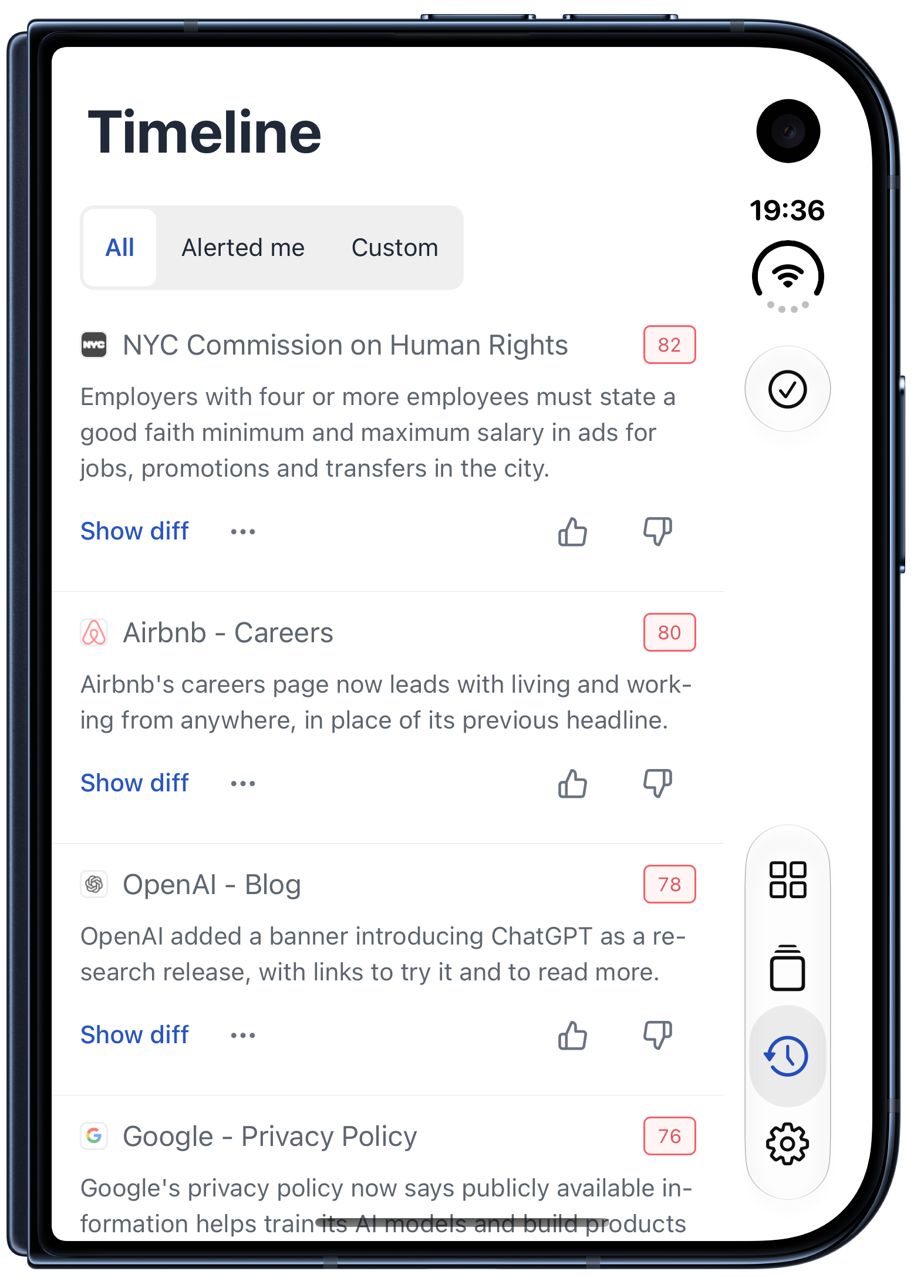
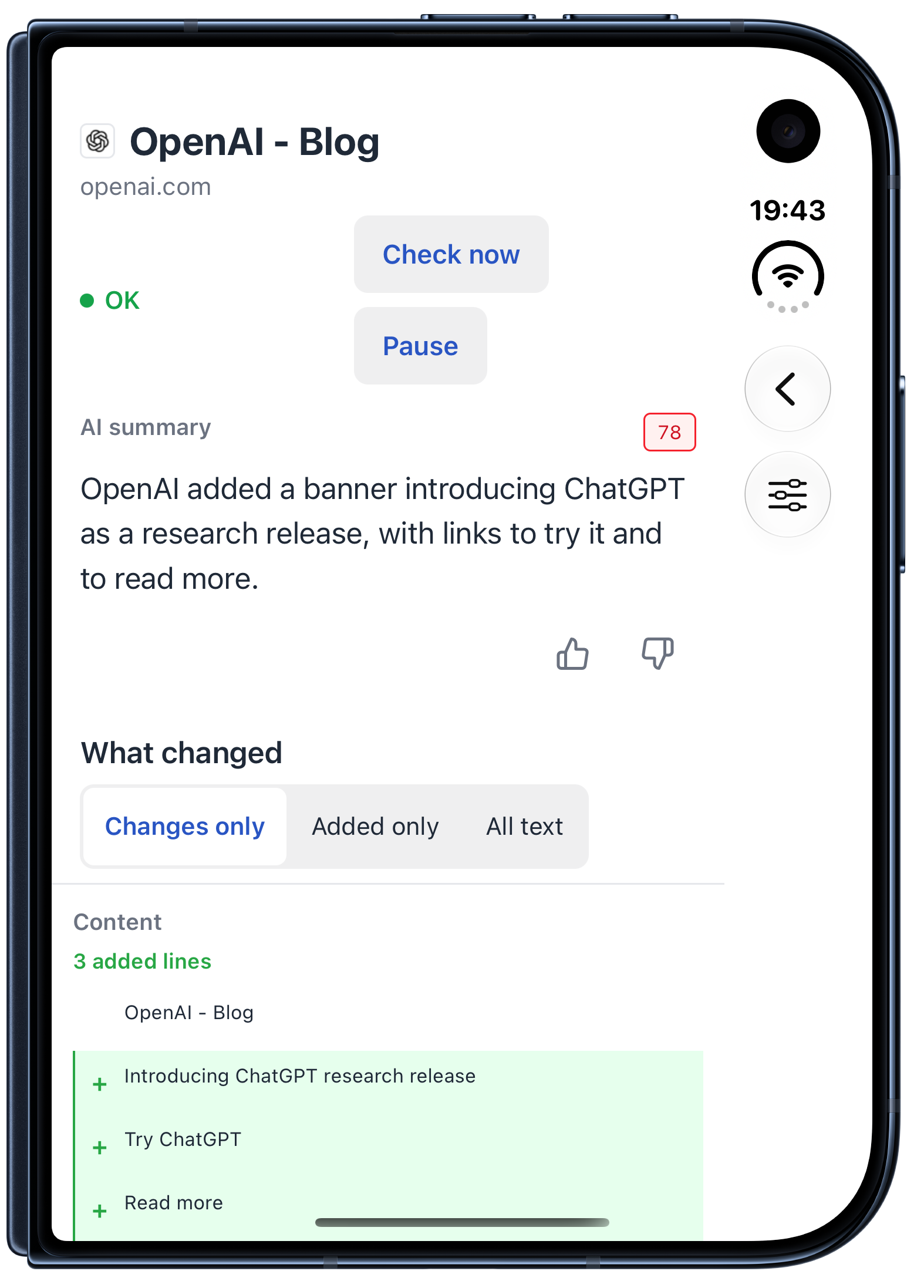
1 of 8: Duo: Timeline and change
Where do you start when several pages have changed?
Start in Overview to see changes over Today, 7 days, 30 days or 90 days. Where scoring is enabled, the page groups changes by importance so you can decide what to read first. Recent summary reports appear near the top when your workspace has reports available.
Workspaces with review boards can switch between Everything and To review, then move items to the appropriate board. Overview gives you a starting point for the review; Timeline lets you work through the individual updates.
How does the larger display help you review changes?
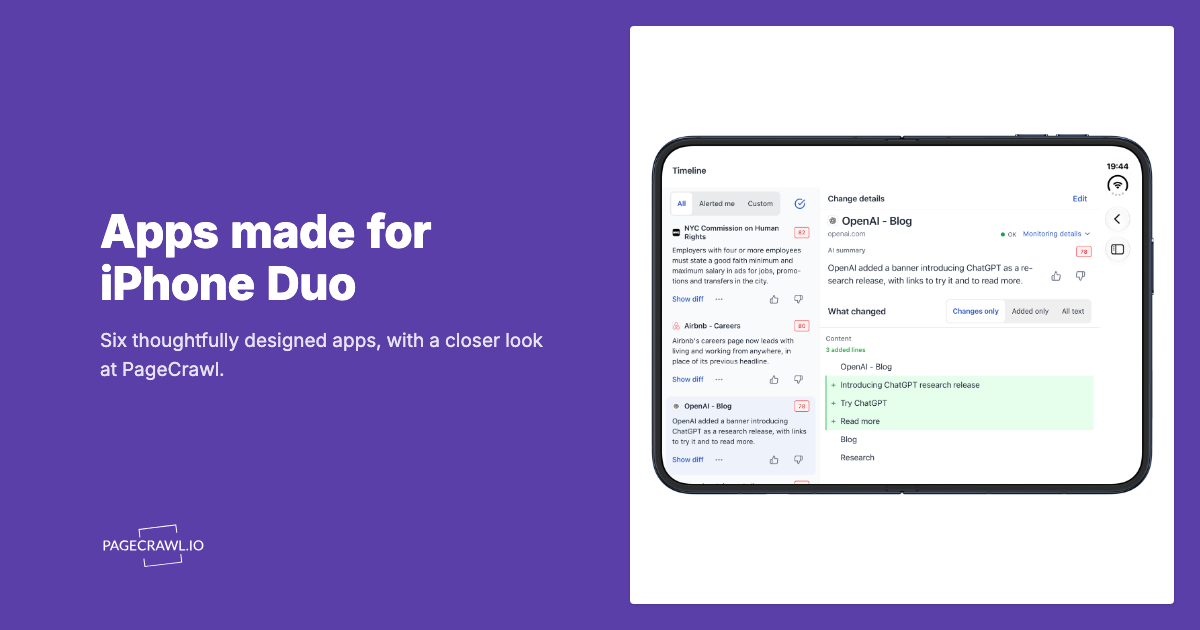
With enough room, PageCrawl shows the Timeline beside the selected change. You can keep the surrounding updates in view while reading the AI summary and the actual text differences. The selected row stays highlighted, making it easier to move through several changes without repeatedly returning to the list.
For example, when several pages change, select one update to see its details on the right. Read what changed, use the feedback controls if useful, then choose the next update from the timeline. The wider view gives the comparison more space while keeping the rest of your review close by.
This approach follows Apple's Design for iPhone Duo tech talk: keep the same information hierarchy on both displays, and use the wider inner display to show more of it together.
Can you give one change more room to read?
Choose Focus on change in the toolbar to temporarily hide the timeline and give the selected detail the whole review area. Your selected check and text-comparison mode stay in place. Choose Show timeline when you want the list back, without opening the page or choosing the change again.
It is useful when a short summary leads to a long policy edit or announcement. Keep the timeline visible while choosing what to review, then focus on the detail when you need to read closely. On a narrow display, the selected change already uses the available width.
Can you compare the Before and Now screenshots together?
Yes, for monitors that save screenshots. Open a screenshot to compare the captured page before and after a change. When both captures exist and the viewer has enough room, Before appears on the left and Now on the right. You can zoom into either image independently to inspect the part that matters.
On a narrower display, the viewer shows one screenshot at a time: touch and hold it to see Before, or use the button that switches between the two. Screenshot thumbnails stay beside the rest of the change, so the path from a summary to its visual evidence remains familiar.
Apple's guidance on designing for iPhone Duo encourages the same idea: when the extra space makes related content easier to understand, show it together.
How do you find a particular monitored page?
Open Pages when you know the website you want to inspect. Search by name or address, then sort the list by Recently changed, Name or Recently added. Choose a monitor to see its details and history, or use its actions to pause or resume checks.
Pages and Timeline serve different parts of the same routine. Pages helps you find a monitor; Timeline shows the changes across the workspace. Both lead into the same detail view, which sits beside the list when there is room.
How do you add a page from iPhone Duo?
Choose Track New Page, enter the address and name, then choose what to track and how often to check. For supported text monitoring with AI enabled, What matters: when to notify me lets you explain which changes deserve an alert. Price and back-in-stock monitoring offer their own conditions.
Choose the workspace and any available folder or label, then select Start monitoring. You can also share a page from your browser to open it in PageCrawl's Add form. Specific-area and visual selection use the web setup when needed.
The form keeps related choices together: what to watch, what matters and how frequently to check it. A larger display provides more room to read those choices, while the same setup remains available in the compact view.
How do summary reports fit into the review?
Open an available Summary report from Overview to read its period, counts, written summary and grouped changes. Select an item to inspect its details when you need the evidence behind the summary. If a share link is available, Share report opens your device's usual sharing choices.
The report is useful for catching up across a period or passing findings to someone else. Depending on its contents, it can also include pages that are failing or newly discovered pages. You can move from the broader report into a specific change without starting a new search.
Can you inspect price, stock and availability history?
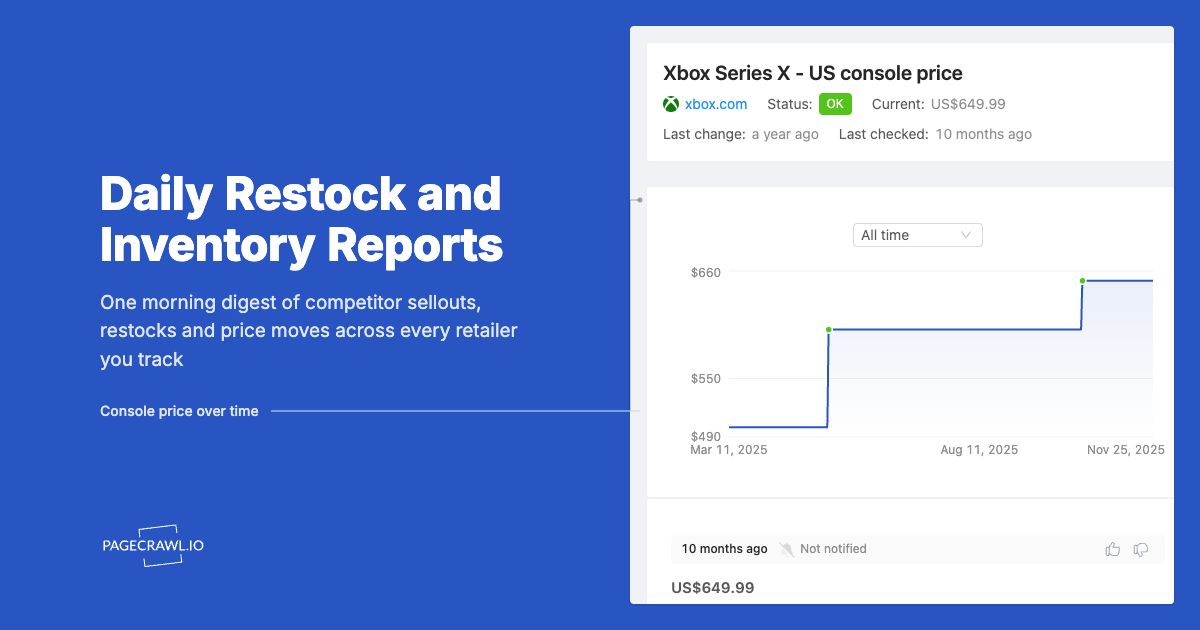
Yes. A monitor's detail screen shows the kinds of history that match what it tracks. Price and other number monitors show a value chart over 7 days, 30 days, 90 days or All time, stock monitors show stock-level history, and availability monitors show when an item was in or out of stock. These views put an individual update into a longer pattern.
Use the page's history to choose a recorded check. For a product page, that might mean seeing how the current price compares with earlier values; for a text monitor, it means reading the change recorded at that point. The detail view accommodates both kinds of review.
How do you keep filters, workspaces and alerts useful?
Use All, Alerted me or Custom in Timeline to choose the changes you want to browse. Custom includes outcome and minimum-importance choices. The workspace picker keeps your projects separate and shows unseen counts, with Follow timeline as the default for the workspace badges.
In Settings, Badge shows decides which unseen changes count toward those badges: Follow timeline, All unseen changes or Only alerted changes. This changes the count without changing your timeline filter.
Settings also holds alerts for this device, quiet hours, temporary snoozing and email preferences. These controls let you keep a broad history available to read while choosing which updates should interrupt you.
What happens when you open or close iPhone Duo?
The review layout changes with the available space while keeping the selected change and diff mode. The compact view focuses on one part of the review; the expanded view can show both. If you're reading All text, opening or closing the device keeps that view selected so you can continue reading.
Use Changes only to concentrate on the differences, Added only to read just the new wording, or All text when you want the surrounding context. You can open Duo for a wider view without finding the page again. Two panes appear only when there's enough room for both; a narrower view keeps the selected detail in focus.
How does the review layout fit your iPad window?
On iPad, PageCrawl brings the same list-and-detail review to windows with enough room. Narrowing the app returns to a focused view of the selected change. Widening it restores the timeline alongside that change, keeping the chosen diff mode so you can continue reading after adjusting your workspace.
Filters and check-frequency choices open in sheets with their own space for titles, options and closing controls. You can adjust your review without losing sight of the page behind the sheet.
The Add form keeps your draft while the available space changes, including the note in What matters: when to notify me. Its fields and choices remain part of the same setup when you rotate the device or resize an iPad window.
How do you start a review?
Open Timeline to see changes across your monitored pages, then select an update to inspect what changed. Move between the list and the detail in a compact view, or keep them together when space allows. The review follows the same pages you already monitor in PageCrawl.
Visit the PageCrawl mobile app page for app links and setup guidance. For other ways to use the larger display, see six apps that make the most of iPhone Duo's screen, featuring PageCrawl alongside apps for reading, project boards, planning and weather.