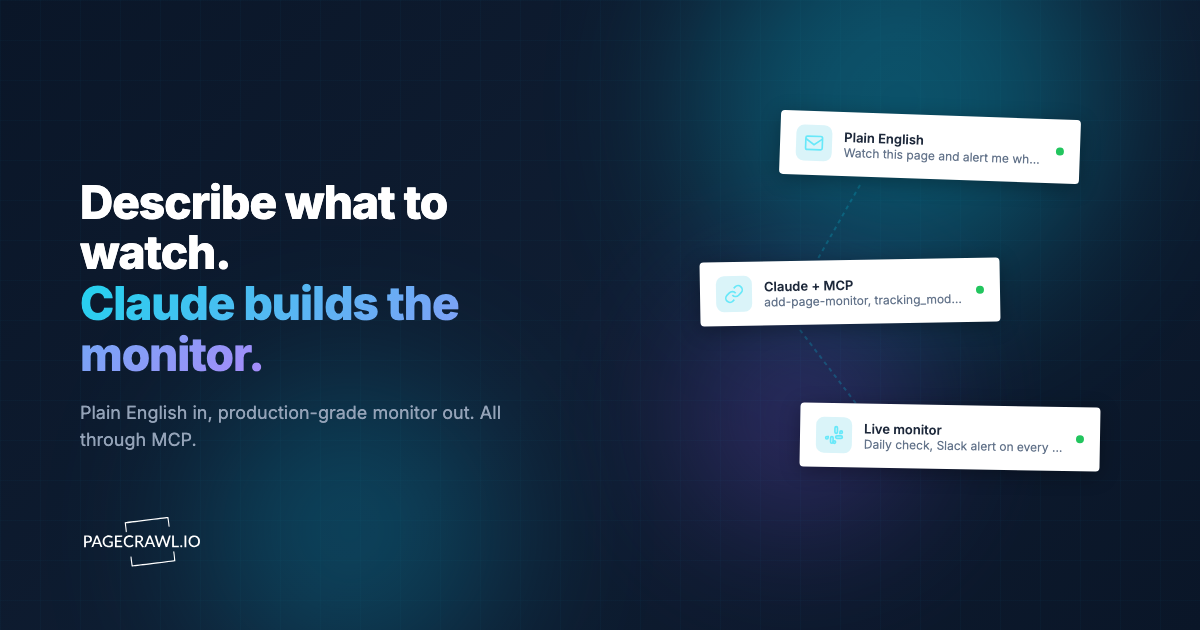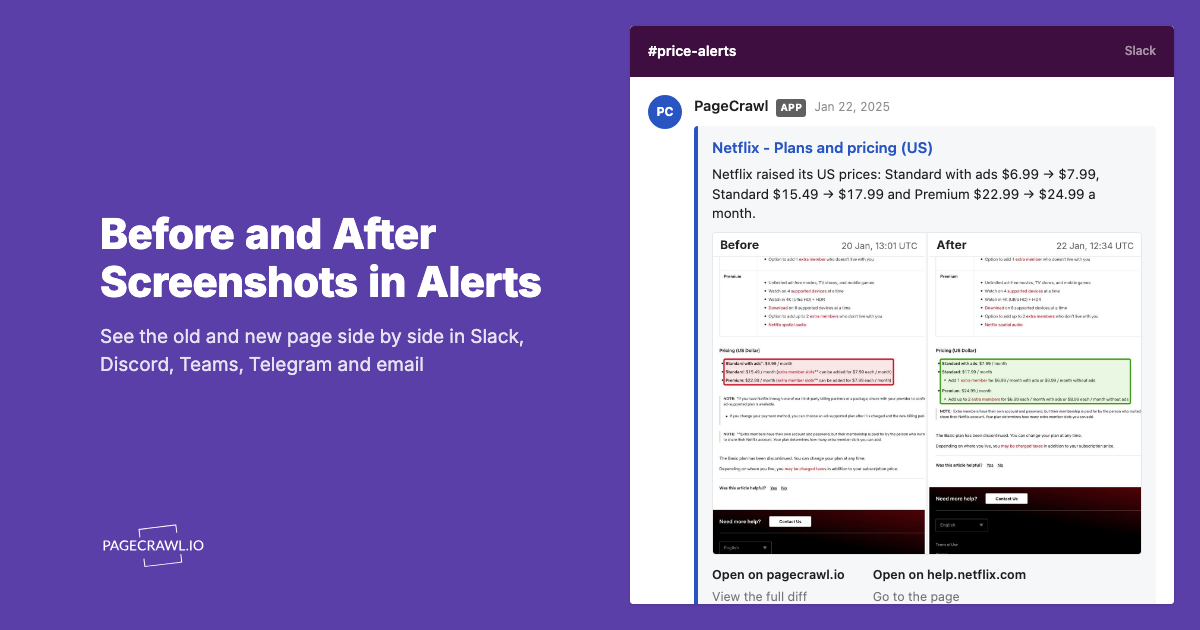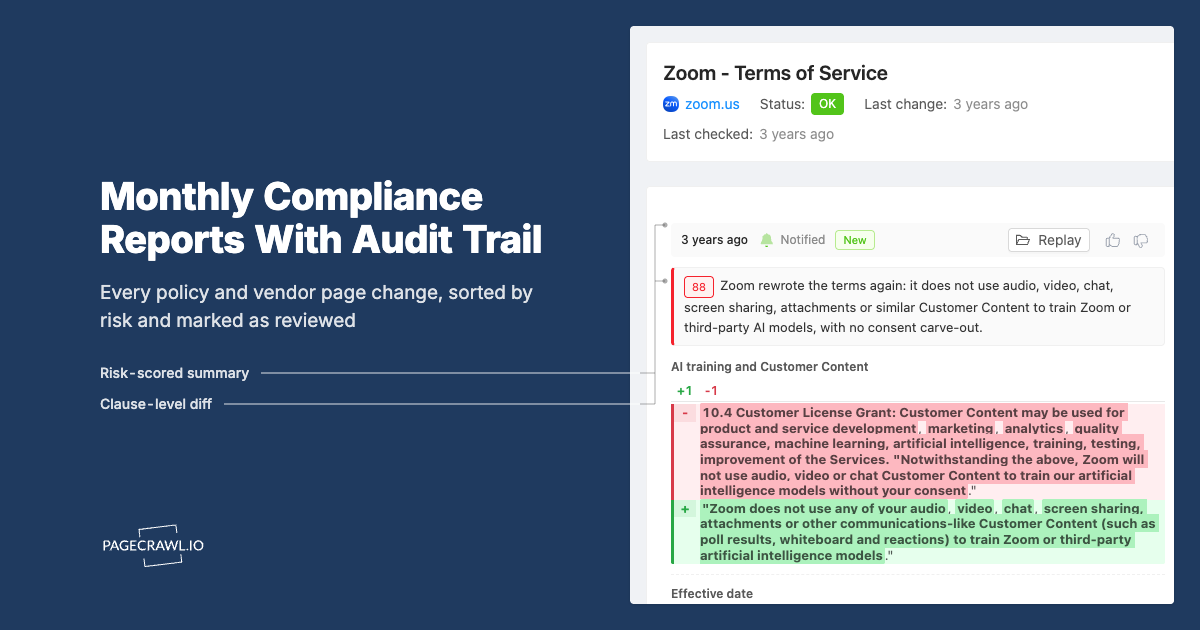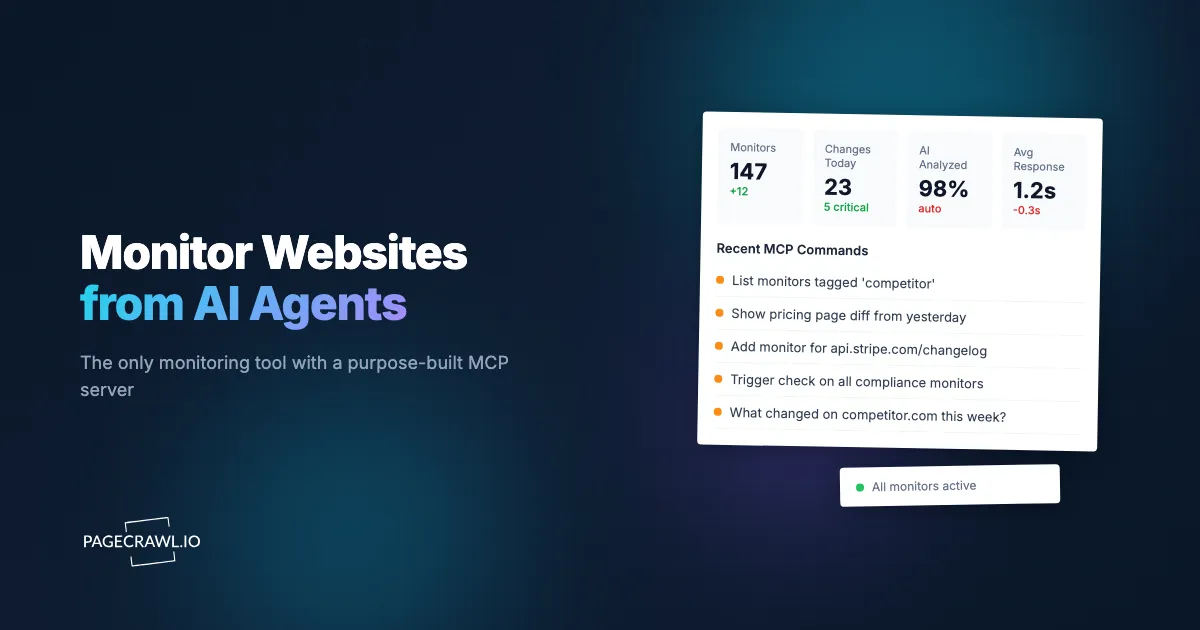
AI coding assistants like Claude and Cursor are changing how developers interact with tools. Instead of switching between dashboards, terminals, and browser tabs, you describe what you need and the agent handles the rest. Website monitoring is a natural fit for this workflow. You should be able to ask "what changed on my competitor's pricing page this week?" and get an answer without opening a separate app.
PageCrawl is the only dedicated web monitoring tool with a purpose-built MCP (Model Context Protocol) server. This means Claude, Claude Code, Cursor, ChatGPT, OpenClaw, and any MCP-compatible AI tool can create monitors, check for changes, review diffs, and manage your monitoring setup through conversation. The MCP connector works on every plan, including Free.
This guide covers what the MCP server can do, practical examples, and how to set it up.
What is MCP and why does it matter for monitoring?
The Model Context Protocol is an open standard that lets AI assistants connect to external tools and data sources. Instead of the AI guessing about your monitoring data or asking you to copy-paste results, MCP gives it direct access to your actual monitors, change history, and configurations.
For web monitoring, this means:
- No context switching. Ask about changes without leaving your editor or terminal.
- Natural language queries. "Show me all price changes across my competitor monitors this month" works as a query.
- Automated workflows. AI agents can set up monitors, trigger checks, and process results as part of larger tasks.
- Living knowledge base. Your monitored pages become queryable data, not just an alert feed.
What can you do with the PageCrawl MCP server?
The MCP server's tools cover the full monitoring lifecycle: reading and searching monitors, creating, editing and organizing them, running discovery, wiring up webhooks and reports, and triggering checks on demand. Every tool is available on every plan, including Free, and follows your plan the way the app does. The help centre article on connecting PageCrawl to AI assistants keeps the current tool list.
Reading and Searching
- Search and fetch, the standard pair that lets research and company-knowledge workflows find a monitored page by topic and read its current captured content
- List workspaces and list monitors across every workspace you have been added to, with optional search by URL, domain, or name
- Get monitor details including configuration, last check status, and tracking mode
- Get monitor history for any monitor, with date filtering
- Get latest values from tracked elements in a single batch of up to 50 monitors (current price, availability status, page content)
- Get the check diff for a specific check, showing exactly what changed
- Get changes since a given point in time, across your monitors
- Get a screenshot already stored by a past check, as an image the model can look at rather than only read
- Get a summary of a workspace over a date range, plus a timeline of what changed
- Get intelligence on which pages actually move and when, workspace-wide or per monitor
- Get archive details: what was captured, integrity verification, the captured page list, and Wayback Machine lookups
- Get statistics on checks used, changes, notifications, and AI usage
- List templates you can reuse when creating new monitors
Creating and Organizing Monitors
- Add a page monitor from a URL. The AI auto-detects the right tracking mode when you do not specify one, and supports 13 tracking modes (fullpage, content_only, reader, feed, price, specific_text, specific_number, seo, leaderboard, pdf_extract, http_status, json_path, ai_extract), page-interaction actions, tags, check frequency, and notification channels. New monitors default to screenshots on, cookie and overlay removal actions, and notifications auto-detected from your workspace's configured channels. Your plan's monitor-count limit still applies.
- Manage monitors to update an existing monitor's name, URL, frequency, notifications, screenshots, AI focus, folder or enabled state, to clear its stored history, or to delete it outright. Deletion is permanent and takes every check, captured value, screenshot and history entry with it, so confirm before you ask for it.
- Test a configuration against a URL first, to see what a selector or tracking mode would actually capture before any monitor exists
- Manage tags by listing workspace tags and adding or removing them on a monitor
- Manage folders to list the folder tree, create folders and nested subfolders, rename or delete folders, and move monitors into them (folders are hierarchical)
- Set monitor status to enable or disable a monitor
- Mark changes seen so detected changes are recorded as reviewed
- Update monitor defaults for a workspace (screenshots, notifications, frequency, AI focus)
Templates, Discovery, and Account Setup
- Manage templates to create, update or delete a template, turn page discovery on, and maintain its discovery filters
- Manage discovered pages to review what discovery found, then import, pause, resume, stop or delete those candidates
- Manage workspaces to create, rename or delete a workspace
- Manage webhooks to list, create, update, delete or test the webhooks PageCrawl posts to on a change
- Manage reports to list, create, update, delete or generate scheduled reports and read the digests they produce
- List authentications to see the saved site logins a new monitor can use. Creating, editing or deleting a login is deliberately not exposed, because credentials must never pass through a chat client.
- Create a data source and record data on it, for values you push in rather than values PageCrawl crawls
On-Demand Actions
- Trigger a check on any monitor without waiting for the schedule
Tool reference
In conversation, the AI references these tools by their kebab-case names:
Read tools:
searchfinds monitored pages by topic, andfetchreturns the current captured content for onelist-workspaceslists your workspaceslist-monitorslists monitors, optionally filtered by search termget-monitor-detailsreturns a monitor's configuration and statusget-monitor-historyreturns change history with date filteringget-latest-valuesreturns current tracked values for up to 50 monitors at onceget-check-diffreturns the formatted diff for a specific checkget-changes-sincereturns changes across monitors since a point in timeget-screenshotreturns a stored screenshot as an imageget-summaryreturns a workspace roll-up and change timelineget-intelligencereturns which monitors change most, and whenget-archivereturns archive metadata, integrity verification, captured pages, and Wayback lookupsget-statisticsreturns usage and AI usage statisticslist-templateslists reusable monitor templatesrender-monitors-dashboarddraws an interactive change radar for selected monitor IDs
Create and organize tools:
add-page-monitorcreates a monitor from a URL with auto-detected or specified tracking modemanage-monitorsupdates, clears the history of, or permanently deletes an existing monitortest-configurationdry-runs a selector or tracking mode against a URL without creating anythingmanage-tagslists workspace tags and adds or removes tags on a monitormanage-folderslists the folder tree and creates, renames, deletes, or moves monitors between folders (folders can be nested)set-monitor-statusenables or disables a monitormark-changes-seenmarks detected changes as reviewedupdate-monitor-defaultsupdates a workspace's default settingsmanage-templatesmaintains templates, discovery settings and discovery filtersmanage-discovered-pageslists, imports, pauses, resumes, stops or deletes discovered pagesmanage-workspacescreates, renames or deletes workspacesmanage-webhookslists, creates, updates, deletes or tests outgoing webhooksmanage-reportsmaintains scheduled reports and reads their digestslist-authenticationslists saved site logins without exposing credentials, and nothing elsecreate-data-sourceandrecord-datahandle values you push in instead of crawling
Action tool:
trigger-checkruns an on-demand check
Practical Examples
Here are real prompts you can use with Claude, Claude Code, Cursor, ChatGPT, or any MCP client once the server is connected:
Creating Monitors
"Add a monitor for https://www.apple.com/shop/buy-mac/macbook-air
and track the price and availability"
The AI calls add-page-monitor, auto-detects the price tracking mode, sets the elements, and applies the default settings. No need to configure selectors or choose between tracking types. This works on every plan, including Free, up to your monitor-count limit.
"Set up a monitor for Linear's changelog at
https://linear.app/changelog using reader mode,
check every 15 minutes, and notify the team Slack channel"
One sentence produces a fully configured monitor with frequency, tracking mode, and notifications. The next time Linear publishes an update, you get notified through your configured channels.
"Create monitors for each of these 5 competitor pricing pages"Batch creation in a single conversation turn. Adding tags and organizing them into folders works on every plan too.
Checking for Changes
"What changed across all my monitors in the last 7 days?"Returns a summary of recent changes with priorities, timestamps, and affected monitors.
"Show me the diff for the last change on the Slack pricing page"Returns a formatted text diff showing exactly what was added, removed, or modified.
Research and Analysis
"What is the current price on each of my competitor product monitors?"Pulls the latest tracked values across all price monitors, giving you a competitive pricing snapshot without visiting any dashboards.
"Have any of my compliance monitors changed in the last 30 days?
Show me the details."
Filters by tag or search term, then retrieves change history and diffs for matching monitors.
Organizing Monitors
"Tag the 5 monitors I just created as 'q2-pricing'"Uses manage-tags to organize monitors after creation, so later queries can filter by tag.
"Mark all the changes on my newsletter monitors as seen"Calls mark-changes-seen to clear reviewed changes from your queue, keeping your unseen list focused on what you have not looked at yet.
On-Demand Actions
"Trigger a check on all my competitor pricing monitors right now"Calls trigger-check so you get fresh results within minutes instead of waiting for the schedule. Handy before a meeting or review.
How does this compare with scraping MCP servers?
Scraping MCP servers answer "what does this page say right now?", while a monitoring MCP server answers "what changed, when, and does it matter?". Several scraping tools offer MCP servers (Firecrawl, Apify, Bright Data), but these are built for one-time data extraction, not ongoing monitoring. They can fetch a page right now, but they cannot:
- Track changes over time. No history, no diffs, no "what changed since last week."
- Send notifications. No email, Slack, Discord, or Teams alerts when something changes.
- Score change importance. No AI priority scoring to filter noise from signal.
- Handle protected sites. No reliable repeat access to pages that block automated visitors.
That difference is the whole point: a snapshot of today's page is not the same as a record of how the page has moved.
No other dedicated monitoring tool (Visualping, Distill.io, Hexowatch, ChangeTower, ChangeDetection.io) offers MCP integration, a gap set out in the PageCrawl and Hexowatch feature comparison. If you want AI agents to interact with your web monitoring data, PageCrawl is currently the only option.
Setting Up the MCP Server
The PageCrawl MCP server is hosted at https://mcp.pagecrawl.io/mcp and is available on all plans, including Free. Free accounts can create monitors, organize them with tags and folders, mark changes seen, update defaults, trigger checks, and use every read tool, with your plan's monitor limit still applying.

Connect with OAuth (recommended, no token)
Every client points at the same address, https://mcp.pagecrawl.io/mcp. Apps with a built-in connector screen sign in with OAuth: you paste the URL, get sent to PageCrawl, and click Allow access. Nothing is installed locally and there is no key to copy. The server speaks the streamable HTTP transport, the current MCP standard, so if a client asks you to choose between streamable HTTP and SSE, pick streamable HTTP.
Verify any connection by asking your assistant to "list my PageCrawl monitors". Free accounts are rate-limited to 30 requests per minute, which is plenty for interactive use.
For Claude web and Claude Desktop
- Open claude.ai or Claude Desktop and go to Customize, then Connectors.
- Click + Add, then Add custom connector.
- Name it "PageCrawl", set the URL to
https://mcp.pagecrawl.io/mcpand click Continue. - Keep the sign-in settings Claude detects, click Continue, then Add. Sign in to PageCrawl and click Allow Claude access.
- In a conversation, click + under the message box, open Connectors and turn PageCrawl on.
All of PageCrawl's tools are then available in your conversations. For a worked walkthrough, see the help centre guide to adding pages to PageCrawl from Claude.
For Claude Code
The quickest route is the PageCrawl plugin, which adds the server together with PageCrawl's skills:
/plugin install pagecrawl --marketplace pagecrawl/skillsTo add only the server, use the HTTP transport:
claude mcp add --transport http pagecrawl https://mcp.pagecrawl.io/mcpThe first time Claude Code uses a PageCrawl tool it opens a browser for the same OAuth approval. Run /mcp inside a session to check the connection or sign in manually. Scripts and CI can skip OAuth and use a personal API token from Settings > API access instead.
For ChatGPT
Creating and changing monitors from ChatGPT needs its full MCP support, which OpenAI offers on Business, Enterprise and Edu plans, in ChatGPT on the web. On Business, only workspace admins and owners can add a custom MCP server, and on Pro a custom MCP server can only read.
- Open ChatGPT on the web, go to Plugins, select + and choose Add custom MCP server.
- Name it "PageCrawl" and, under Connection, set the URL to
https://mcp.pagecrawl.io/mcp. - Choose OAuth, tick I understand and want to continue, and select Create as a plugin.
- Sign in to PageCrawl and click Allow ChatGPT access.
- Install the new plugin, then in a conversation type @ and pick PageCrawl.
In a workspace, an admin publishes the connection and refreshes its tools when PageCrawl adds new ones. If a label differs, OpenAI's guide to custom MCP servers in ChatGPT has the current steps.
For Cursor, Cline, Windsurf and other editors
Add PageCrawl in the client's MCP configuration as a streamable HTTP server at https://mcp.pagecrawl.io/mcp. In Cursor you can add it from Customize or in .cursor/mcp.json. Clients that do not implement OAuth take a personal API token from Settings > API access instead, passed as a header:
{
  "mcpServers": {
    "pagecrawl": {
      "url": "https://mcp.pagecrawl.io/mcp",
      "headers": { "Authorization": "Bearer YOUR_TOKEN_HERE" }
    }
  }
}
The same tools are exposed regardless of client. The help centre article on connecting PageCrawl to AI assistants carries per-client steps and a troubleshooting list.
Tips for Getting the Most Out of It
Install PageCrawl's skills. The free PageCrawl skills teach your agent which tracking mode fits a page, how to summarise a week of changes in one call, and to ask before deleting anything. Claude Code gets them with the plugin; Cursor, Codex and other agents can run npx skills add pagecrawl/skills -g.
Start with what you already monitor. If you have existing monitors, use the MCP server to query them: "summarize all changes from last week" or "which monitors have unseen changes?" This is the fastest way to see the value.
Use tags for organization. Tag monitors by project, client, or category. Then query by tag: "show changes on all monitors tagged 'pricing'."
Combine with AI importance filtering. Set a "What matters" prompt on your monitors (e.g., "Focus on price changes, ignore navigation updates"). The AI will score changes accordingly, and when you query via MCP, the priority scores help you focus on what matters.
Trigger a check on demand. Before a meeting or review, ask for a fresh check of the one page that matters: "trigger a check on the competitor pricing page." The check is queued and runs in the background, so read the result a little later. To keep a whole group fresher, change its check frequency instead.
Choosing your PageCrawl plan
PageCrawl's Free plan lets you monitor 6 pages with 220 checks per month, which is enough to validate the approach on your most critical pages. Most teams graduate to a paid plan once they see the value.
| Plan | Price | Pages | Checks / month | Frequency |
|---|---|---|---|---|
| Free | $0 | 6 | 220 | every 60 min |
| Standard | $8/mo or $80/yr | 100 | 15,000 | every 15 min |
| Enterprise | $30/mo or $300/yr | 500 | 100,000 | every 5 min |
| Ultimate | $99/mo or $999/yr | 1,000 | 100,000 | every 2 min |
Annual billing saves two months across every paid tier. Enterprise and Ultimate scale up to 100x if you need thousands of pages or multi-team access.
At an engineering hourly rate, Standard at $80/year pays for itself the first time you catch a breaking API change, a deprecated endpoint, or a silent config change before it takes down production. 100 monitored pages is enough to cover the changelogs and docs of every third-party API your stack depends on. Enterprise at $300/year adds 5-minute checks and 500 pages. All plans include the PageCrawl MCP Server, which plugs directly into Claude, Cursor, and other MCP-compatible tools. Developers can ask "what changed in the Stripe API docs this month?" and get a summary pulled from your own monitoring history. AI assistants can create monitors through conversation on every plan, including Free, turning your tracked pages into a living knowledge base instead of a pile of alert emails.
Getting Started
Start with 3-5 pages you already check manually: a competitor's pricing page, an API changelog, a regulatory page, or a product you are waiting to restock. Set them up through the MCP server in a single conversation. Run it for two weeks and see how many manual checks it replaces.
Once you see the value, expand to cover your full competitive landscape, compliance requirements, or technical dependencies. The MCP server makes scaling from 5 monitors to 100 as simple as describing what you want to track.
PageCrawl's free tier includes 6 monitors and MCP access. Create your account and connect the MCP server to start monitoring from your AI assistant.