

PageCrawl.io allows you to track changes in websites and get notified via your preferred method when a check detects a change. In this article we will discuss how you can setup PageCrawl to receive notifications in Telegram.
Prerequisites
You need a PageCrawl.io account. This works in both Free and Paid accounts. If you don't already have one, go here to register an account.
Retrieve Telegram Chat ID
Follow the steps below to retrieve a Telegram Chat ID. This is needed so you could receive notifications in a 1-to-1 chat, channel or a group conversation.
Start 1-to-1 conversation with @PageCrawlBot, invite to a Channel, or add to group conversation.
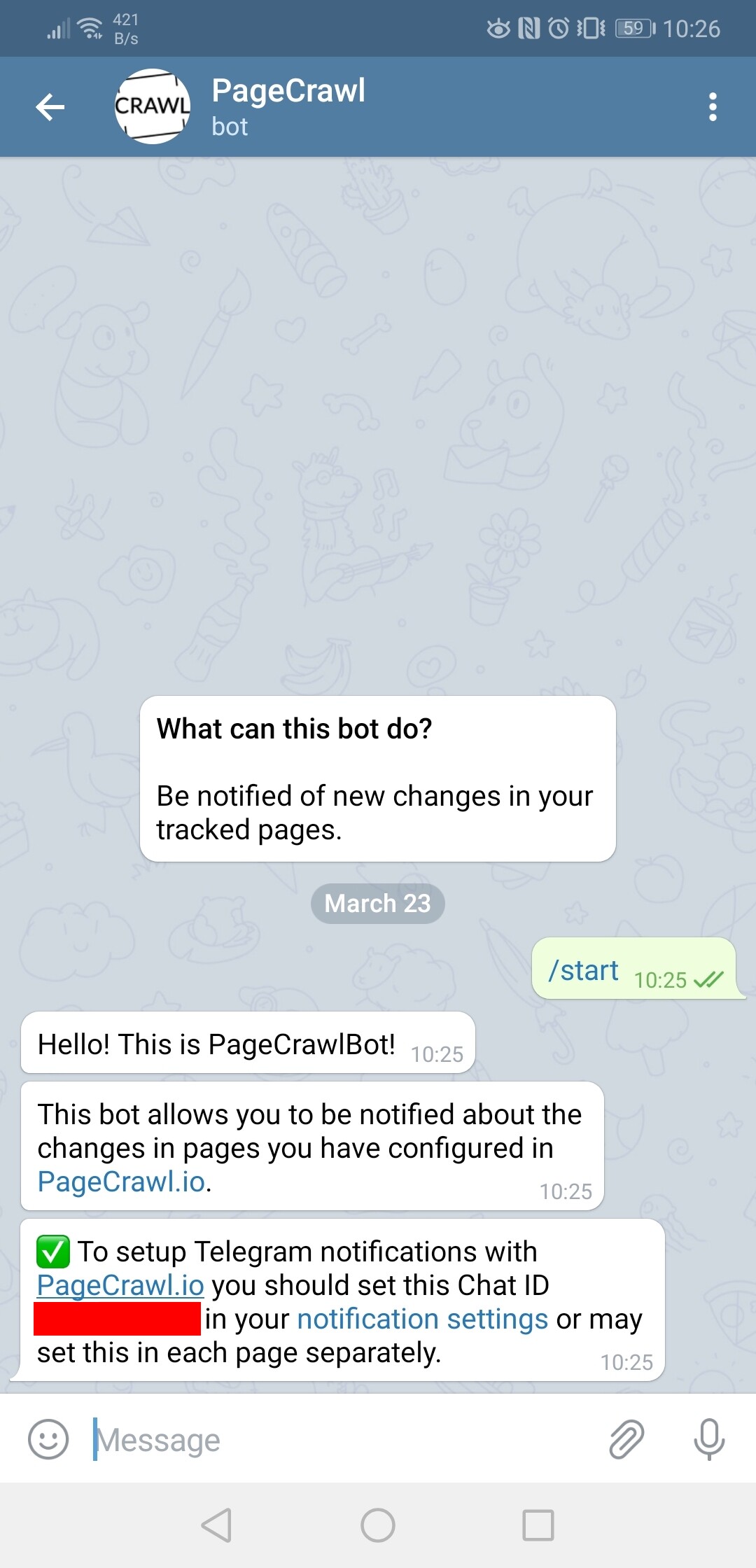
1-to-1 conversation
Simply begin a conversation with @PageCrawlBot and you will receive instructions how to configure it.
Include in a Channel or Group conversation
Instructions for Channels and Groups are identical. To include the bot in the Channel or Group you should invite @PageCrawlBot to the channel. You may likely also need to adjust bot permissions, so it could read and send messages. To get instructions what code you should put in PageCrawl.io settings, send a /start message to the bot: @PageCrawlBot /start
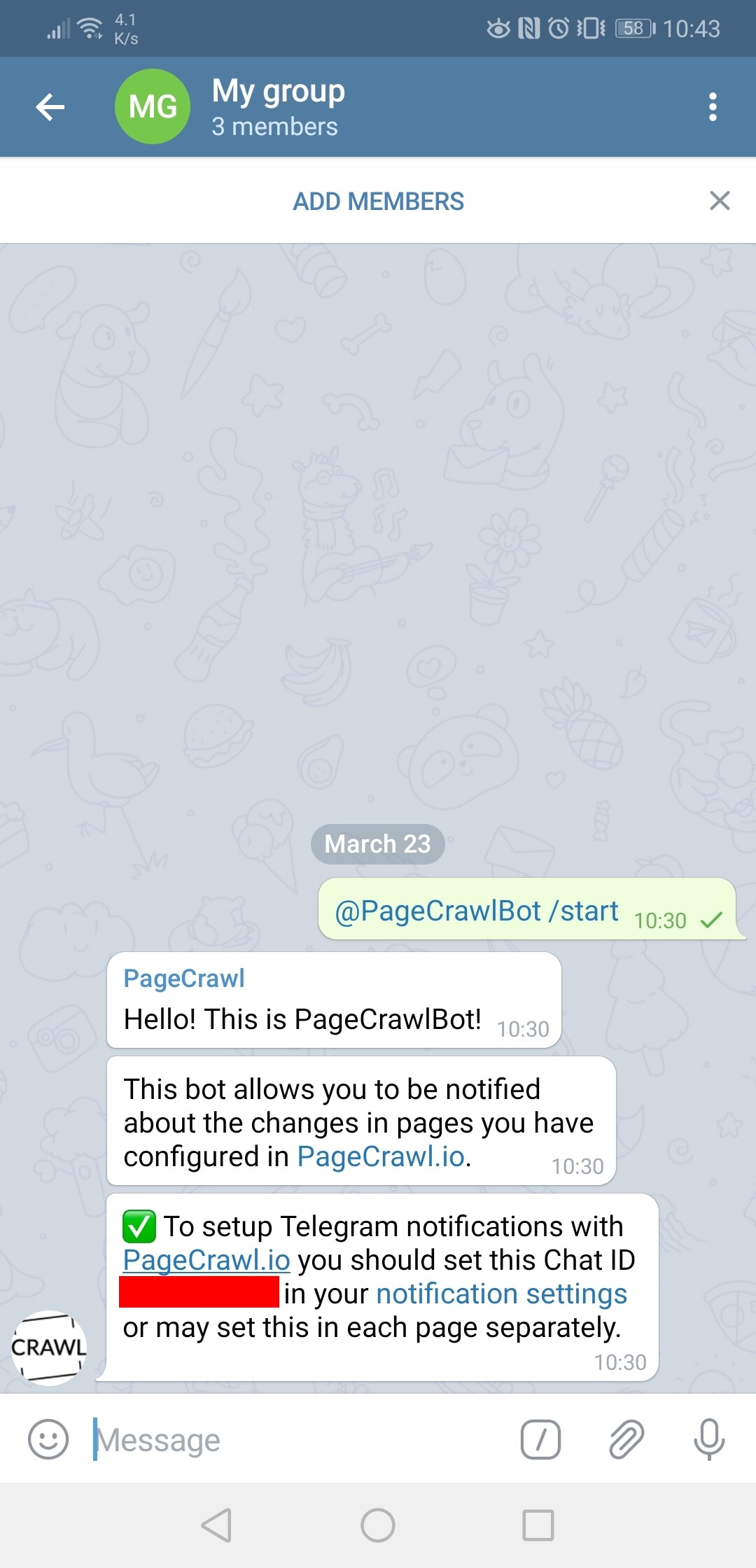
Keep in mind that Channels or Group conversations have a negative chat id! 1-to-1 conversations - always positive chat id.
Configure in PageCrawl.io
Open Settings > Integrations, click Setup on the Telegram card, and enter the Chat ID you obtained.
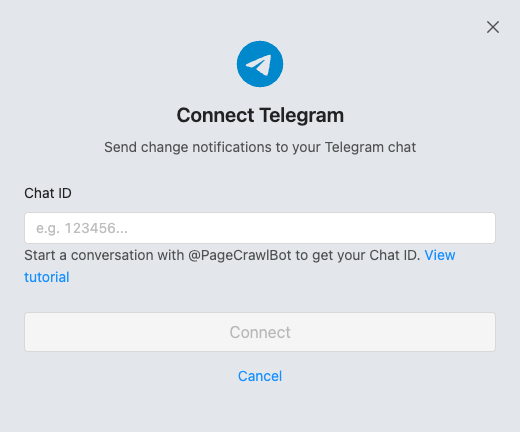
Every monitor with Telegram selected under Notification Channels sends its alerts to this chat.
To send a single monitor's alerts to a different chat, switch on Power User Settings in that monitor's settings and enter the other chat's ID in Override Telegram ID.
Choose what each alert shows
Telegram alerts include Highlighted changes by default: an image of just what changed, with removed words crossed out in red and added words in green. To change it, choose Manage on the Telegram card in Integrations, open Attachment, pick Before and after, Page screenshot, Text file or No attachment, and choose Save Changes. The same list is in the dialog when you first connect Telegram. Text file sends the page's captured text as a file.
An alert with an image arrives as a photo, with the alert text as its caption. Telegram captions hold at most 1,024 characters, which is why Highlighted changes is marked Works best on Telegram: the photo carries the changed lines and the caption keeps the summary. Tap the photo to see it full size. Monitors checked more often than every 15 minutes send alerts without attachments. What each attachment option shows explains every option.
Troubleshooting
What if the bot doesn't respond? Make sure you have started a chat with the bot and sent it at least one message first. The bot can only message you after you have initiated the conversation.
I didn't receive a notification Please wait for page to change. We will only send a notification when we detect a change.
I receive too many notifications? What can I do? You may setup notification rules to be notified only when e.g. text disappears, number increases, etc.
An alert arrived without an image Monitors checked more often than every 15 minutes send alerts without attachments. Highlighted changes is also left out when Changes to show is set to AI summary only, and Before and after and Page screenshot need screenshots turned on for your team and the monitor. Why an alert can arrive without an image lists every case.
Other supported notification channels
We do have more supported notification channels to suit everyone's preferences.
- Be notified about website changes via Microsoft Teams
- Be notified about website changes via Discord
- Be notified about website changes via Slack
- Be notified about website changes via Email
- Be notified about website changes via Webhook
- Be notified about website changes via Zapier